To reach this point, you will have successfully set up your audio interface for use with JamKazam in step 1 of the gear wizard for either your Mac or Windows computer. In this step 2, you will set up one or more tracks used in online JamKazam sessions.
You will typically want to set up one track for each distinct instrument and/or vocal part you plan to perform in sessions. The one exception to this rule is multi-instrumentalist power users who connect all their various gear to a mixer, and then connect their mixer to their audio interface. For the rest of us mere mortals, here are the three types of tracks you may want to set up in step 2.
- Audio Track – Audio tracks are used for microphones and for instruments that generate an audio signal, like electric or bass guitar.
- MIDI Track – MIDI tracks are used for electronic instruments like electronic drum kits and keyboards that send MIDI data to your computer, where this data is converted to audio by virtual instrument plugins (e.g. VSTs).
- Chat Microphone Track – These tracks enable a chat mic, which lets you voice chat between songs with other musicians in a session. If you already have a mic connected to your audio interface and set up as an audio track for vocals or an instrument, you can often use that mic to chat in sessions, with no need to set up a chat mic track. However, for a musician who just has an electric guitar connected to their interface (for example), they may want to use the microphone built into their laptop to chat between songs, rather than buying a microphone, connecting it to their interface using an XLR cable, and setting it up on a mic stand.
When you reach step 2 of the gear setup wizard, you will see a page used to set up your tracks (pictured below).
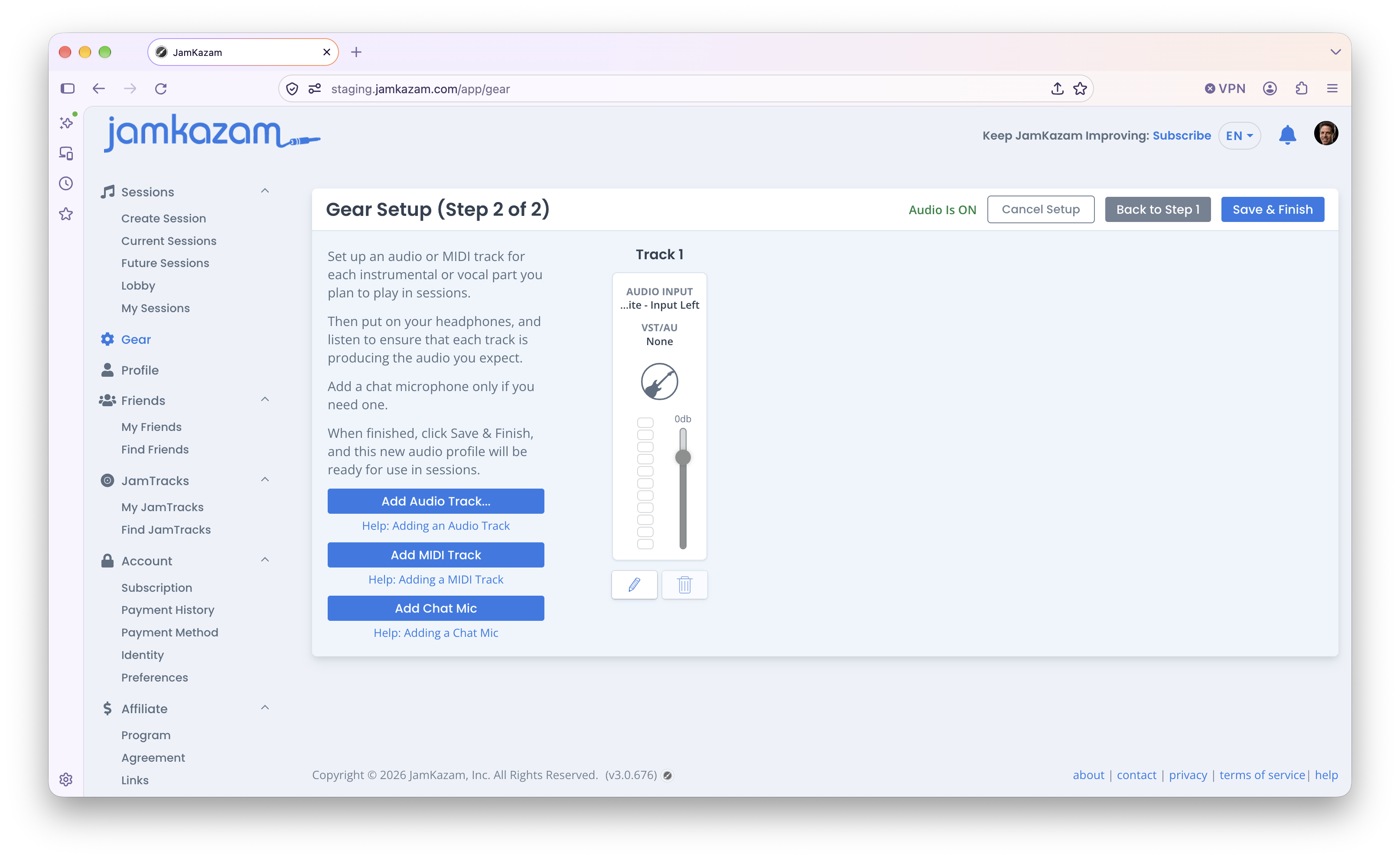
When you first view step 2, you will see that an audio track has already been created for you, as most musicians will use at least one audio track. To update this track, click the pencil icon at the bottom of the track. The Update Track dialog is displayed. If you need instructions on how to use this feature, please refer to the help article for adding an audio track below.
If you want to add any tracks, you may click one of the three blue buttons in the left column of the gear wizard:
- Add Audio Track – For more help in setting up an audio track, please read this help article.
- Add MIDI Track – For more help in setting up a MIDI track, please read this help article.
- Add Chat Mic – For more help in setting up a chat mic track, please read this help article.
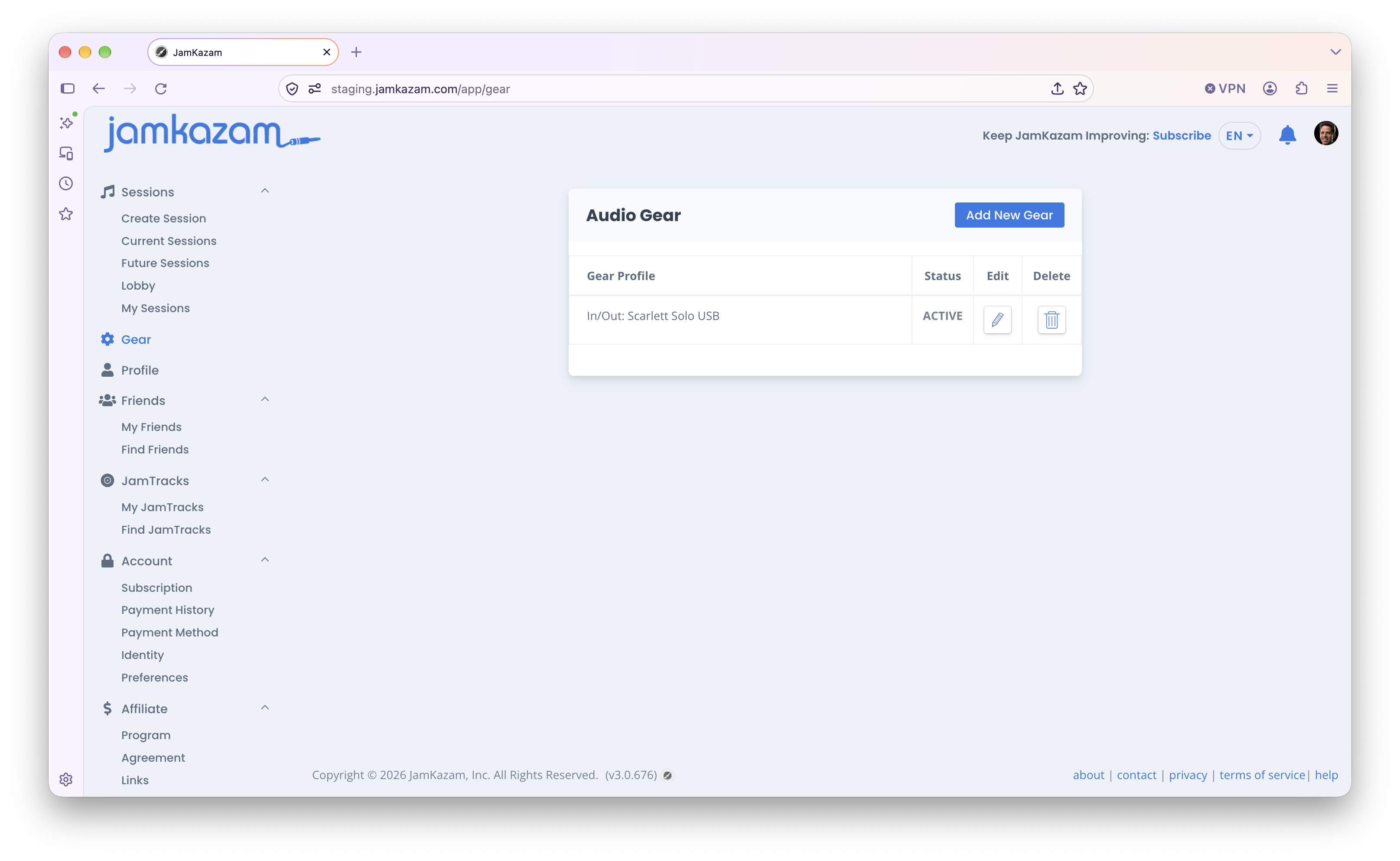
When you have finished adding and updating tracks to support the vocal and/or instrumental parts you plan to perform in JamKazam sessions, click the Save & Finish button at the top right of the gear wizard. You will see a new audio profile has been saved on the Gear page (pictured below).