
When you are setting up an audio interface for use with JamKazam and you click the Add New Gear button, you may see a page telling you that JamKazam is not detecting the audio interface you're setting up (page pictured below).
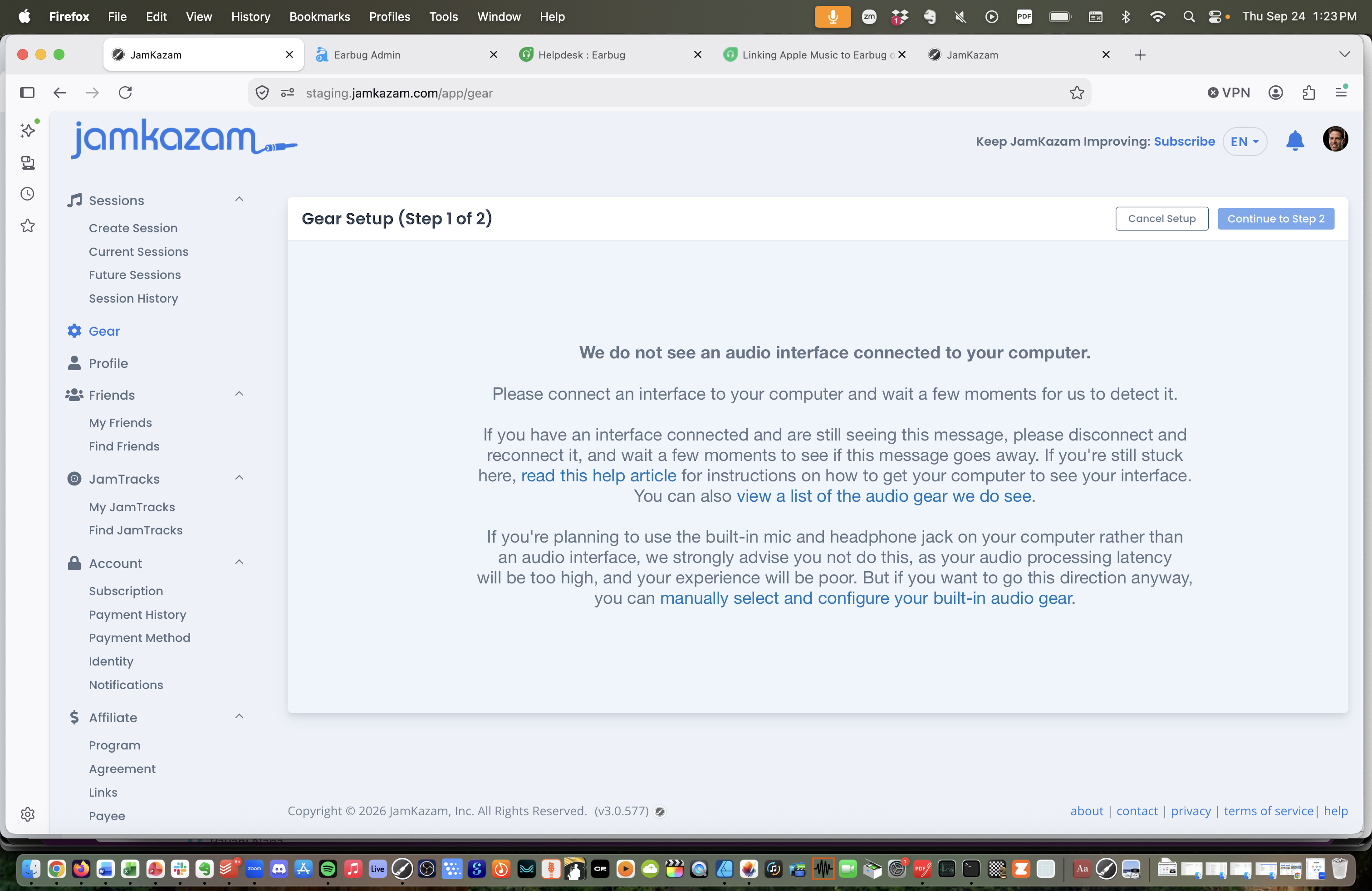
If this happens to you, following are troubleshooting suggestions.
1. Check to ensure your audio interface is connected to your computer
Yes, we know this one is basic, but we've done this ourselves too many times to count. Double check that your USB cable is firmly connected, both to the interface and to your computer. If it wasn't connected properly, then once you've connected the interface, JamKazam should automatically detect that it's been connected, and should automatically move ahead to a page where you can proceed with setup.
2. Disconnect and reconnect your audio interface to your computer
Sometimes your computer can lose track of the audio interface even if it's properly connected. To fix this, disconnect the interface's USB cable from your computer, and then plug it back in firmly. If this resets your computer so that the computer "sees" the audio interface, then JamKazam should automatically detect that it's been connected, and should automatically move ahead to a page where you can proceed with setup.
3. Check to ensure the JamKazam app is running.
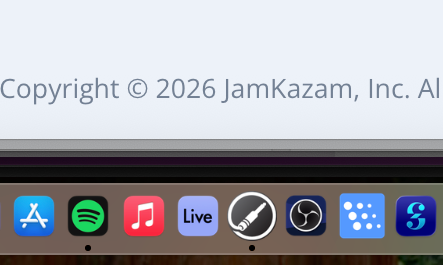
When you navigate to the Gear option in the navigation bar on the left side of the browser screen, it should automatically launch the JamKazam app, so the app should already be running at this point. But just to be sure, double check that the app is still running. For example, on a Mac you'll see a dot under the JamKazam icon in the Dock at the bottom of your screen (pictured below). If the JamKazam app is not running, then launch it. Once the app starts running, it should automatically detect your connected interface, and should automatically move ahead to a page where you can proceed with setup.
4. (Windows Users Only) Ensure that you have an ASIO driver installed for your interface.
On Windows, to get your audio processing latency low enough to play together live and in sync, you must use an ASIO driver with your audio interface. An ASIO driver is just a piece of software that controls how your audio interface hardware works. It's kind of like the operating system for your interface. The company that built your interface should also have built an ASIO driver that works specifically with your interface.
If you have not already downloaded and installed the ASIO driver for your interface, you won't be able to set up your interface in JamKazam. To find your driver:
- Using AI, you can enter a prompt like this one (replacing Motu M2 with the make/model of your own interface):
I have a Motu M2 audio interface that I am using on a Windows computer. I need to download the current ASIO driver for this interface. Can you please find the URL for the web page where I can download this driver? - Or you can paste this same question into the Google search engine (again replacing Motu M2 with the name of your own interface), and that will do pretty much the same thing for you.
Once you have found your interface's ASIO driver, download the driver installer from the vendor's website, double click to run the installer, and follow the on-screen instructions. After the driver is installed, it's a good idea to restart/reboot your computer. Then return to the Gear option in the JamKazam website, and your interface should be automatically detected.