
To download and install an Audient ASIO driver for your EVO 4 audio interface, start by going to the Audient Resource Centre (ARC) here in your browser: https://arc.audient.com/. You will see the ARC web page (pictured below).
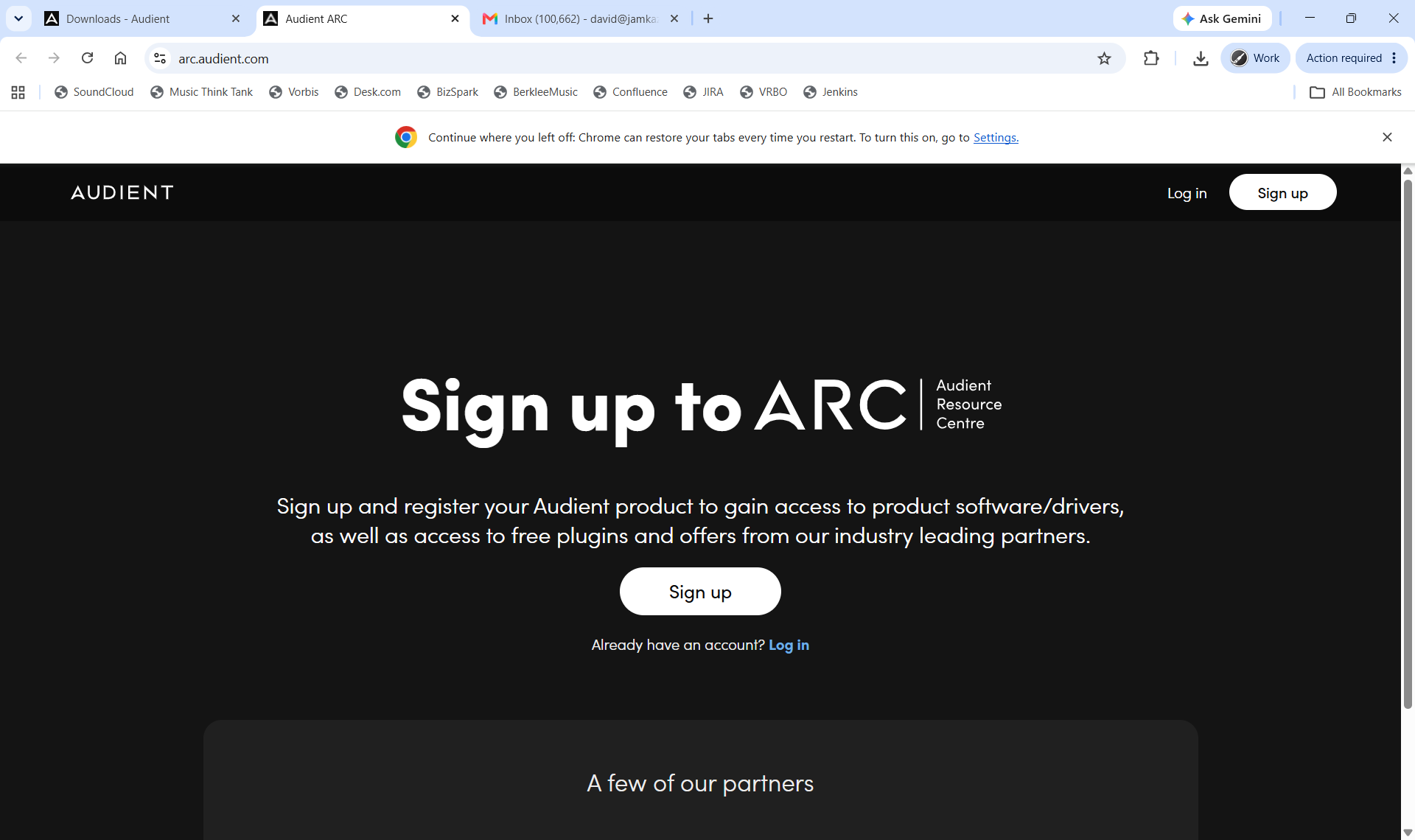
Click the Sign Up button. You'll see a sign up page asking you for your name, email address, etc. Fill this out and submit it as requested. When finished, you'll see a page asking you to confirm your email address (pictured below).
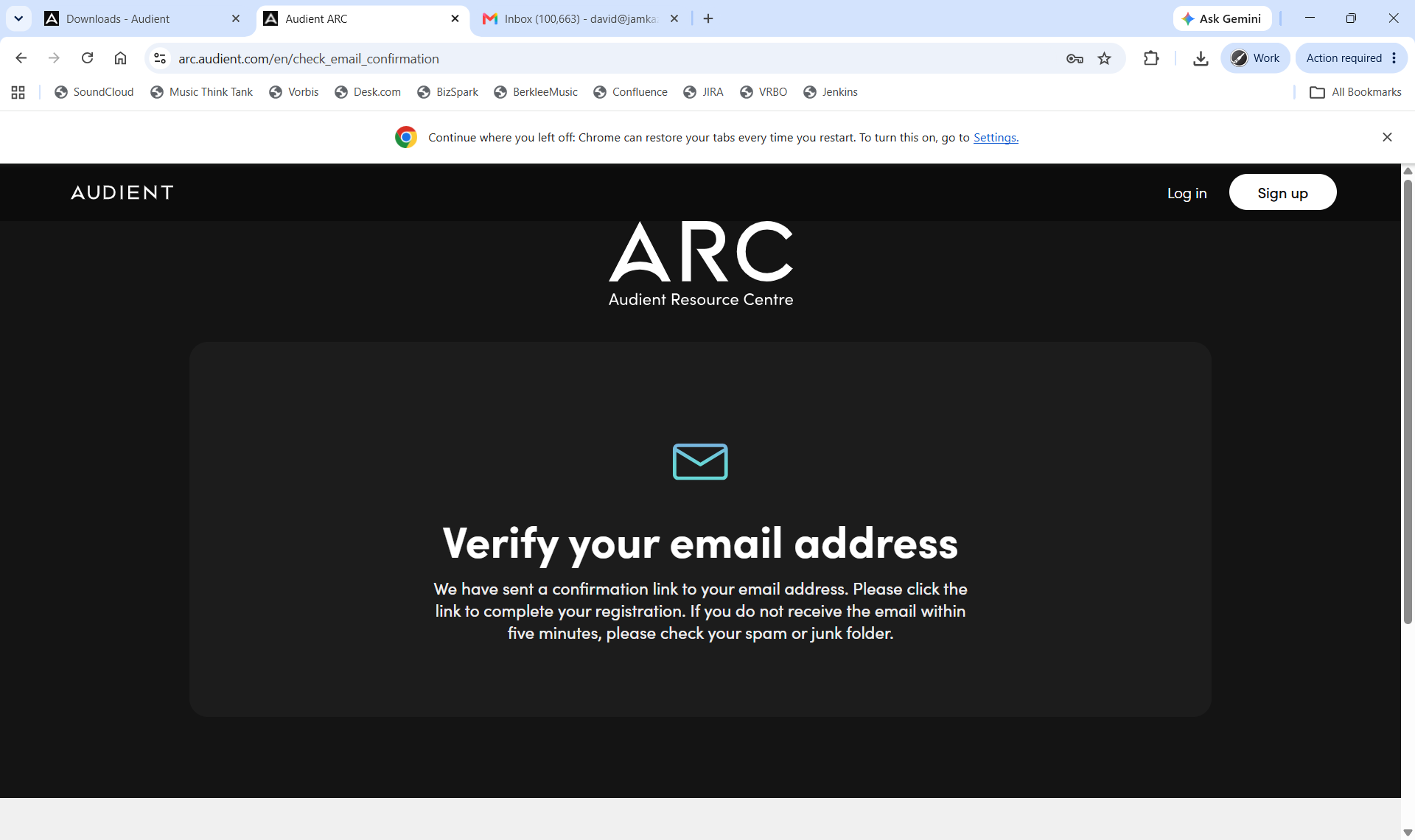
Check the inbox of the email address you signed up with, and click the link in the email to confirm your email address. When you click through, you should see a screen like the one pictured below.
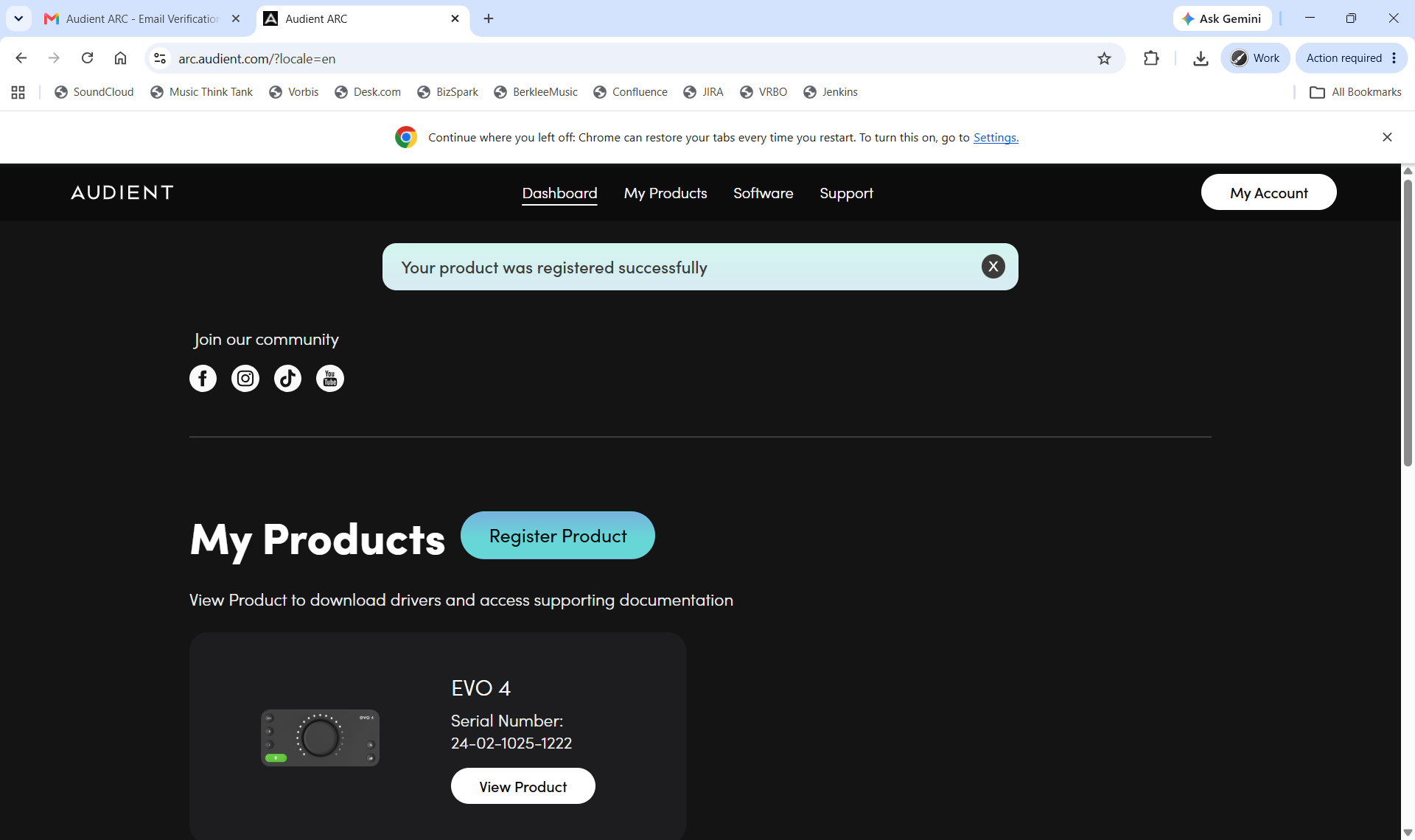
Click the Register Product button, and fill in the requested information (serial number, PIN code, etc). When finished, your product will be registered for warranty and support purposes with Audient. Now click the white View Product button. A page with documentation and drivers for your audio interface is displayed (pictured below).
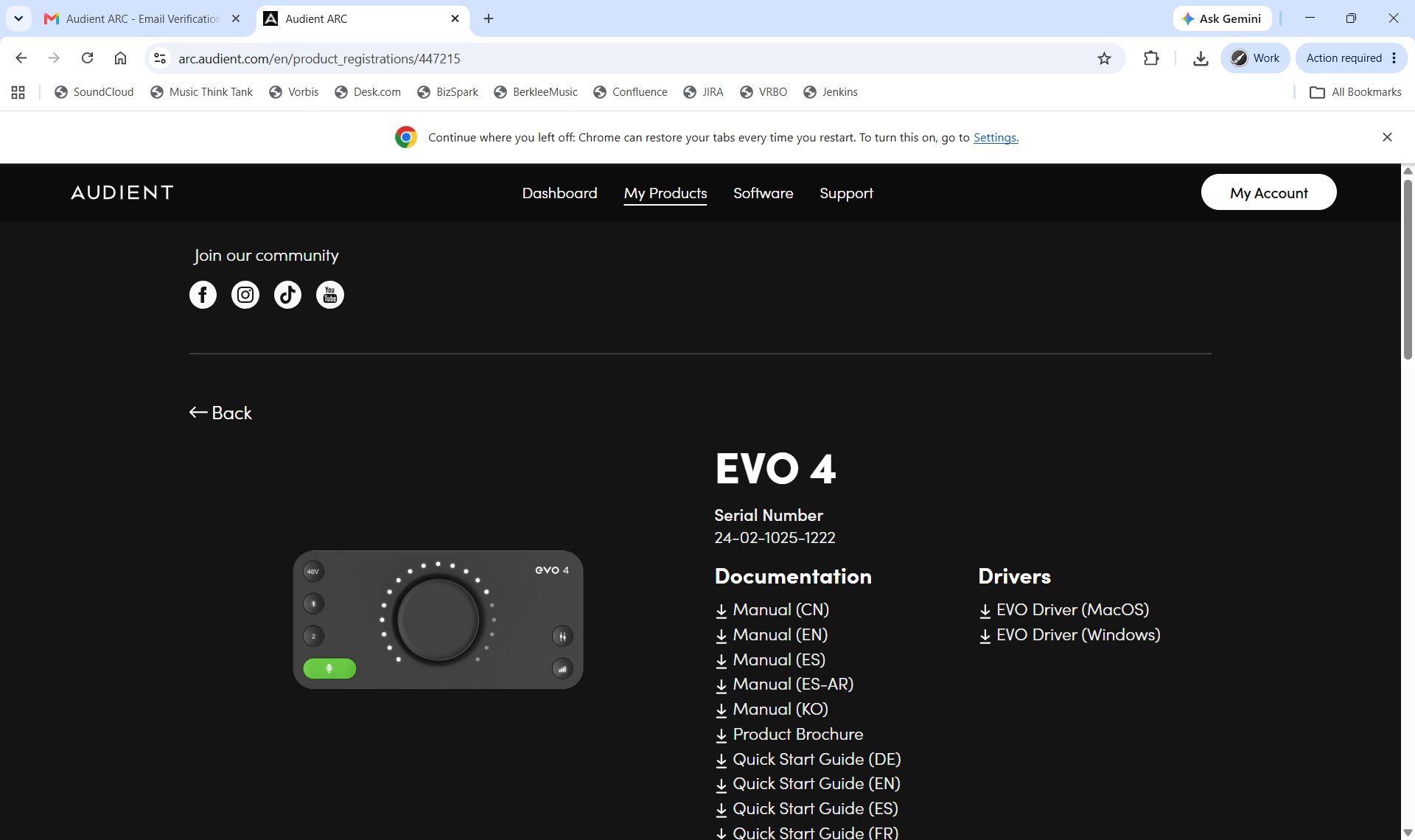
Click the EVO Driver (Windows) link in the right column. The installer will download through your browser. When the download is complete, double click the .exe installer file, and then follow the on-screen instructions to install the software driver.
When you have installed the driver, go ahead and connect your audio interface to your computer. When you do this, you may see a screen like the one pictured below.
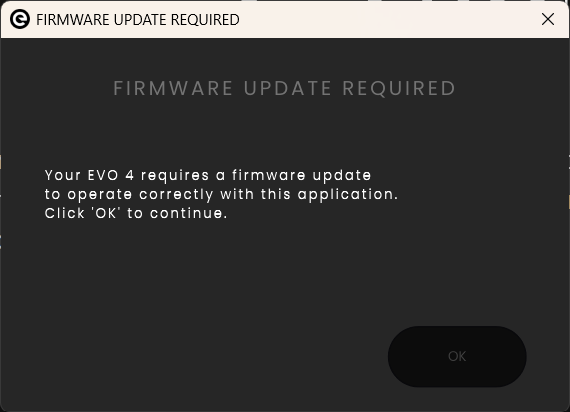
Click the OK button (it's hard to see) to allow the firmware (a special kind of software) to be updated on your audio interface. Do not disconnect your interface while this update is running. After clicking OK, you'll see another screen like the one pictured below.
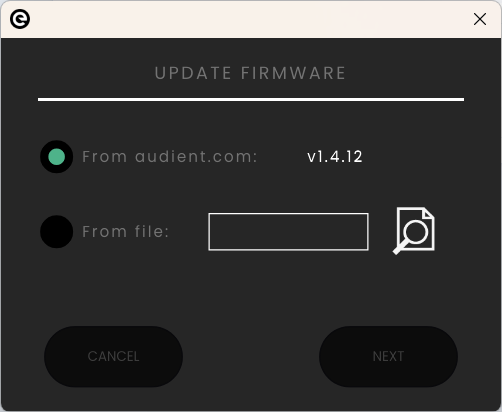
Leave "From audient.com" selected, and click the Next button (also hard to see). Follow the on-screen instructions, and your firmware update will completed.
When finished with all of this, we advise you restart your computer, and then you'll be ready to set up your audio interface with the JamKazam app.