
To download and install a Universal Audio ASIO driver for your Volt 1 or Volt 2 audio interface, start by going here in your browser: https://www.uaudio.com/pages/download-volt. You will see the Universal Audio Welcome to Volt web page (pictured below).
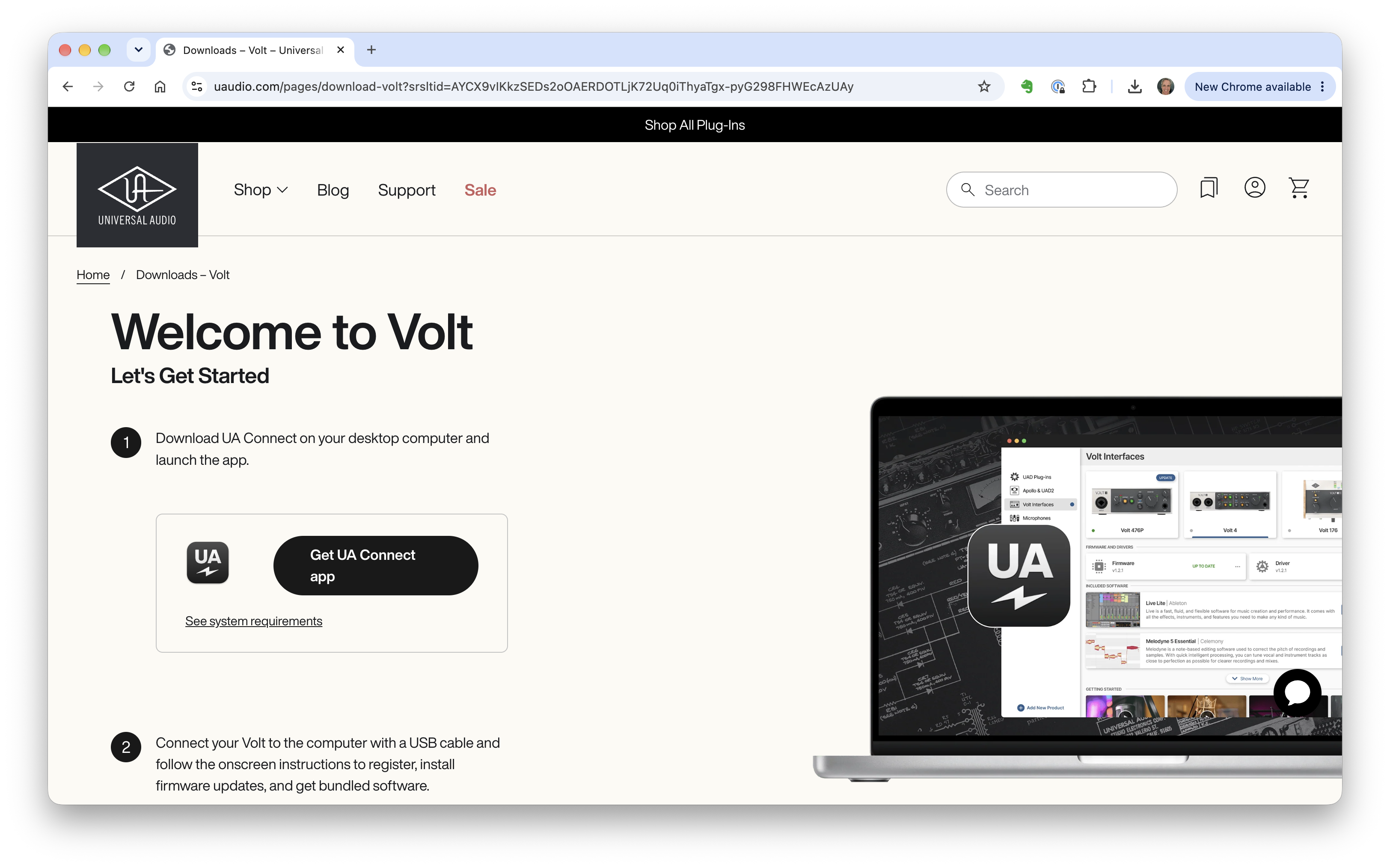
Click the "Get UA Connect App" button. This will download an installer for this Universal Audio Connect app. When the download has completed, double click the .exe file to run the installer, and follow the on-screen instructions to install the app on your computer. When the installer completes, it should automatically launch the UA Connect app (pictured below).
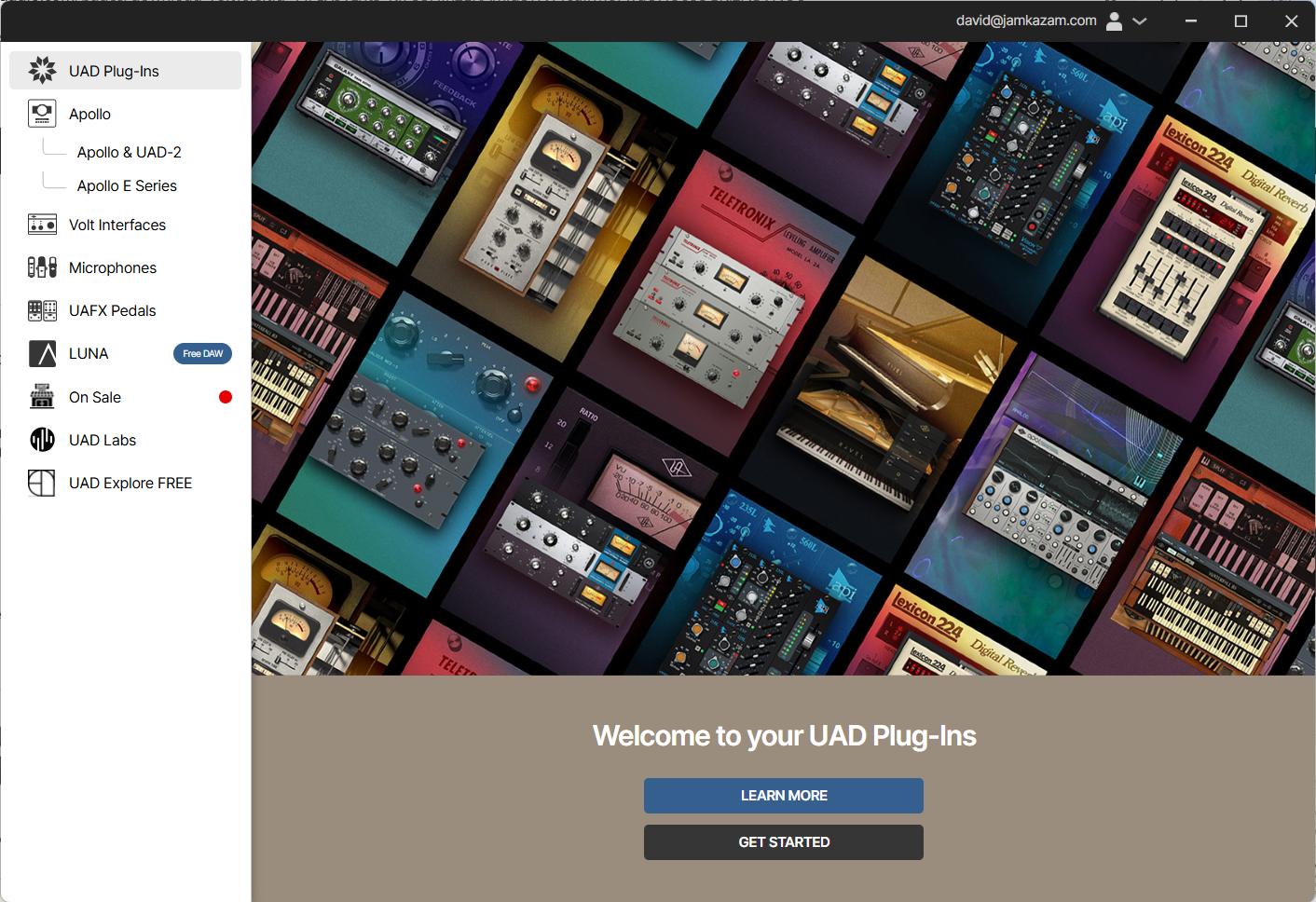
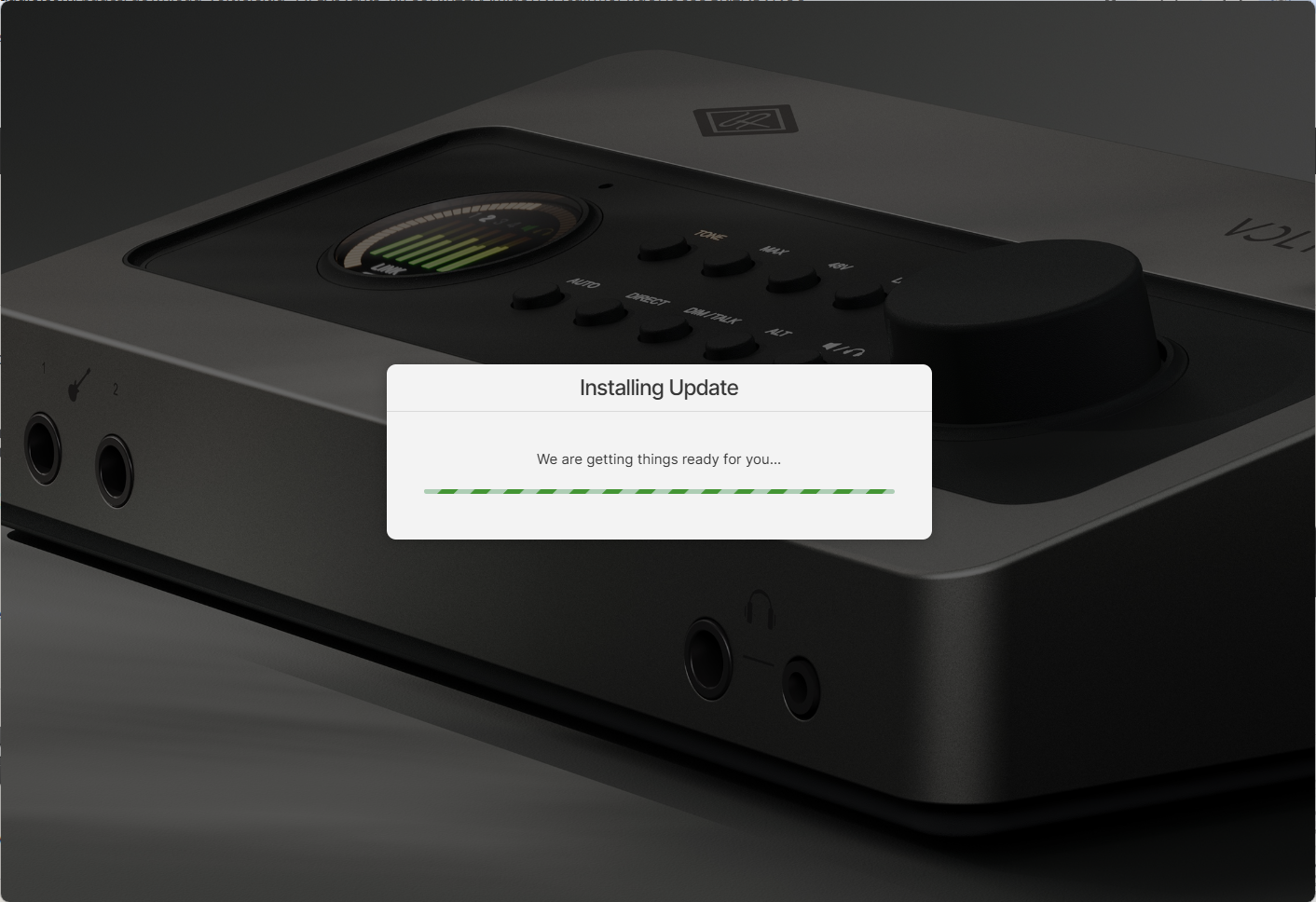
Now connect your Volt 1 or Volt 2 audio interface to your computer. The app should automatically detect that your audio interface has been connected, and you'll see a screen like the one pictured below.
At some point, you will be prompted to let the Universal Audio app install the ASIO driver for your audio interface. This prompt will look something like the screenshot pictured below.
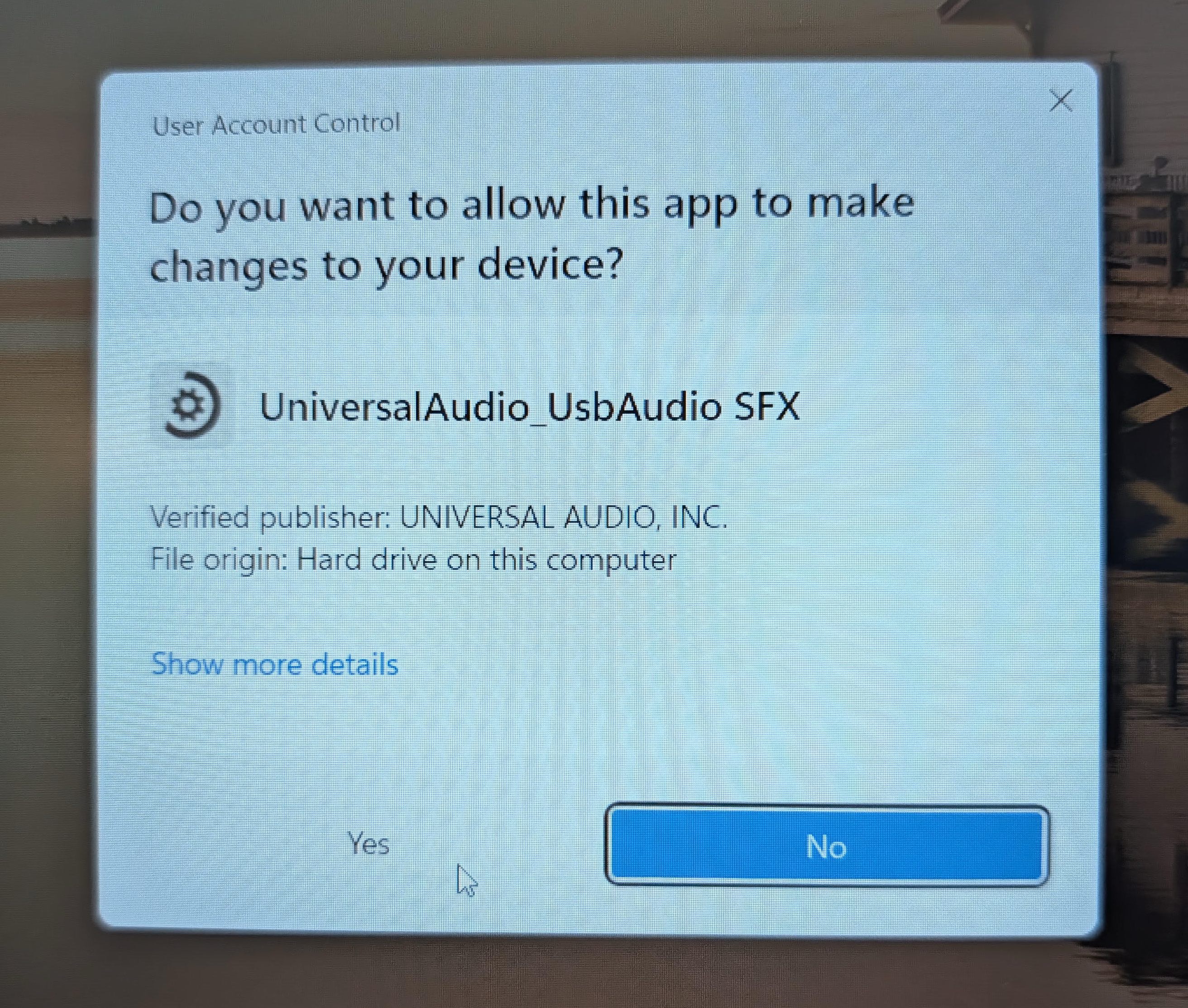
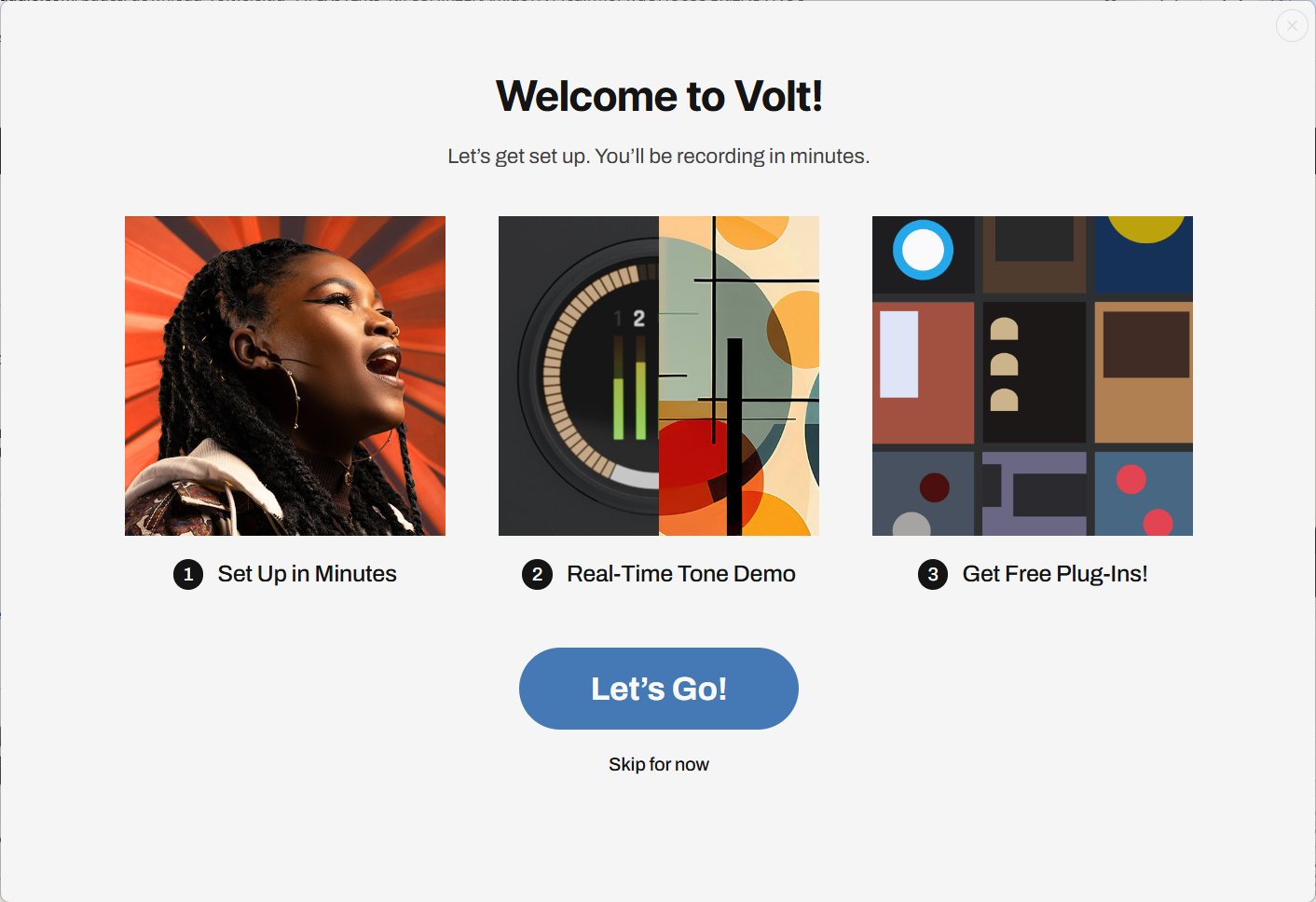
You will need to click Yes to allow the app to install the required ASIO driver. When this has completed, you may see a "Welcome to Volt" screen like the one pictured below. We recommend clicking the "Skip for now" option to move ahead.
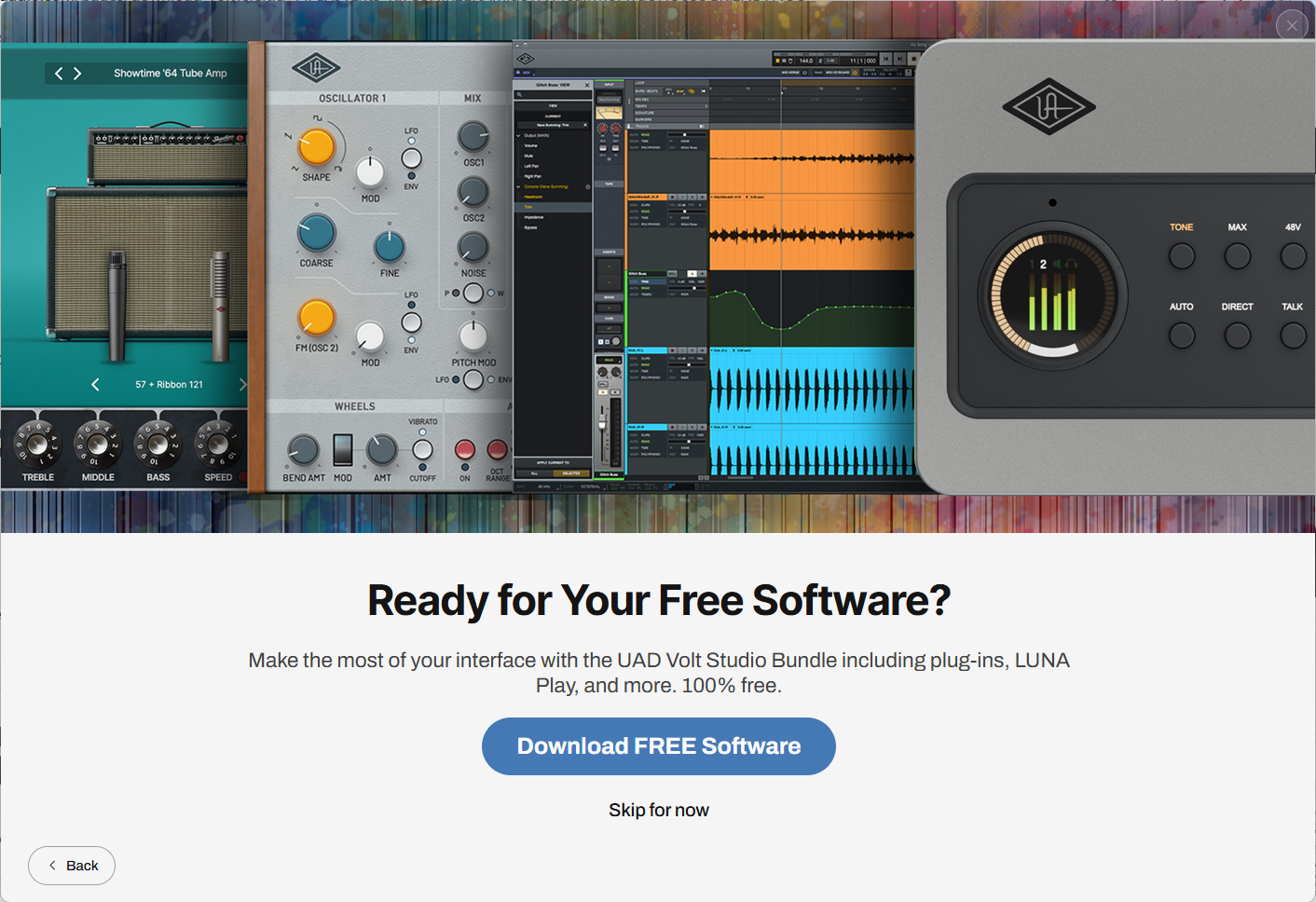
After this, you are likely to see another screen like the one pictured below. Here again, we recommend you click the "Skip for now" option to move ahead.
When finished with all of this, we advise you restart your computer, and then you'll be ready to set up your audio interface with the JamKazam app.