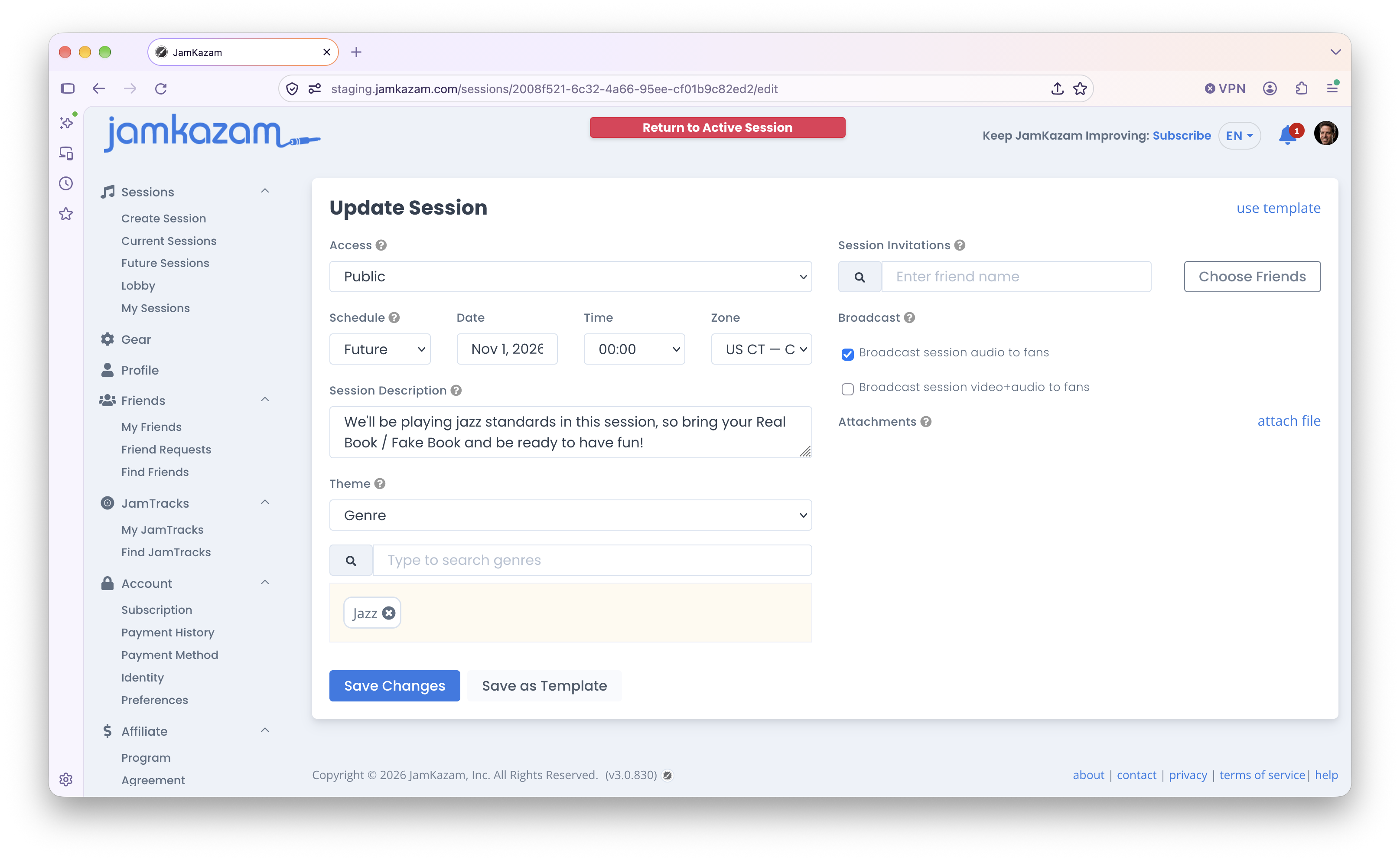
If you have already created/started a JamKazam session, you may realize there is something you want to update about the session. For example, maybe you set it up as private accidentally and want to change it to public (or vice versa). Or maybe you get feedback from other musicians on the setlist they'd like to play, so you decide to add some additional songs.
Updating While in an Active Session
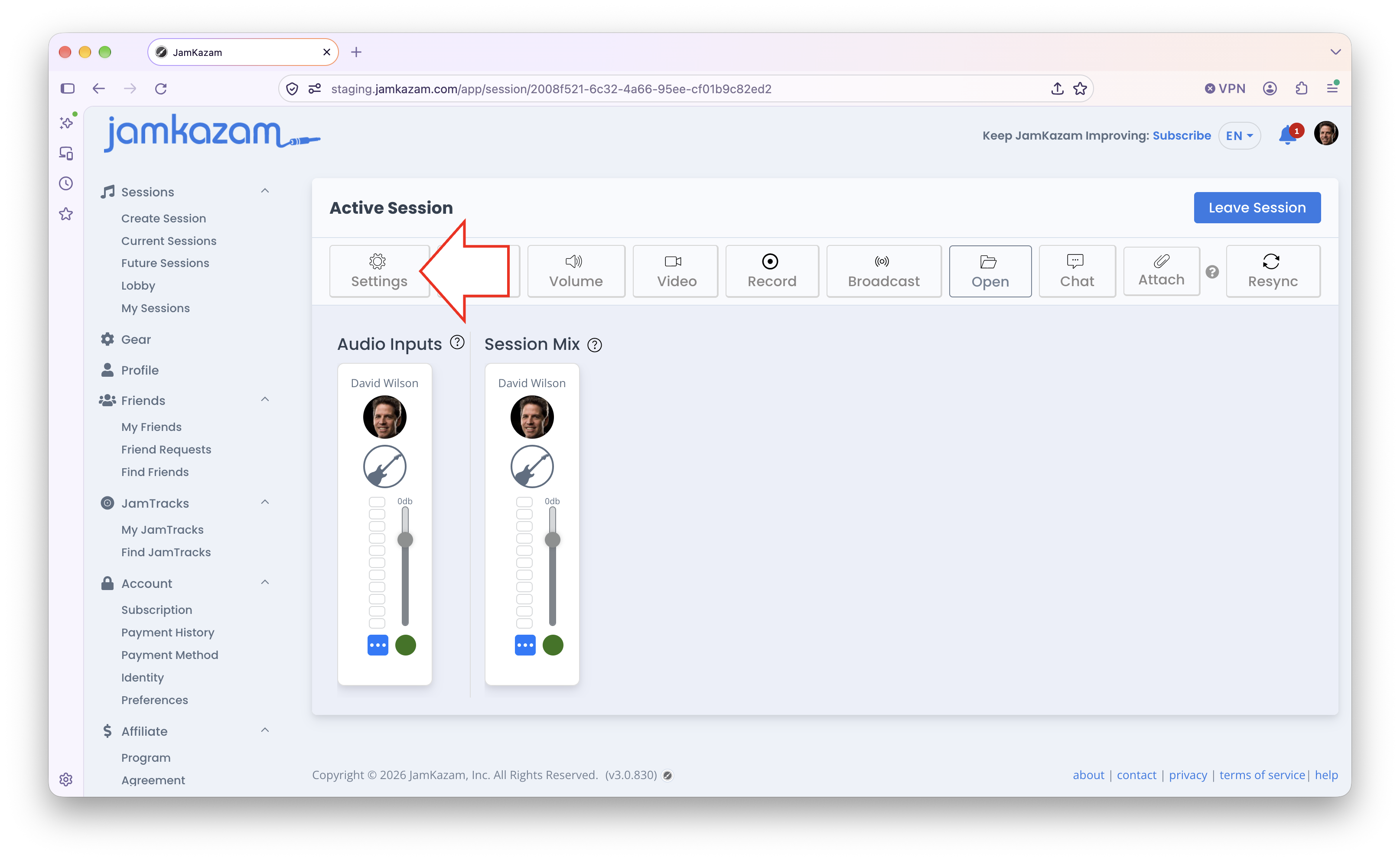
To update a session while you are in an active session, click the Settings button in the session toolbar (pictured below with arrow).
Updating a Future Scheduled Session
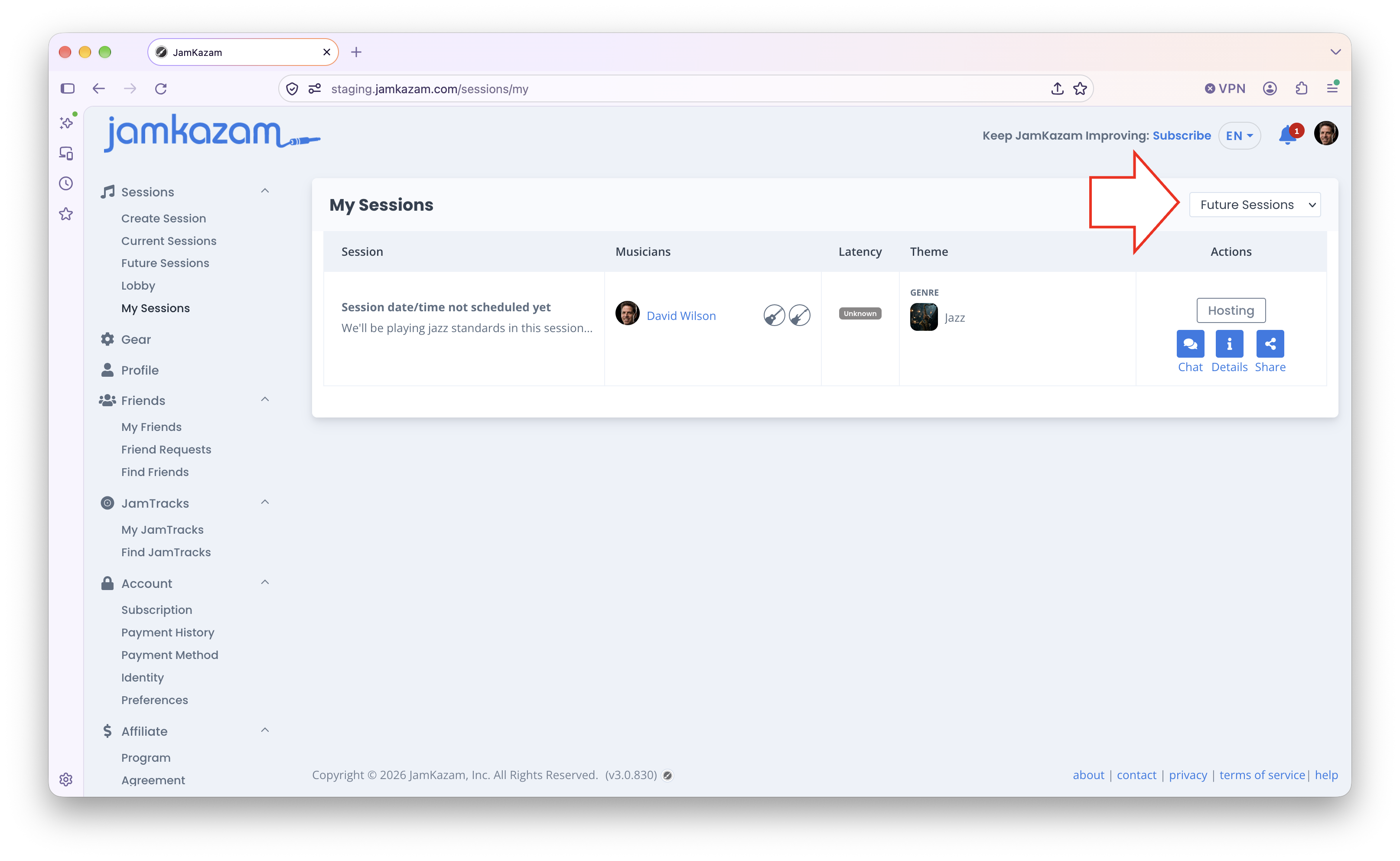
To update a session you've created and scheduled for a future date, first find the session you want to update by clicking My Sessions under the Sessions header in the left navigation bar. If you have any future sessions you've created, this page will display them, but you can check the page filter to be sure it's set to show Future Sessions (pictured below with arrow).
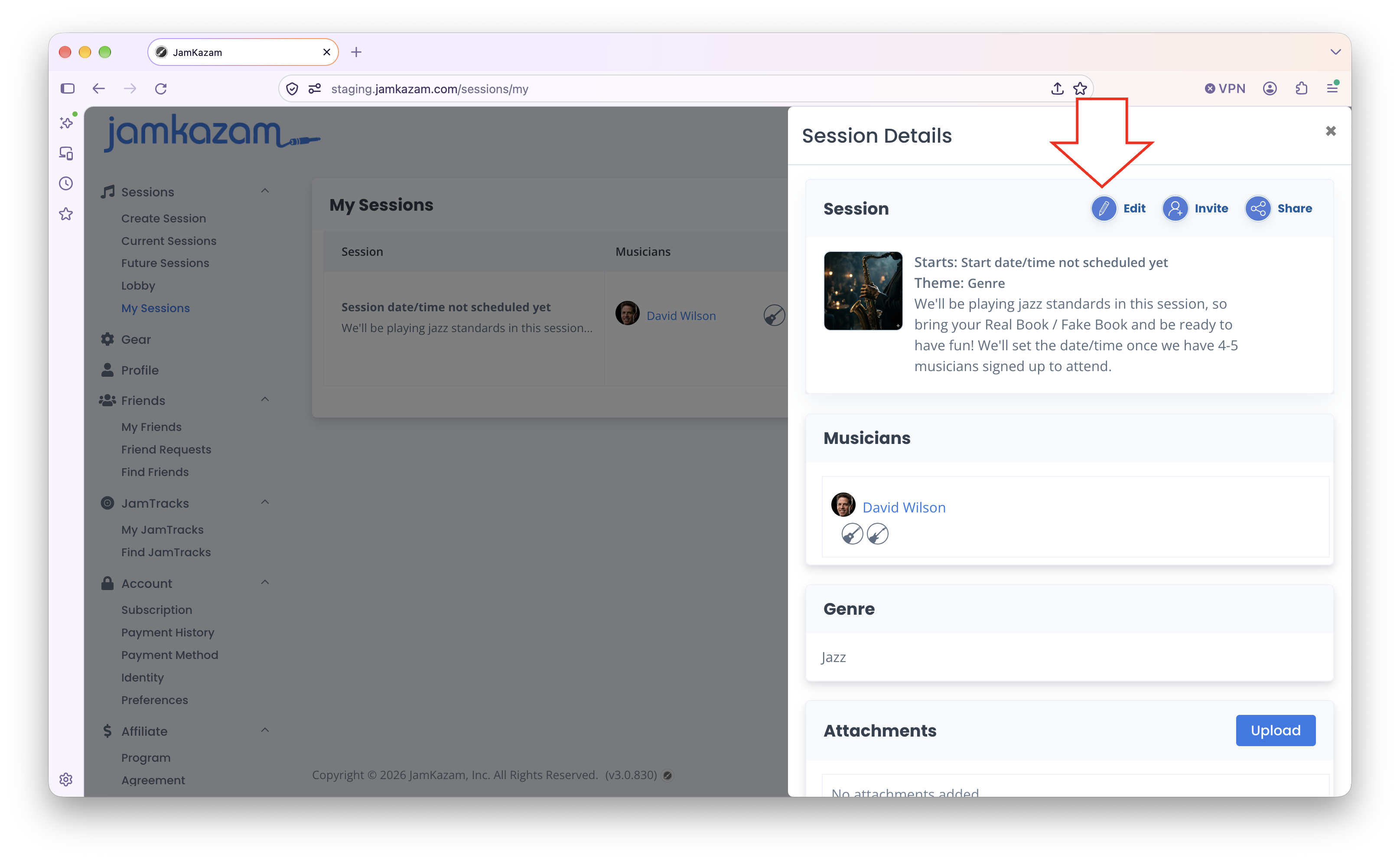
Find the session you want to update, and click the blue Details button in the Action column. The Session Details sidebar is displayed. Click the Edit icon at the top of Session Details (pictured below with arrow), and the Update Session page is displayed (same as earlier/above in this help article). Make any updates, and click the blue Save button.