When playing in JamKazam sessions, you may at times want to share files with other musicians - for example, sheet music, charts, lead sheets, guitar tabs, and so on. You can share the following file types in JamKazam sessions:
- Documents: PDF, XML, TXT
- Images: PNG, JPG, GIF
- Audio: MP3, WAV, OGG, AU
Subscribers can share files up to 50MB, while free players can share files up to 10MB.
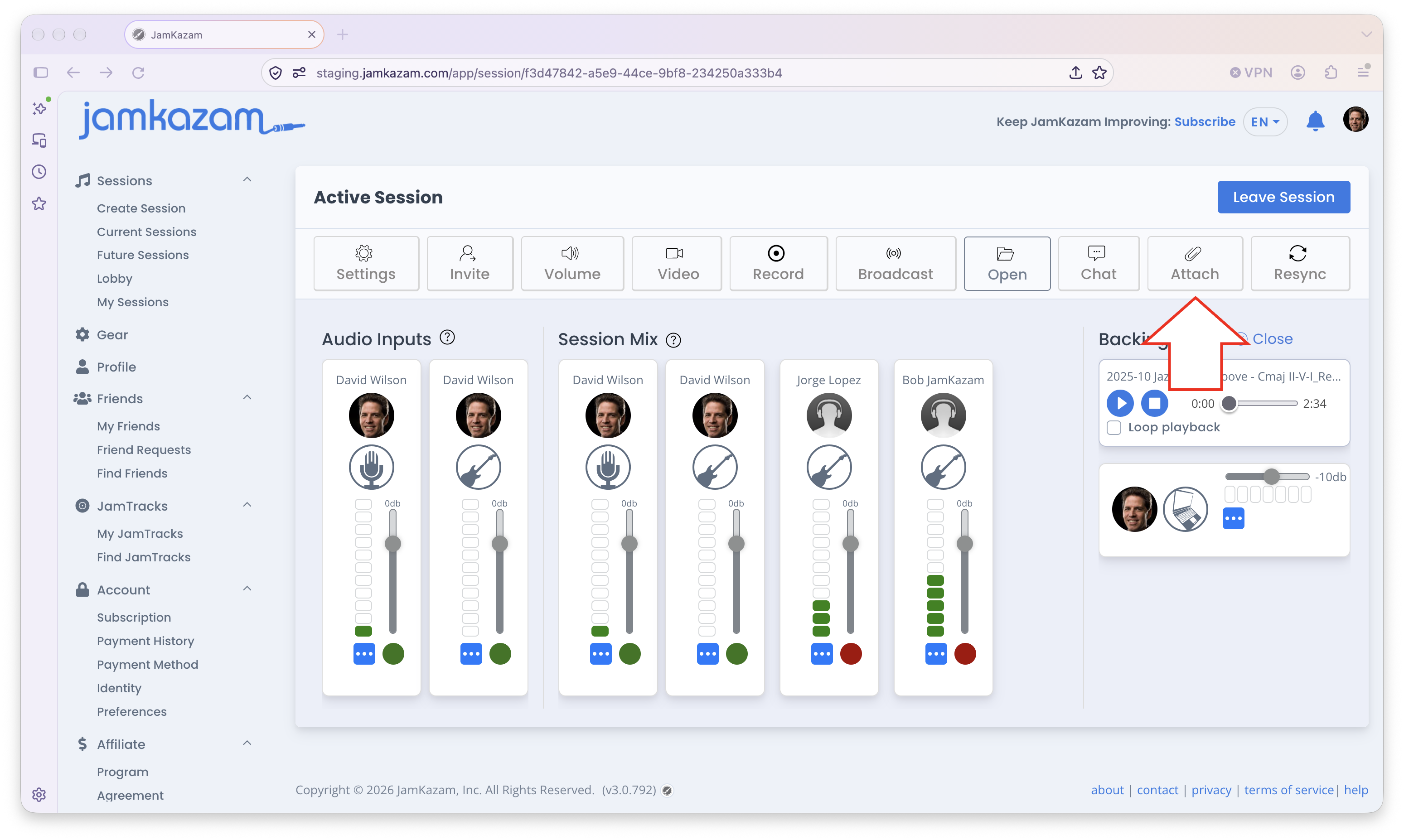
To share a file while in a session, click the Attach button in the session toolbar (pictured below with arrow).
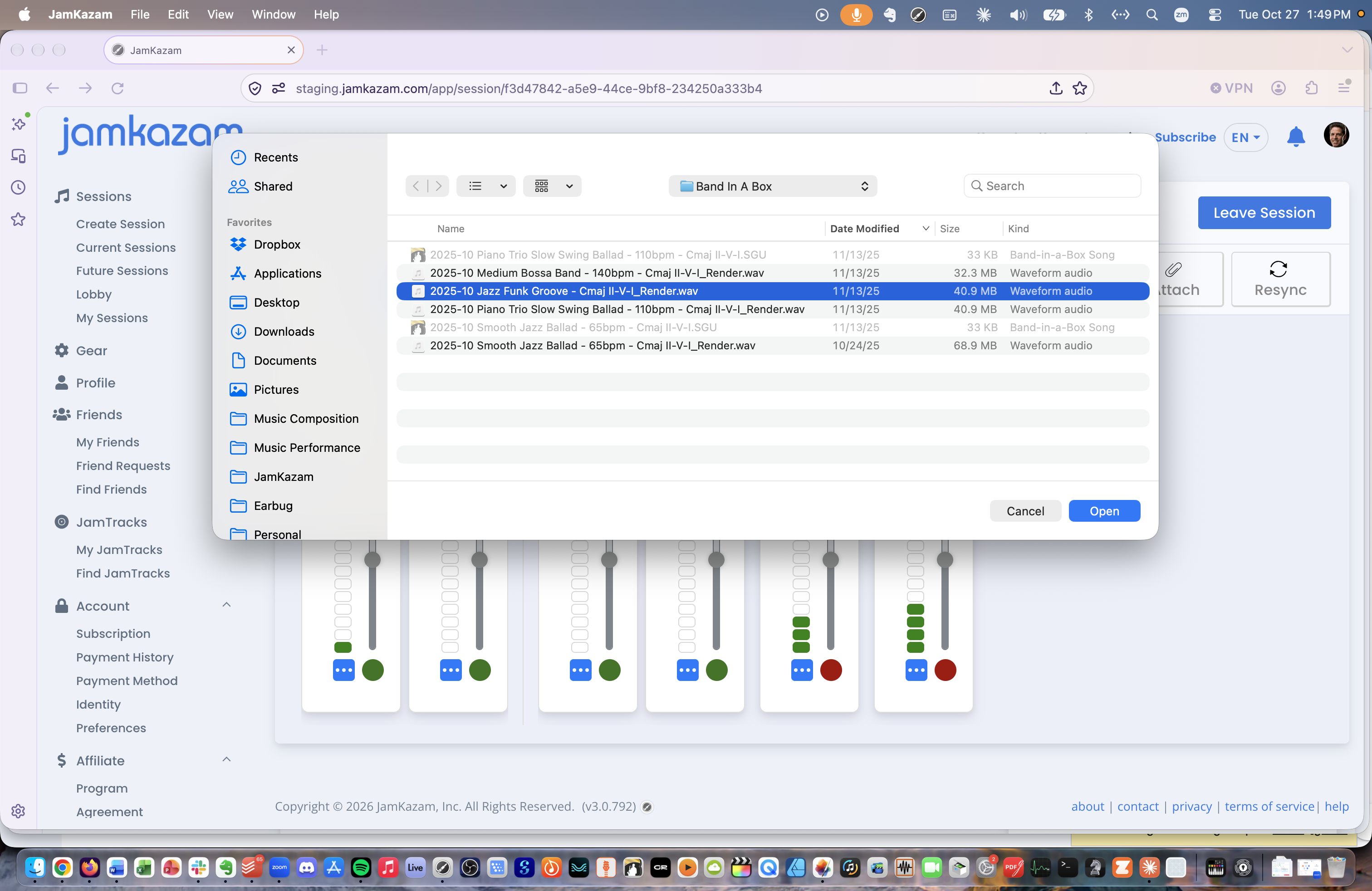
When you click this button, a common File Open dialog box is displayed (pictured below) . Navigate to where the file is stored on your computer, select the file, and click the Open button.
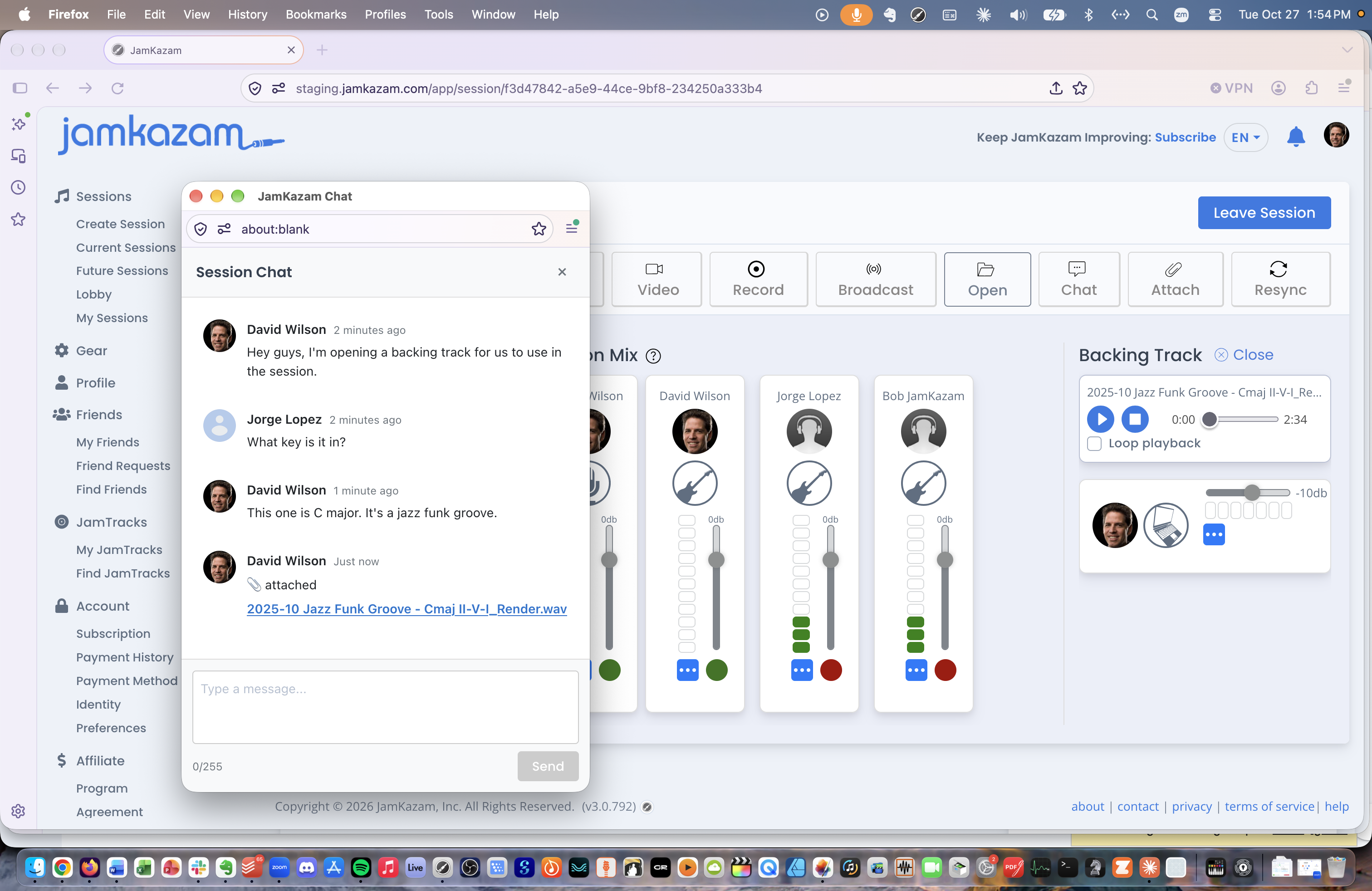
The file is attached to the session. Others in the session can find the attached file in the session chat window (by clicking the Chat button in the session toolbar), and can download the file through their browser by clicking on the attachment text link (pictured below in chat window).
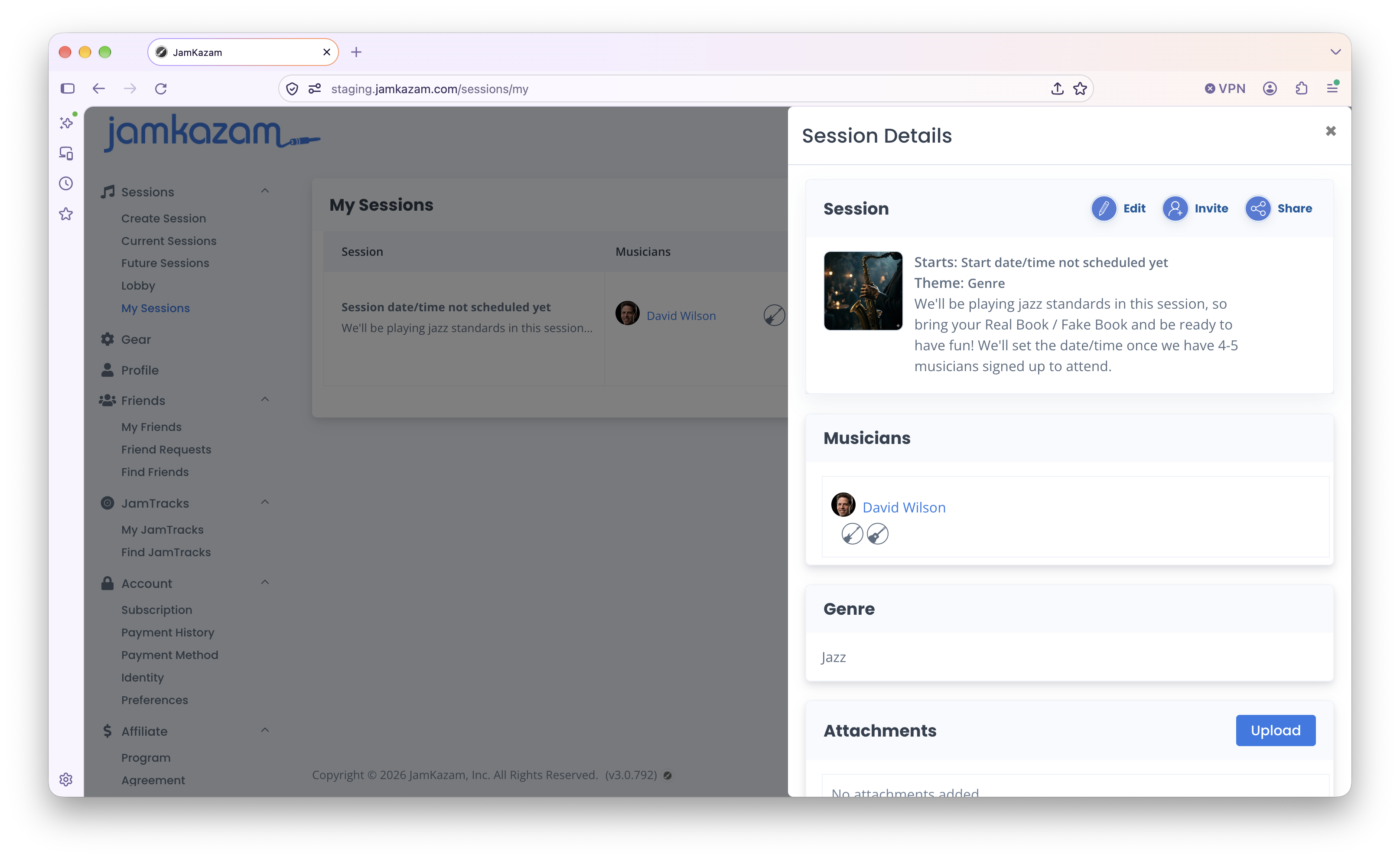
Note that in addition to attaching files during an active session, you can attach files to a session while creating a session or after creating a session that is scheduled for the future (for example, to help others prepare to play in the session) or even after a session has already ended (for example, a music teacher attaching a lesson plan for the upcoming week at the end of an online lesson).
To find future or past sessions, click the My Sessions link in the left navigation bar of the JamKazam website, and use the picker control to view either past sessions you've joined or future sessions you're planning to host or join (pictured below with arrow).
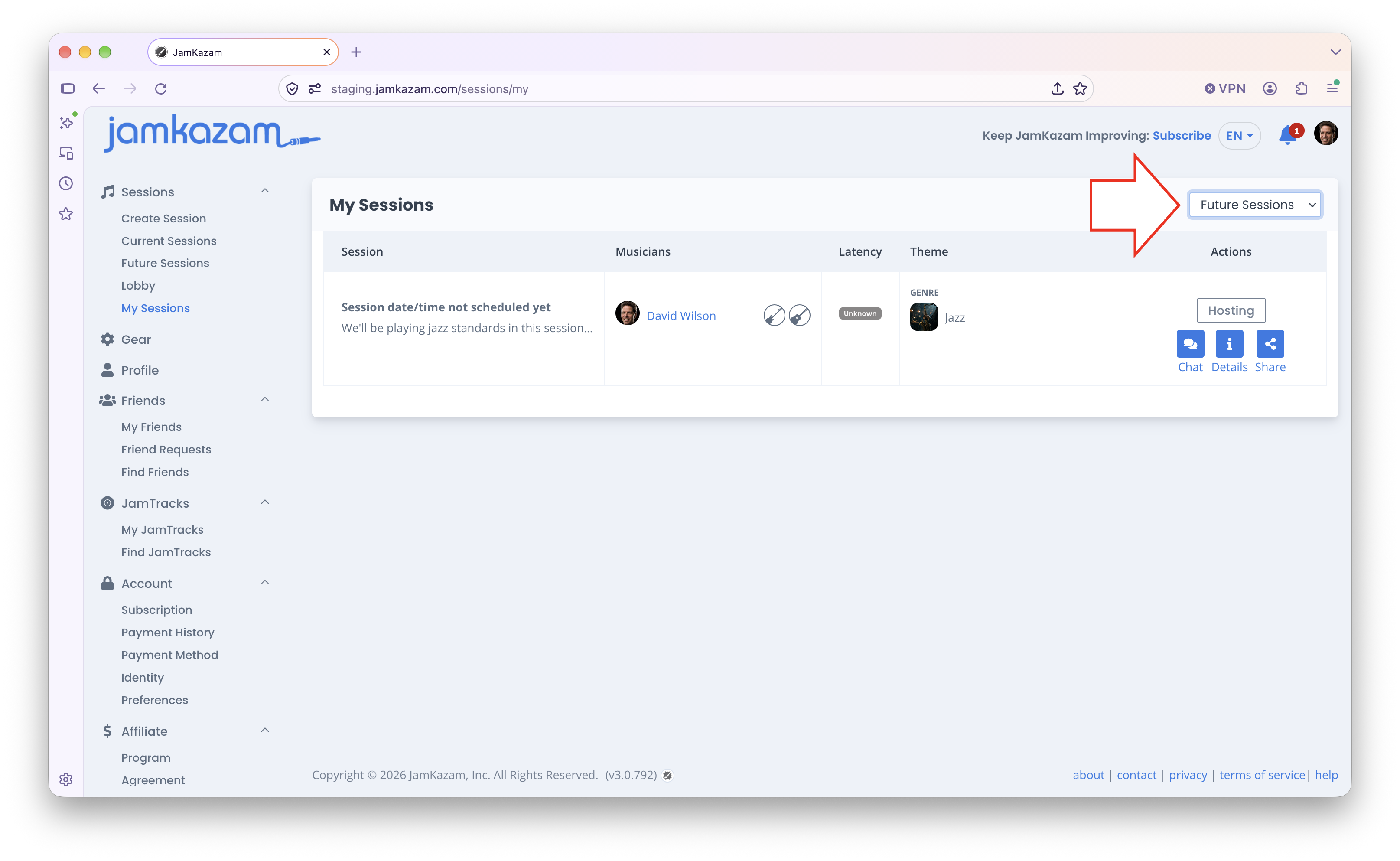
When you see the session you want, click the Details button in the Actions column. The Session Details are displayed in a right sidebar (pictured below). Then click the blue Upload button in the Attachments section of the session details, and select and attach the file.