
To find future JamKazam sessions you may want to join, go to this URL in your browser: https://www.jamkazam.com/sessions/future. Or if you are already on the JamKazam website, you may simply click the Future Sessions link in the left navigation bar. In either case, you will see the Future Sessions page (pictured below).
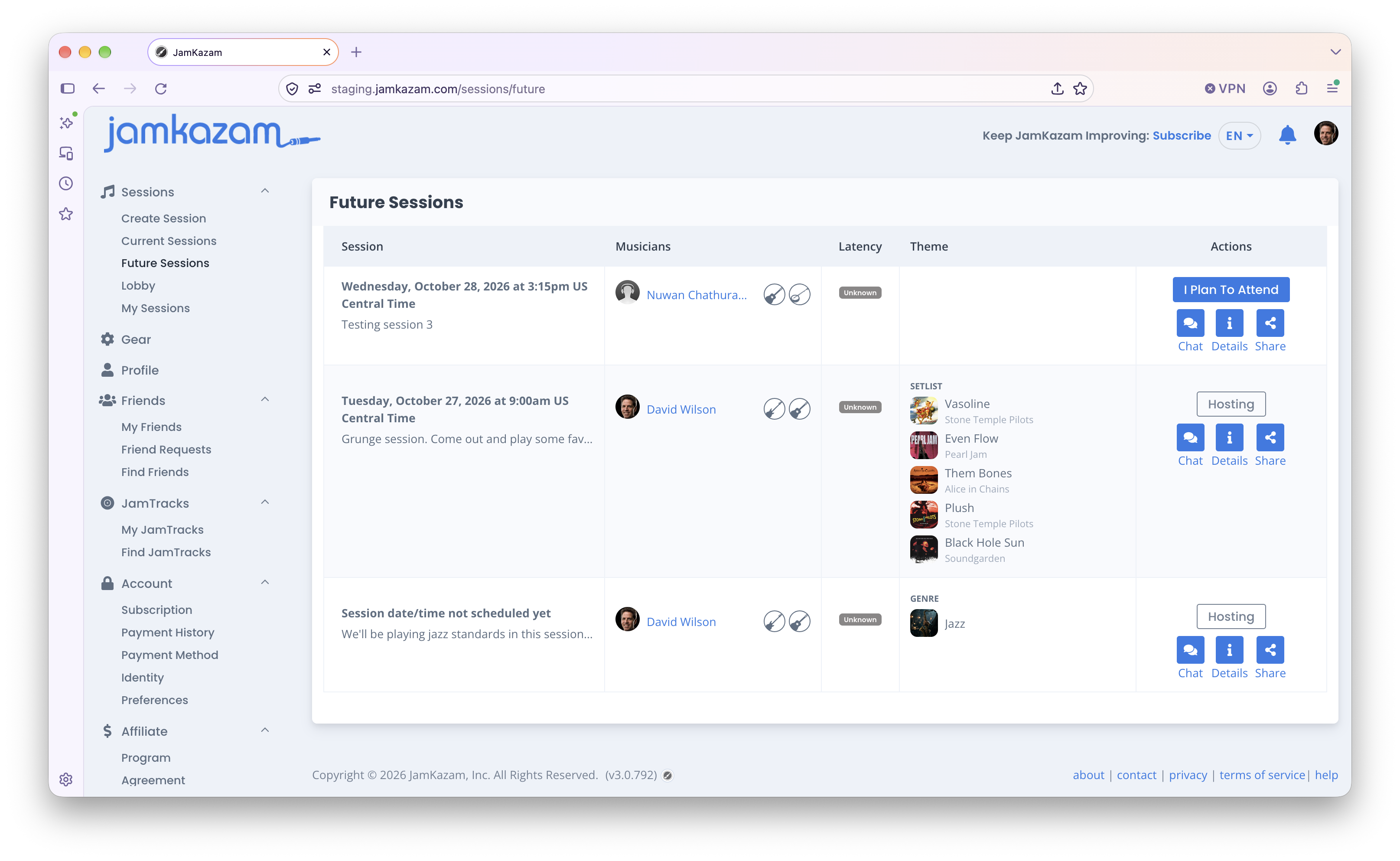
Any sessions particularly relevant to you will be sorted to the top of the session list, including: (a) sessions to which you've been invited, (b) sessions that include one of your JamKazam friends, or (c) sessions that match an artist, song, or genre you've said you like to play on your JamKazam profile.
Future sessions may be scheduled at a specific date and time, or they may say "Session date/time not scheduled yet". If the session host hasn't set a date/time yet, they are typically waiting for musicians to indicate they plan to attend, and once there are enough musicians lined up, they will use the session chat feature to coordinate a date/time that works for the group.
To get more information about any session, you can:
- Click the musician's name (a blue text link) to see that musician's full JamKazam profile.
- Hover your mouse over an instrument icon next to the musician's name to see what the instrument is if not clear from the icon itself (e.g. electric guitar vs. bass guitar).
- Click the Chat icon to see if any conversations have taken place about the session, either ahead of the session starting or during the session. If you post a chat message here, keep in mind that for a current session, the musicians in the session are likely playing, so it may take them a few minutes to stop, see your chat message, and reply.
- Click the Details icon to see the full session information details.
- Click the Share icon to get a link you can share with others. This link will open the Session Details web page in a browser for anyone who uses the link.
If you want to play in a session, click the "I Plan To Attend" button. This will let the host and others know you're planning to join. We recommend adding the session to your calendar so you don't forget to attend. (If you create a session yourself and view it on the Future Sessions page, you'll see a Hosting button in place of the I Plan To Attend button.
To join the session, go to this URL in your browser: https://www.jamkazam.com/sessions/future at the time the session is scheduled to start, or click My Sessions in the left navigation bar. You'll see any sessions you're planning to attend on this page. Click the Join icon for the session you want to join. If the JamKazam app is already running on your computer in the background, you will instantly join the session. Otherwise, you will receive a prompt to click a button to open the JamKazam app. If it's your first time doing this, you will also likely get a browser prompt asking if you want to let the JamKazam app communicate with other things on your network. Definitely click to allow this, as the JamKazam app needs to communicate with the JamKazam website running in your browser to operate properly.