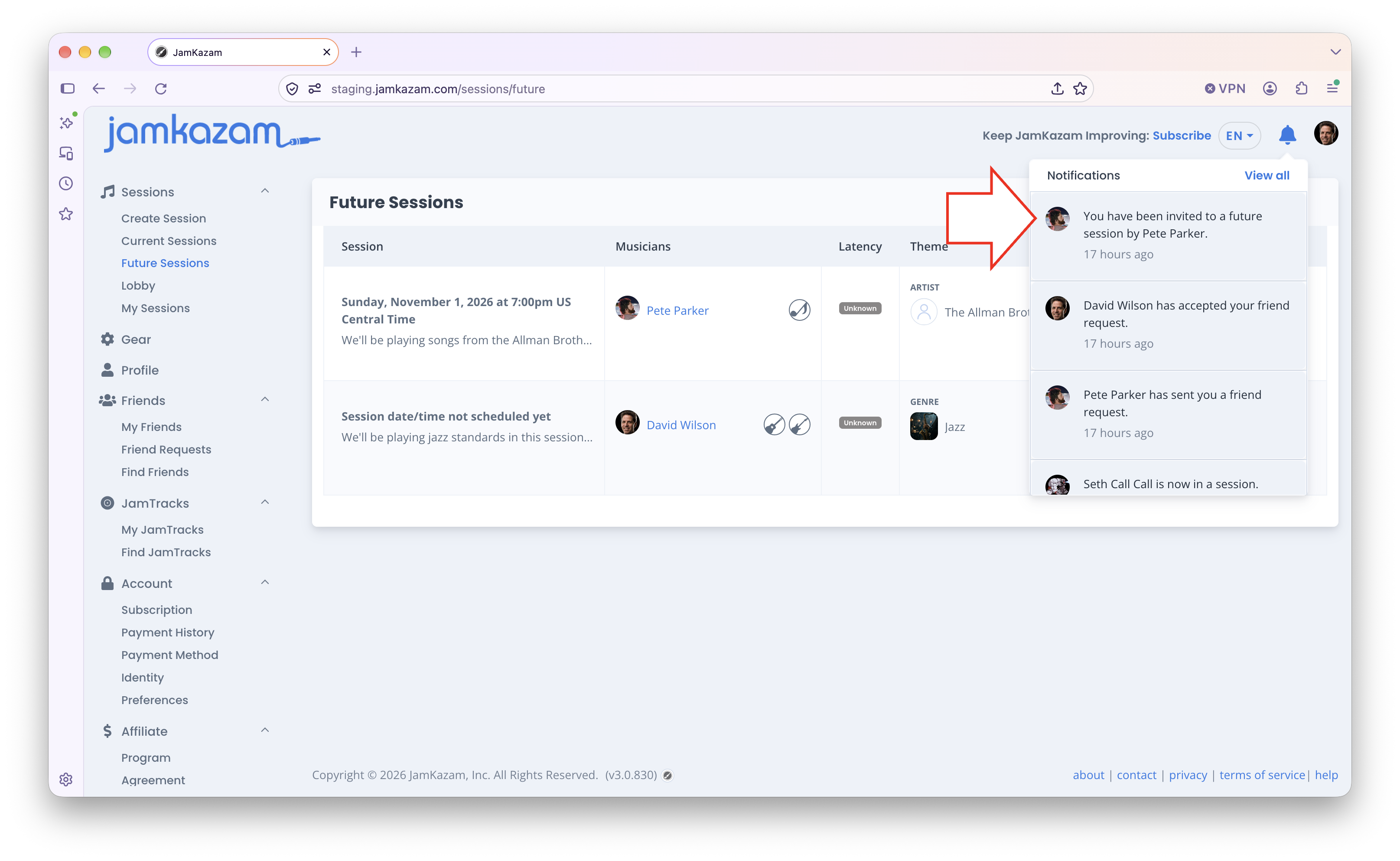
When someone else on JamKazam invites you to join a session, if you have the JamKazam app open, you will see a notification (pictured below with arrow). Like most apps, you will see a red counter of unread notifications on the notification icon at the top right of the website to let you know when you have new notifications to review. You can click on the notification to see a Session Details page.
If you aren't on the JamKazam website at the time the invitation is sent, you'll get an email notification (pictured below).
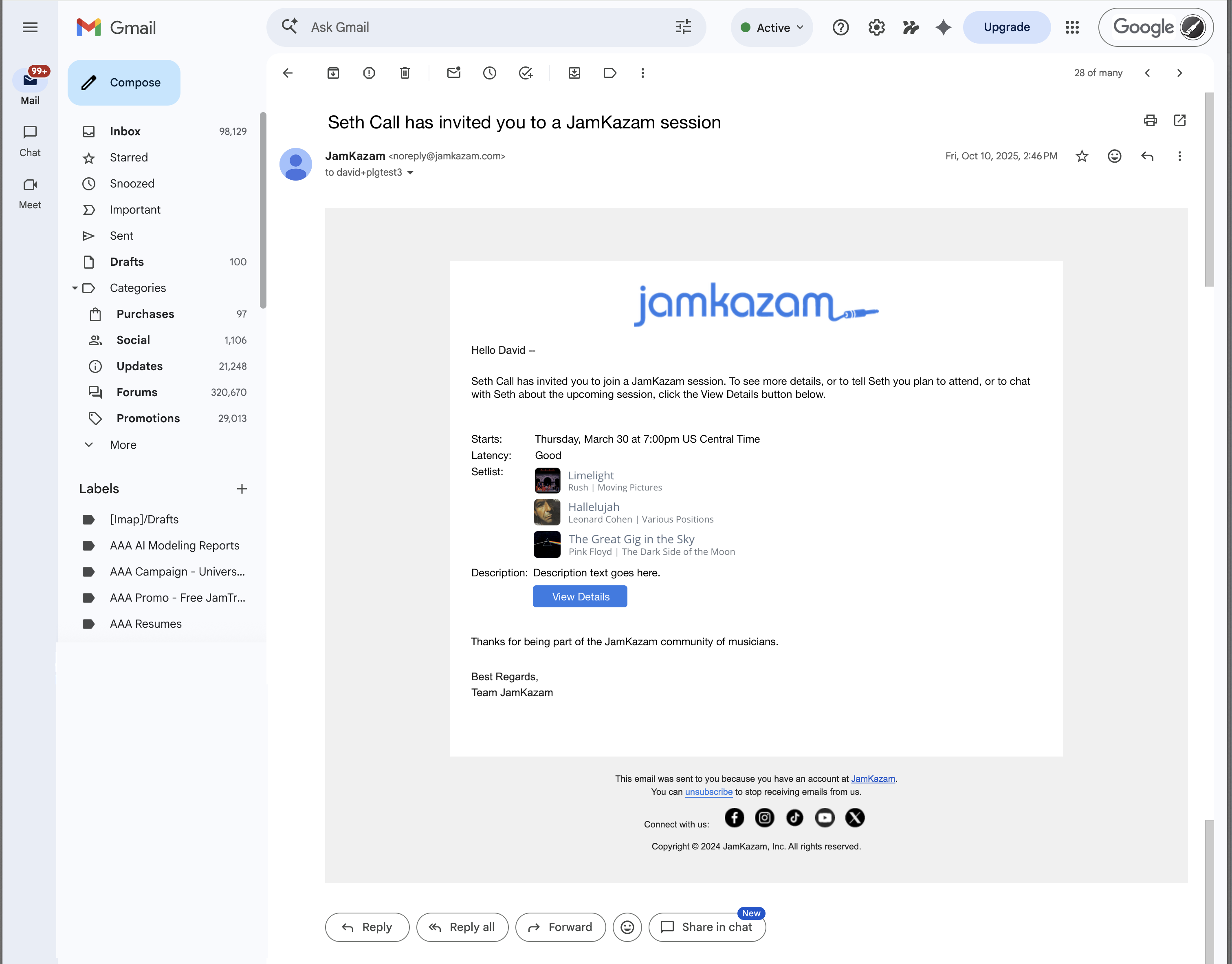
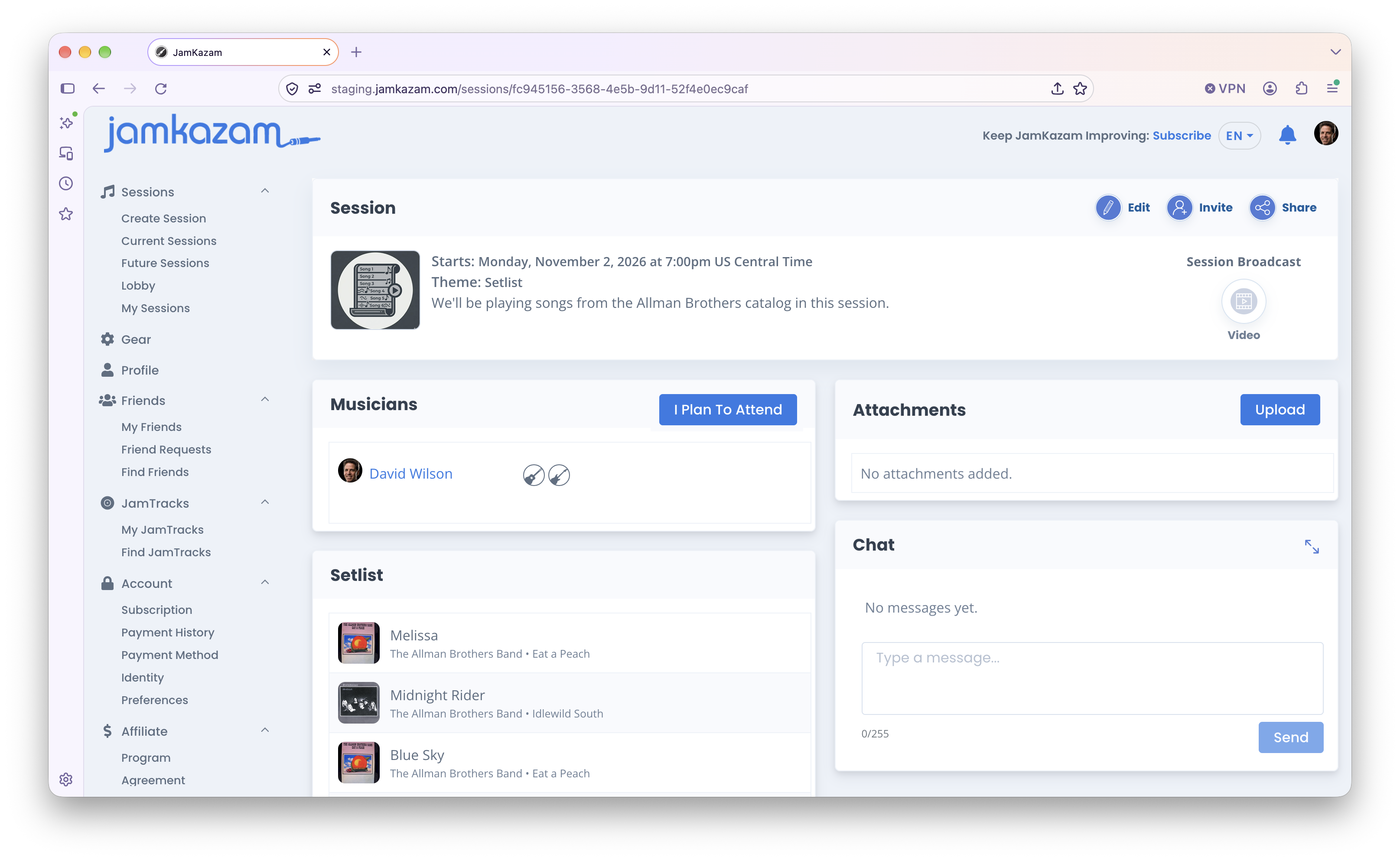
The email displays who invited you, when the session is scheduled to take place, the session description, etc. Like the browser notification above, you can click the View Details button to see the Session Details page for this session (pictured below). On this page, you can:
- Get more detailed information about the session.
- Click the I Plan To Attend button to let the host and other participants know you're planning to join.
- Chat with the host and others about the upcoming session to coordinate on scheduling, what you'll be playing, etc.
- Upload charts, lead sheets, etc for anything you'll be playing together.
- Click the Invite icon to invite your JamKazam friends to the session.
- Click the Share icon to get a link to the session details page to share with other musicians, or with fans if you're planning to broadcast the session for friends and fans.