
JamKazam offers a rich set of live broadcasting features that you can use in JamKazam sessions, either alone or when playing with other musicians.
To get started, click the Broadcast button in the session toolbar (pictured below with arrow). A broadcast control feature is displayed on the right side of the session screen.
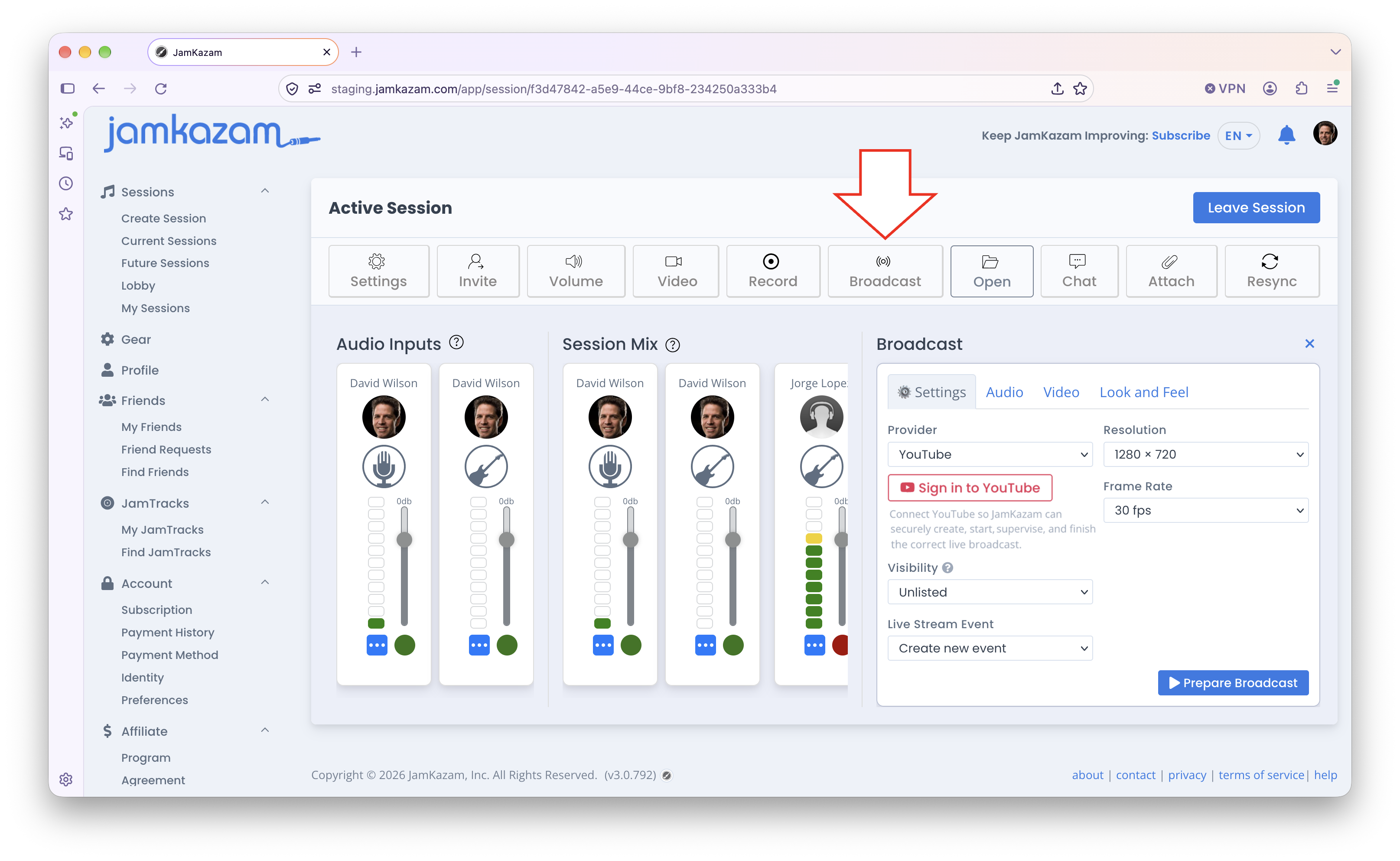
Click the red Sign in to YouTube button, and follow the on-screen instructions to sign into the YouTube account through which you want to live stream your broadcast. This links JamKazam to YouTube, so that we can programmatically manage live streams through YouTube for you. You only need to do this once, and JamKazam will remain linked for easy future broadcasts. Once you've signed in, the YouTube button turns green (pictured below).
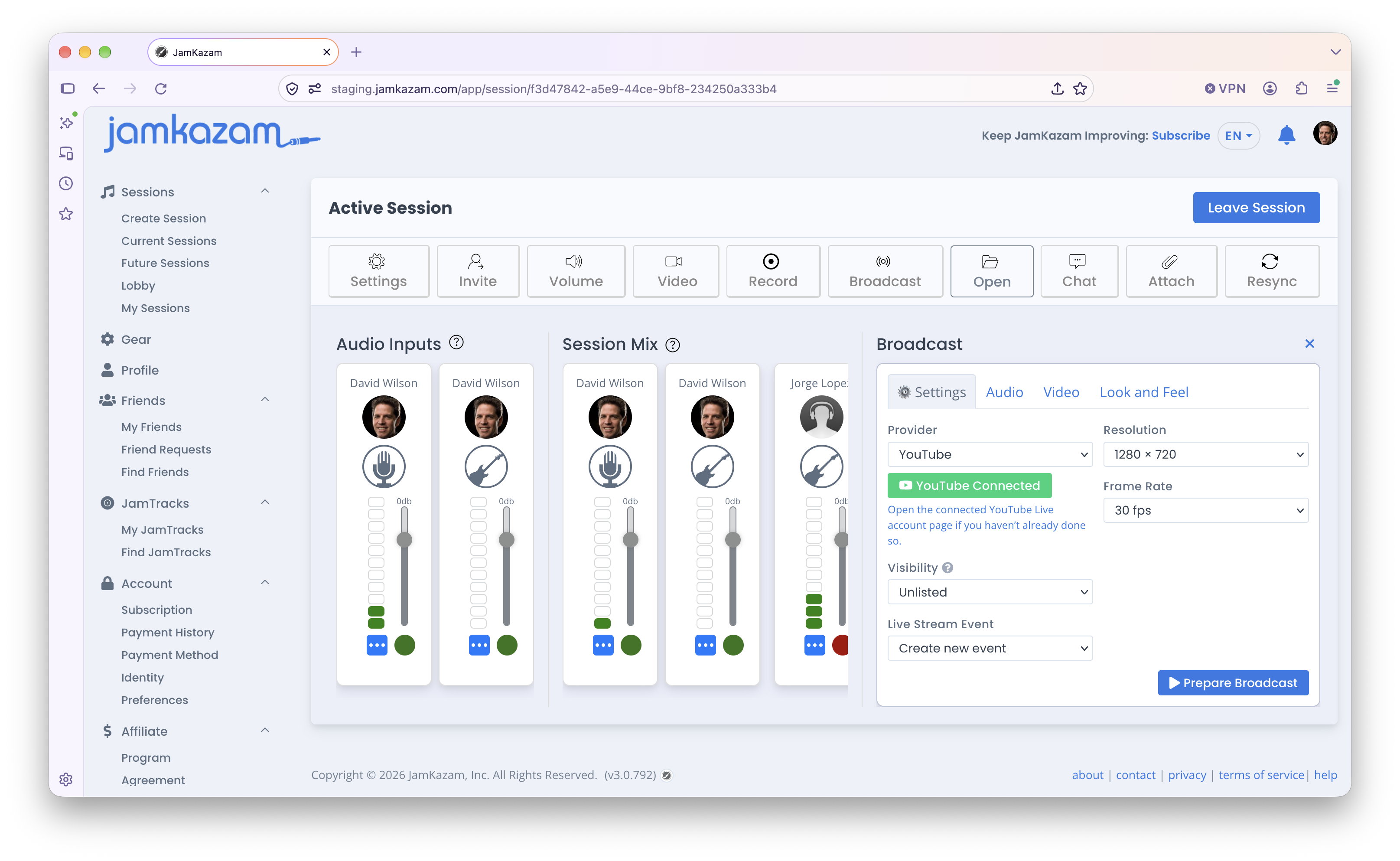
Next, make your selections for how you want the broadcast to be set up, as follows:
- Visibility - Set this to Public if you want to share the broadcast widely and allow anyone to check it out. Set it to Unlisted if you don't want the broadcast to be publicly posted on YouTube, but anyone with a link to the broadcast can still see it. This is a bit of a middle ground for easy sharing without people just stumbling across your broadcast. Set it to Private if you want the broadcast to really be private and secure, and then only people who you've provided with a password (set by you on the broadcast event in YouTube) can see it.
- Live Stream Event- There are basically two ways you can go with event creation.
- If you're playing in a session, and it's pretty informal, and you just want to broadcast it for fun on the fly, then the easiest thing to do is select "Create new event" here, so that JamKazam will create the event for you.
- The other way you can go is more useful is you are planning a broadcast ahead of time and want to share the broadcast link ahead of time with an audience, promoting the event. It's a more planned, formalized process. In this case, you'll want to use YouTube to create the event ahead of time. When the time comes for the broadcast, you can click the Live Stream Event list box (pictured above), and any YouTube live events you've created but not yet streamed will be shown in the list. Select the event you are about to broadcast.
- Resolution - We'd suggest you stick with 1280x720 here. This is 720p, which is high quality, but won't stress your system too hard. You can go up to 1920x1080, which is 1080p, higher quality, but only do this if you have a high-powered computer, and double check that your audio quality is not negatively impacted by broadcasting at this higher resolution.
- Frame Rate - We'd suggest you stick with 30 fps (frames per second). This is pretty standard. You can increase to 60fps, but it will again eat more compute and networking resources, and it doesn't make much if any difference for a music broadcast. Higher frame rates are great for gaming and such.
When you're ready to go, click the Prepare Broadcast button. If you selected "Create new event", JamKazam will ask you for a name for the event. Otherwise, JamKazam will use the event you've already created and selected. Then JamKazam will start streaming video and audio from your session to the event, validate that YouTube is receiving the media stream from JamKazam properly, and update the button to display Start Broadcast to let you start broadcasting live (pictured below).
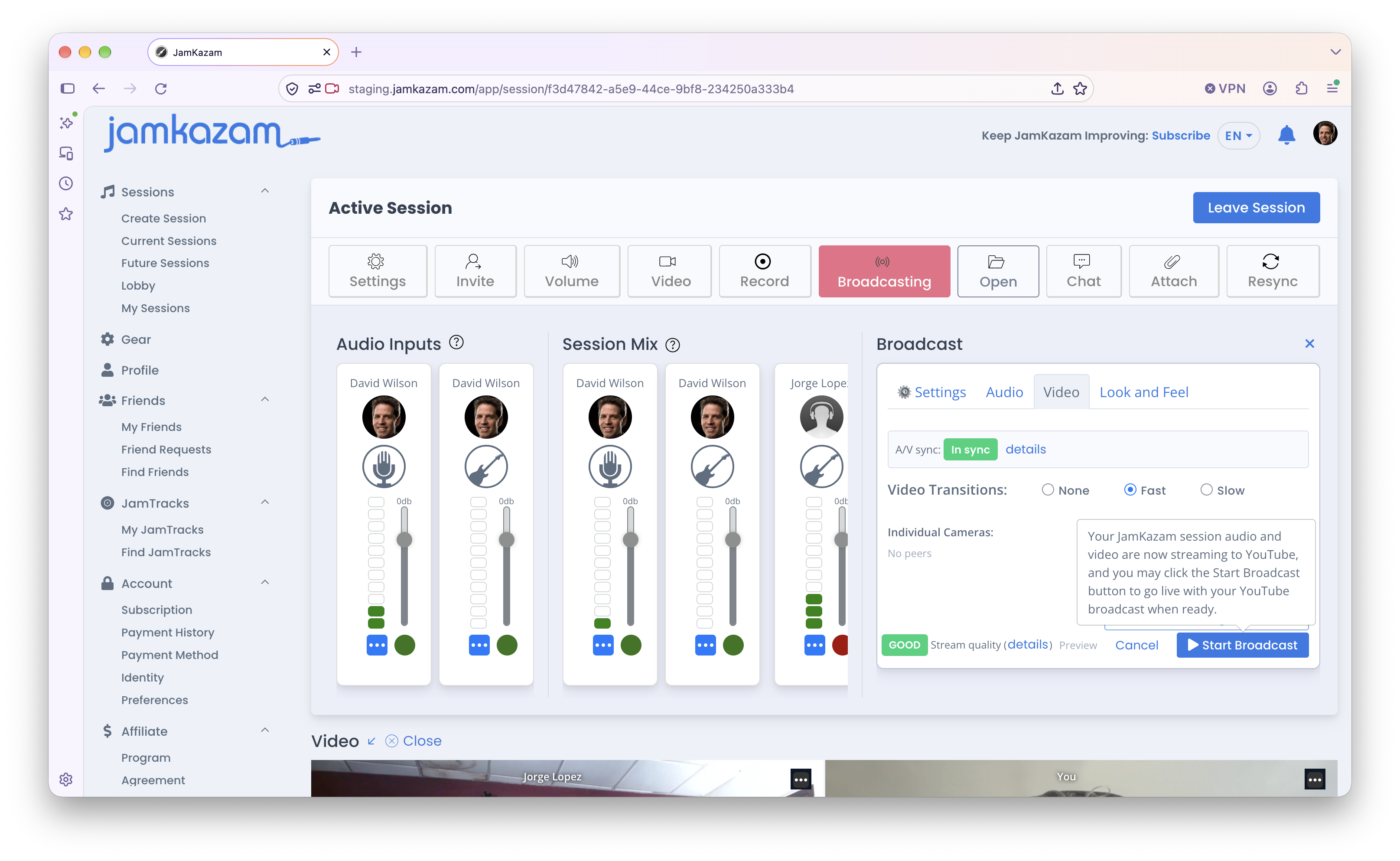
At this point, the media stream is flowing from your JamKazam session to YouTube, but YouTube is NOT yet streaming the event live to your audience. Everything is ready to go. This is a good time to make any last checks and preparations to actually go live. When you're ready, click the Start Broadcast button, and JamKazam will initiate YouTube's live event broadcast to your audience.
While you are broadcasting your event, there are a few features you may want to use.
- Video - Click the Video tab in the Broadcast window to access video features. You can click buttons under Group Composites to switch the camera between three different presentations of your group in the session, or you can click buttons under Individual Cameras to feature individual musicians. You can also select the video transition style between none (hard cuts) or fast or slow fade transitions between camera changes.
- Audio - Click the Audio tab in the Broadcast window to access audio features. The only feature here is a slider/fader to increase or decrease the audio volume of the YouTube broadcast. Because YouTube ingests the JamKazam media stream, processes it, and turns around and streams it to your audience, the audio volume of the YouTube broadcast can differ from the volume of your JamKazam session. If you find that YouTube's volume is too low or high, you can adjust it here.
- Stream Quality - While broadcasting, you can keep an eye on the health of the broadcast by watching the stream quality badge in the lower left corner of the Broadcast window. It may be green/good, yellow/fair, or red/poor. If your stream quality is green, you're good. If it's yellow, it's likely your bandwidth is a bit low. We suggest whoever started the broadcast make sure no one else at their home is doing things on the network that consume bandwidth to try to protect that resource. And if it's red, that's definitely bad, and you should look at the YouTube event page to see what information it provides about what's happening.
- Look & Feel - There are some less used features here that you may not need or want to use. They are pretty self explanatory, and you can experiment with these if they seem useful to you.
While you are running your live broadcast, something could happen causing you to need to pause the broadcast for a minute or two (minor emergency? wardrobe malfunction?), or you may reach the end of the broadcast and want to stop broadcasting. In either case, you'll want to click the Stop Broadcast button (pictured below).
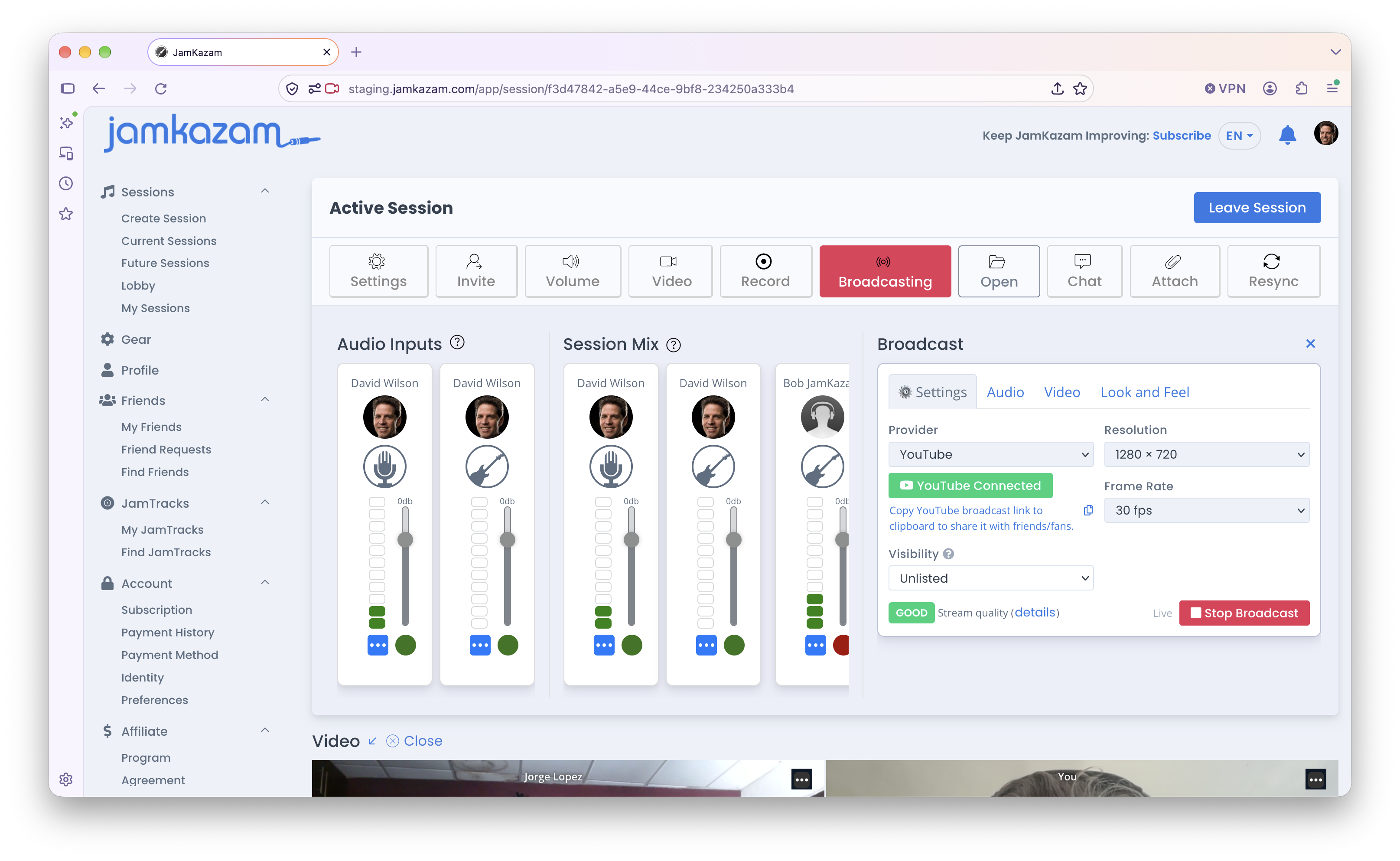
When you click this button, a dialog box is displayed (pictured below).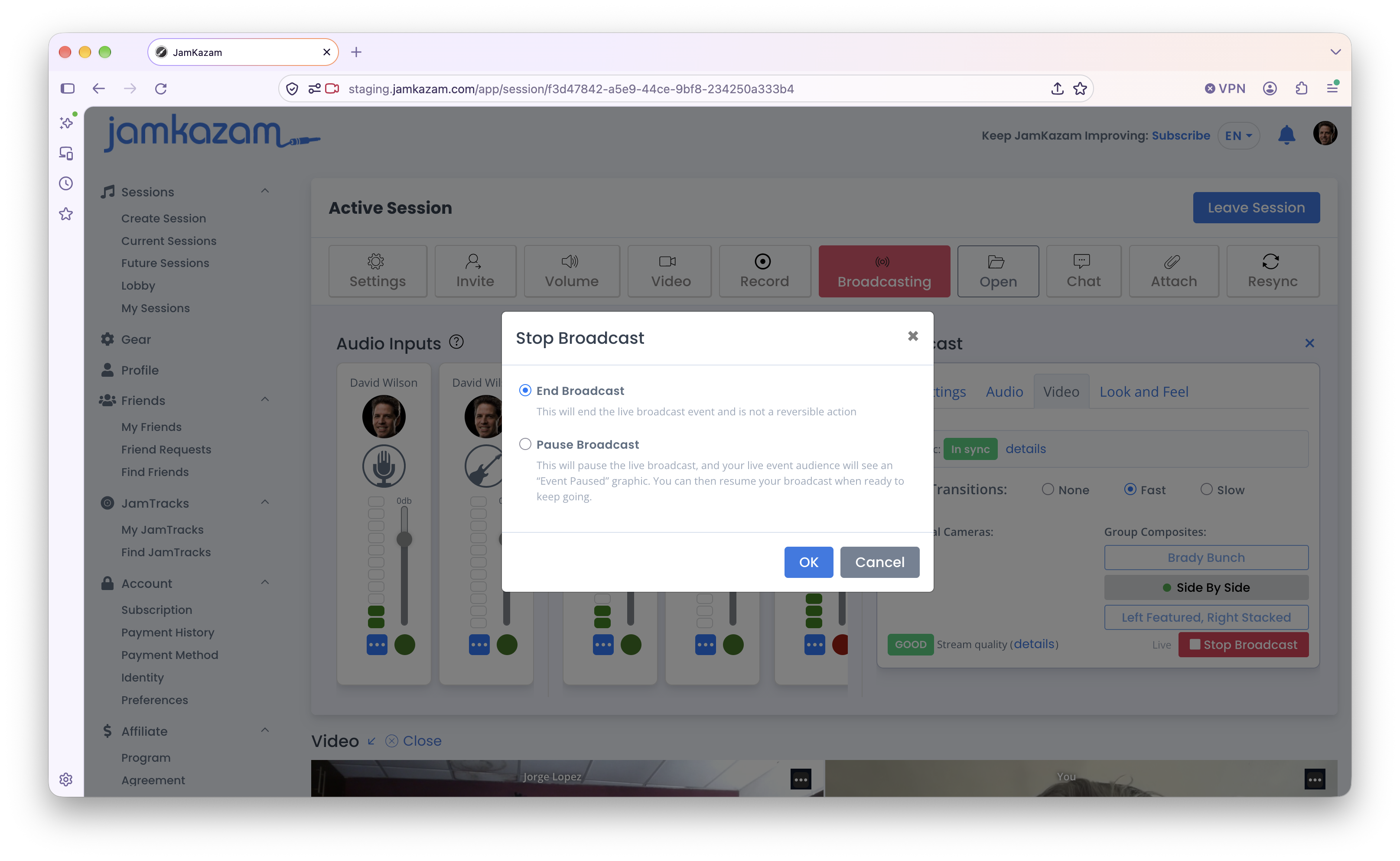
If you want to end the broadcast, leave this option selected and click OK. JamKazam will instruct YouTube to terminate the live broadcast, and your audience will see the broadcast event end.
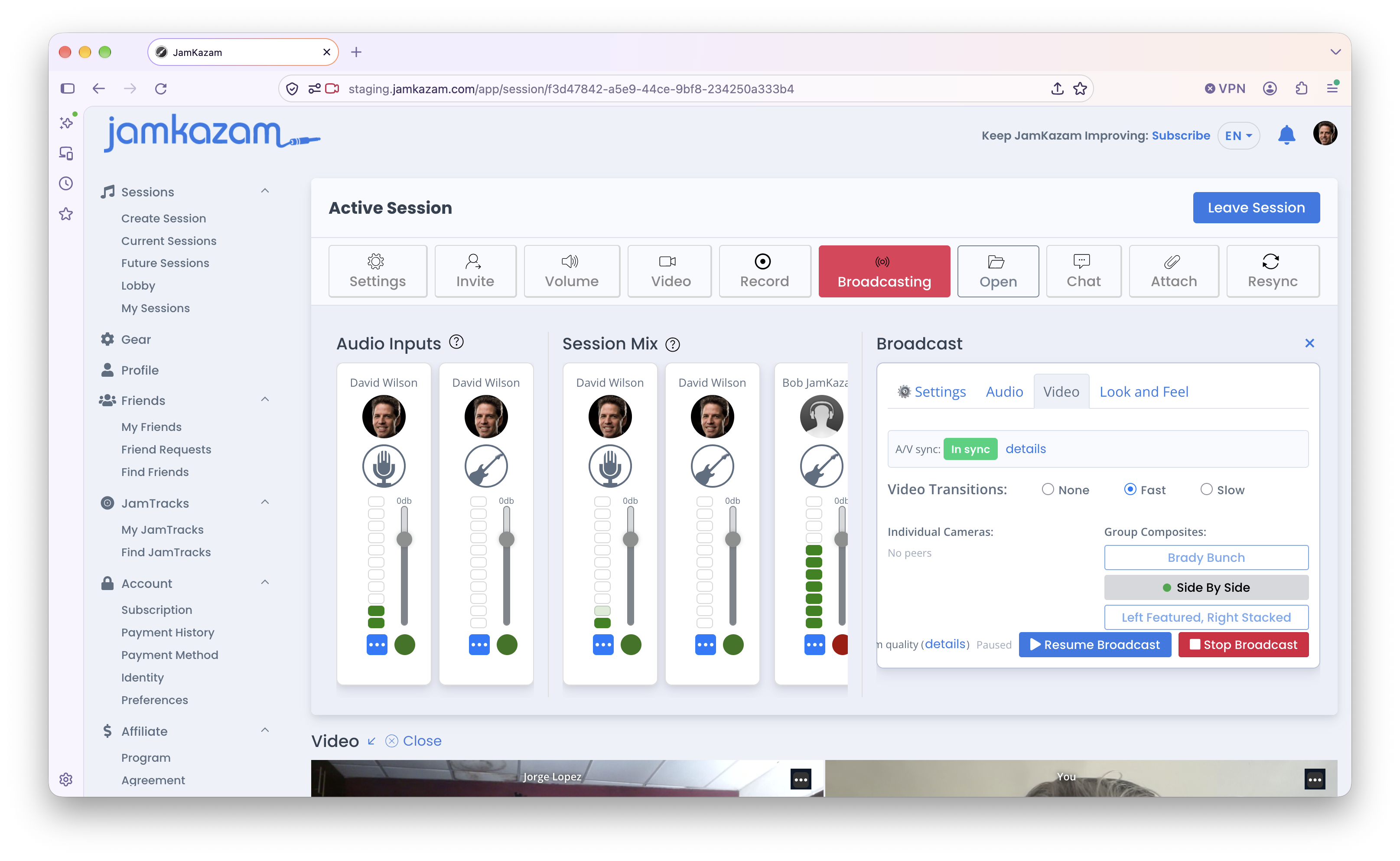
If you only want to temporarily pause and then resume the broadcast, select the Pause Broadcast option, and click OK. You will see the broadcast control window update to display both Resume Broadcast and Stop Broadcast buttons (pictured below). If you get things sorted out and are ready to resume the live broadcast, click the Resume Broadcast button, and YouTube will start live broadcasting your event again from your JamKazam session. If you can't get things sorted out and change your mind, deciding to end the broadcast, then click the Stop Broadcast button. JamKazam will instruct YouTube to terminate the live broadcast, and your audience will see the broadcast event end.
After you have ended the broadcast, YouTube will process your live event and will save it as a recorded video, so that you can watch it yourself and share it with others. It's available from the same link as the live event itself.
A couple of other quick notes on broadcasting. First, we've seen lots of groups broadcast themselves live on JamKazam, with one member of the group starting the broadcast, and then everyone in the group just playing and chatting between songs and such. This is great, but there is another option available, which is to have friend of your band or group act as the broadcaster. In this case, you'd have your friend set up as a musician, and they would join your session. They can turn on the video feature but turn off their webcam (so they are not seen in the broadcast), and then they can basically act as the broadcast camera person, clicking buttons to transition between different camera presentations, adding visual interest to your broadcast. They can also monitor and make adjustments to the session mix to make sure this stays in a good place throughout the broadcast. They can watch the stream health for any issues, and they can interact with the audience in the YouTube chat window. If you want to see if someone on the JamKazam team can be your broadcaster for a live concert event, drop us an email at support@jamkazam.com. We try to do this when we can.
The other note is that if some members of your group have lower powered computers and find that streaming audio and video to/from every other member of the group affects their latency and/or audio quality in the session, they can use our video+broadcast features to help themselves. In our video features help article, we explain how to use the Layout feature available at the bottom of the JamKazam video window if you move your mouse cursor over the video window. You can click the Layout icon and then select the Only You menu option. If you do this, you will stop sending and receiving video to/from others in the session, which takes a lot of load off your system if it's a lower powered computer that is struggling to keep up. But if there is a broadcast happening on your session, it does send a single video stream from you to the broadcaster, so the broadcaster can still live stream the video of the entire group through YouTube.