
Diagnostics and statistics do not sound very exciting, we know. But sometimes the best things come wrapped in unattractive packages. JamKazam measures and reports important performance statistics continually during your sessions. If you are having problems with audio quality or latency in sessions, or if you're just curious to understand what is happening "under the hood" of your computer, audio, and networking gear, then session diagnostics can give you tremendous insight into what is happening and what you can do about it.
Let’s start by examining diagnostics on your own computer and audio gear. Hover your mouse over the little colored circle in the bottom right corner one of your own audio tracks in the Audio Inputs column on the left side of the session screen (pictured below with arrow). This circle is displayed as green when your stats look good, as yellow when some stats are fair, and red if any stats are poor.
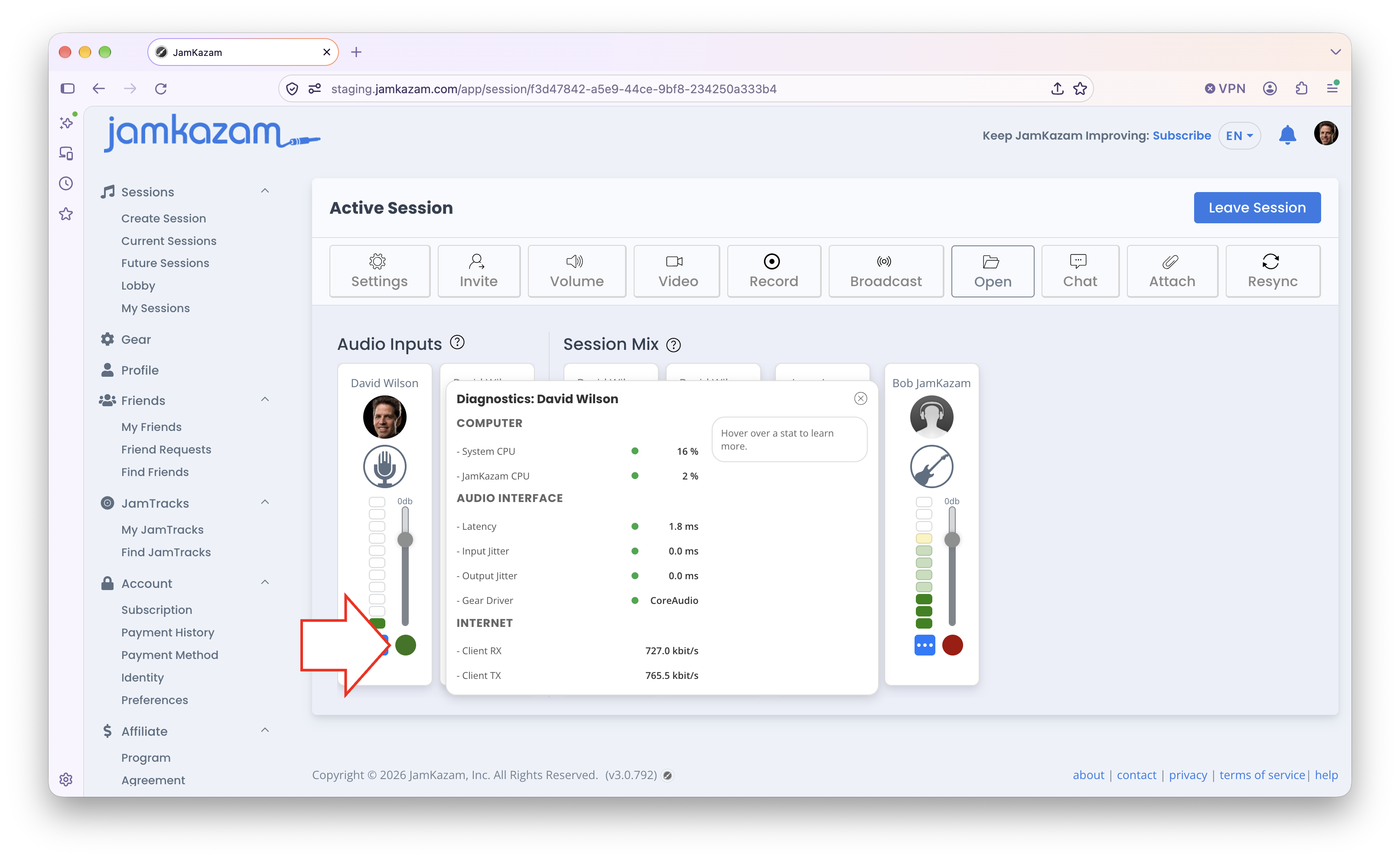
When you hover your mouse cursor over the colored circle. you will see a set of diagnostic statistics displayed and continually updated (pictured above). Following are explanations of these stats.
- Computer
- System CPU - This shows the % of your computer's total processing capacity that is currently being used, not just for JamKazam, but for everything running on your computer.
- JamKazam CPU - This shows the % of one single processing core that is currently being used - the core on which JamKazam is running. Modern computers use a multi-core architecture. You may have heard the term "dual core", "quad core" and so on. Each core is a processor that can do work. JamKazam runs on just one of your computer's cores, so seeing how much load is on the core where JamKazam is running is important information. If this gets higher than 75-80% or so, you may start getting audio glitches and other problems because your computer’s processor is getting overwhelmed and cannot keep up with processing JamKazam audio reliably. If you see this metric get into this danger zone, to reduce the processor load and bring this number down, you can: (a) stop using video in your session, as this adds processing load, or (b) if video is important to you, reduce the resolution at which your webcam is capturing and streaming video. If you're not running video in your session and you're still seeing this metric running too hot, you may consider shutting down other applications currently running on your computer, although this may or may not help, depending on which core they are running on.
- Audio Interface
- Latency - This shows your audio processing latency, which is the amount of time it takes for your computer and your audio interface to capture the analog audio from your instrument and/or voice, digitize it, and put that on the network to be sent to other musicians in the session – plus the amount of time it takes for your computer to grab the digitized audio it receives from other musicians in your session, convert it back to analog audio, and play it into your headphones. So basically, this number represents all of the time it takes for your computer to process audio in sessions. This does *not* include the time it takes for the audio to move across the Internet. Most reasonably modern computers and audio interfaces today require somewhere between 2 and 8 milliseconds to process audio. This means 2 to 8 one-thousandth of one second. If your audio latency is higher than 7-8ms (milliseconds), we recommend you contact our team at support@jamkazam.com to ask them to review your setup to see if they can help you do better.
- Input Jitter & Output Jitter - To keep your audio clean, you want your audio interface to capture and transfer audio to your computer reliably on schedule. Jitter in this context is a measure of variability in the rate at which your audio interface is capturing and transmitting your vocal/instrumental audio to your computer. If this is reading mostly in the green, and sometimes yellow, you should be OK. If it gets into the red, it means your audio interface is having trouble keeping up with the pace/timing needed to support the ultra-low latency streaming required for online music performance. This can cause latency problems and also audio quality problems like clicks, pops, and other audio artifacts. If you're getting red stats here, your best option is to delete the audio profile you've set up for your audio interface, and then go back through gear setup, but select a different, higher buffer size than your current buffer size. A larger buffer size will add some latency, but it will also drive your audio interface less hard, resulting in lower audio processing jitter.
- Gear Driver - This lets you know what audio software is in control of your audio interface. On a Mac computer, this is typically CoreAudio. On a Windows computer, this is usually an ASIO driver that was built by the maker of your audio interface. This is really just informational.
- Internet
- Client Rx - This is the streaming bandwidth rate the JamKazam app is receiving cumulatively from all the other musicians in the session. This is consuming some of your Internet service's total download bandwidth available.
- Client Tx - This is the streaming bandwidth rate the JamKazam app is transmitting (sending) cumulatively to all the other musicians in the session. This is consuming some of your Internet service's total upload bandwidth available.
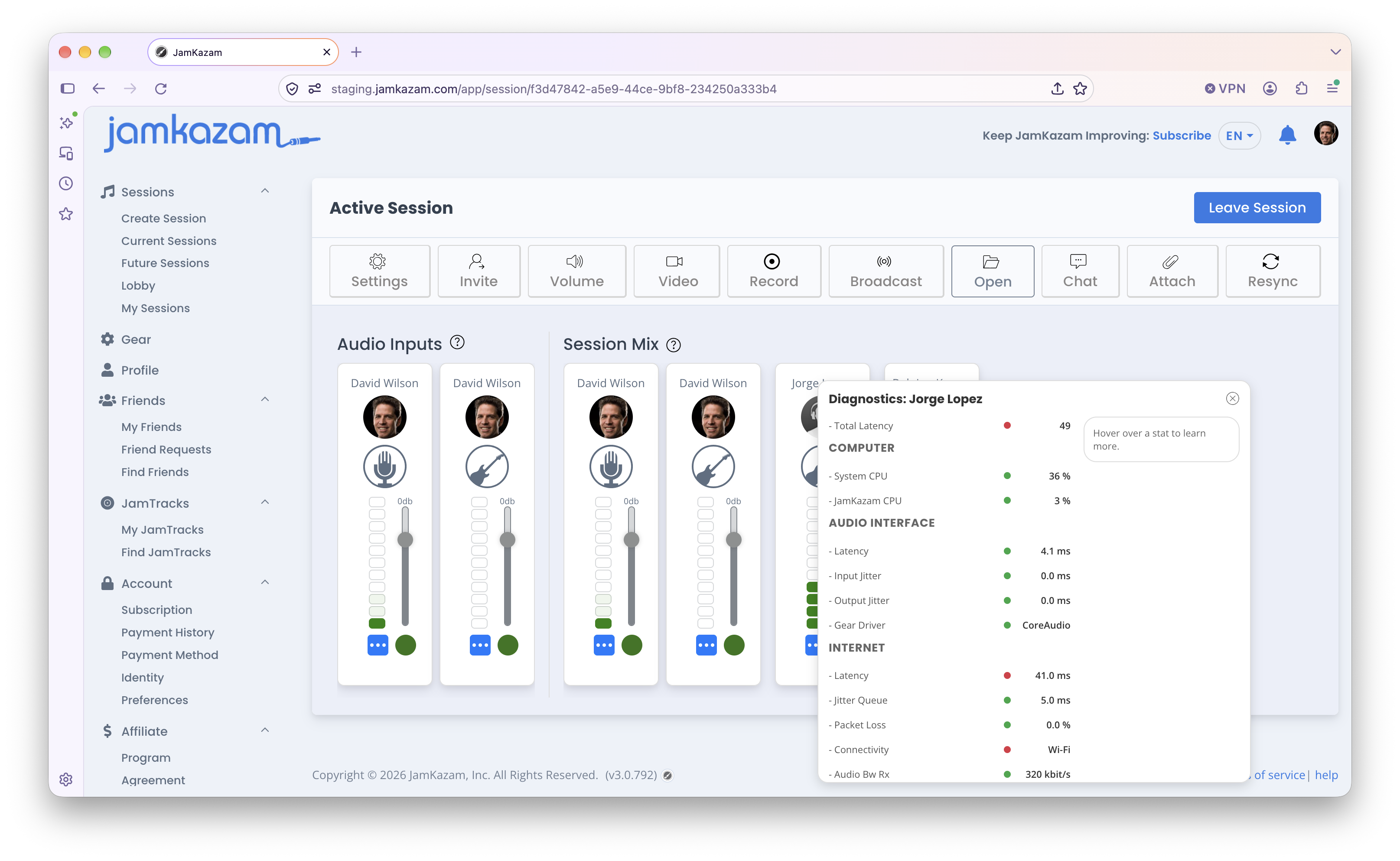
Let’s move on now to look at the diagnostic statistics available on other musicians in your session. In this example, let's say that you are in a session with two other musicians named Bob and Jorge. To see statistics for Jorge, hover your mouse over Jorge's colored stats circle, at the bottom right corner of Jorge's track in your session. You now see a larger set of statistics displayed (partially pictured below, you must scroll down in the app to see all the stats).
Following are explanations of these stats.
- Total Latency - This critical statistic at the top of this set of stats tells me the total, end-to-end latency between you and Jorge, including the time it takes to process audio on each end of your connection, plus time it takes for the audio data to move across the Internet connection between you, plus the jitter queue needed to protect audio quality (more on this later). So in the example above, from the moment that you play your guitar and hear it in your own headphones, Jorge will hear the audio from your guitar 49 milliseconds after that point – in other words 49 one-thousandths of one second later.
- The Computer and Audio interface sections show you the same statistics we reviewed above for your own computer and audio interface, but these statistics are for Jorge's computer and audio interface. So you can see if Jorge's computer processor is being used too heavily or if Jorge's audio interface is having jitter issues.
Under these sections there is a new section labeled "Internet", and this section displays data about the Internet connection between you and Jorge, as follows:
- Latency - This shows you how much time it takes for the audio data to move across the Internet between you and Jorge. In the example above, the Internet latency is 41 milliseconds.
- Jitter Queue - In the Audio Interface section of the statistics, jitter measures variability in the rate at which your computer and audio interface capture and process audio. In this Internet section of the statistics, the jitter queue quantifies the impact of the variability in delivery of data over the Internet. Your audio data is sent over the Internet as an ordered set of packets - think of them as sugar packets of data. If your Internet connection is imperfect and one of your packets is late or gets lost on the way, JamKazam can cover this up so you don't notice it. But if this happens to too many packets, we can't. So we keep a little stash of audio packets we can play if the next packet or two is late, just in case. The more variability in your Internet connection, the larger the stash we need to keep around to protect your audio quality, and the more latency we add to your connection. This is why using a wired Ethernet connection is important. It gives you the most reliable, consistent Internet delivery. WiFi is just not as good at this. To summarize, this statistic tells you how much latency is added to your connection with another musician due to jitter in your Internet connection.
- Packet Loss - This shows you what % of the audio packets that are being sent between you and Jorge are getting lost. This should be zero or close to it, and here again, using a wired Ethernet connection of your computer to your home router is going to keep this minimal. If this stat turns red, you are definitely going to hear audio quality problems.
- Connectivity - This shows you if Jorge is using a wired connection (i.e. is Jorge's computer connected to his home router using an Ethernet cable) or a WiFi connection (i.e. wireless/WiFi). WiFi connections are very bad for JamKazam's streaming performance, so if you see another musician in your session using WiFi in this diagnostic display, you will know why your connection with that musician is poor, and you can suggest to the musician that they will be better served to change their computer's Internet connection to a wired connection.
- Audio & Video BW RX & TX - This show the size of the audio and video streams you are sending (TX for transmission) and receiving (RX) from Jorge in the session. The JamKazam application will automatically manage these stream sizes up or down to optimize audio and video quality while adapting to the amount of Internet bandwidth available at any given time. More bandwidth generally translates into higher audio and video quality.
Technical Note on Ethernet vs. WiFi
You can skip this section if you don't want to get too technical, but we get asked about this regularly, so we are posting this information here. The problem with WiFi routers has nothing to do with bandwidth. Bandwidth and latency are not correlated. Having or getting more bandwidth won't make your latency lower. The problem with WiFi routers also has nothing to do with your Internet service. The problem is based on packet rate. Basically, in order to keep audio latency low enough to play together in sessions, one of the many things JamKazam does that is different than Zoom or Skype or other applications is that we capture and transmit audio data very frequently in very small packets. Each packet contains 2.5ms (milliseconds) of audio data, so the audio streams between you and each other musician in a session are sending and receiving 400 packets of audio data per second. These packets need to be delivered in the right order, and right on time, like clockwork. If they are not, then your audio quality falls apart. WiFI routers don’t handle this task well today. We believe they will eventually, but they don't today. They tend to choke and cough periodically trying to keep up with the packet rate, and then packets of audio data get delayed. So it’s extra trouble, but worth every bit of the trouble to connect your computer to your home router with an Ethernet cable. If you don’t have an Ethernet port on your computer, you can buy a USB-to-Ethernet adapter to enable this wired connection.