
JamKazam offers a rich set of audio and video recording features that you can use in JamKazam sessions, either alone or when playing with other musicians.
Making a Recording
To make a recording in JamKazam, click the Record button in the session toolbar (pictured below with arrow).
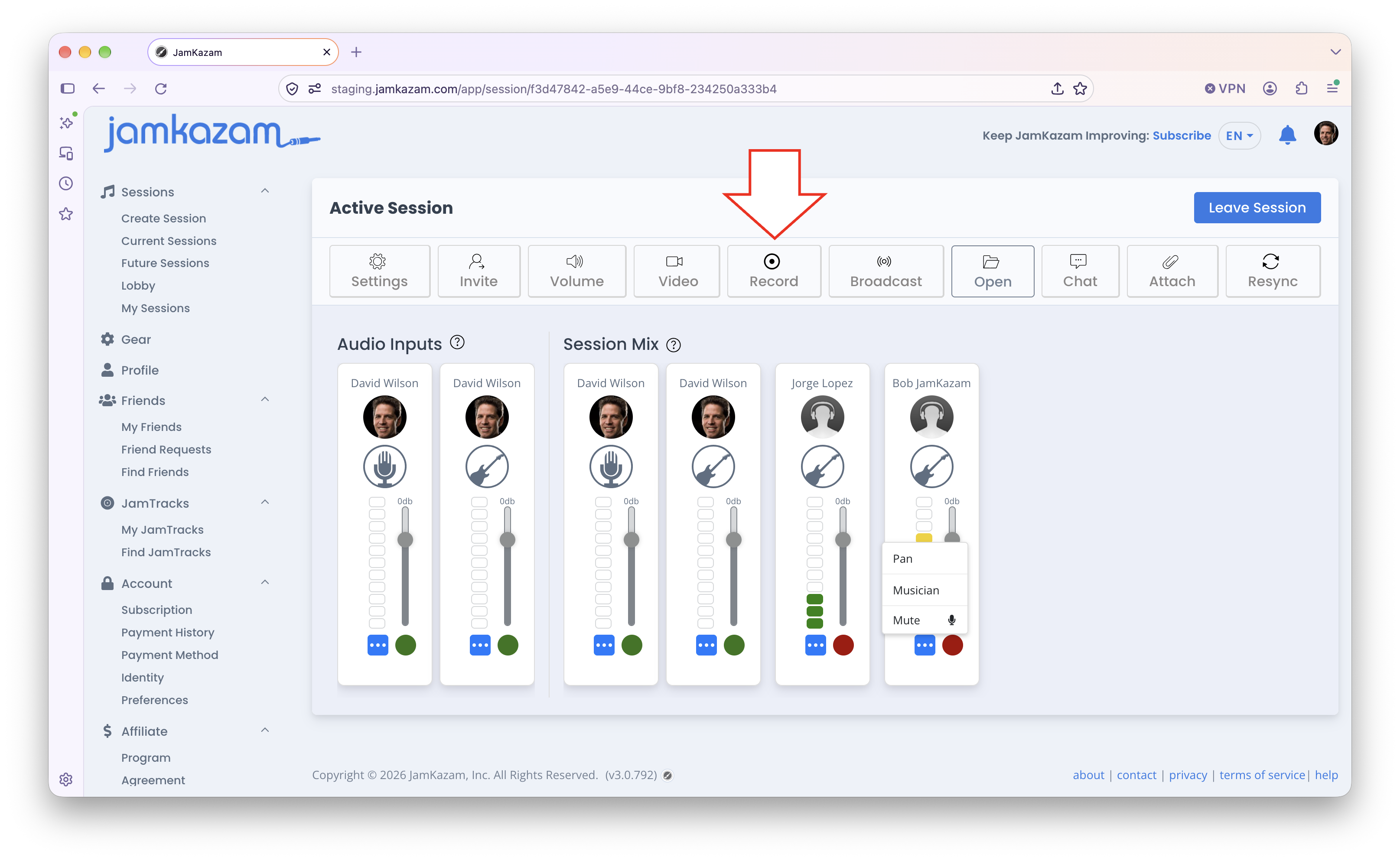
The recording dialog box is displayed (pictured below).
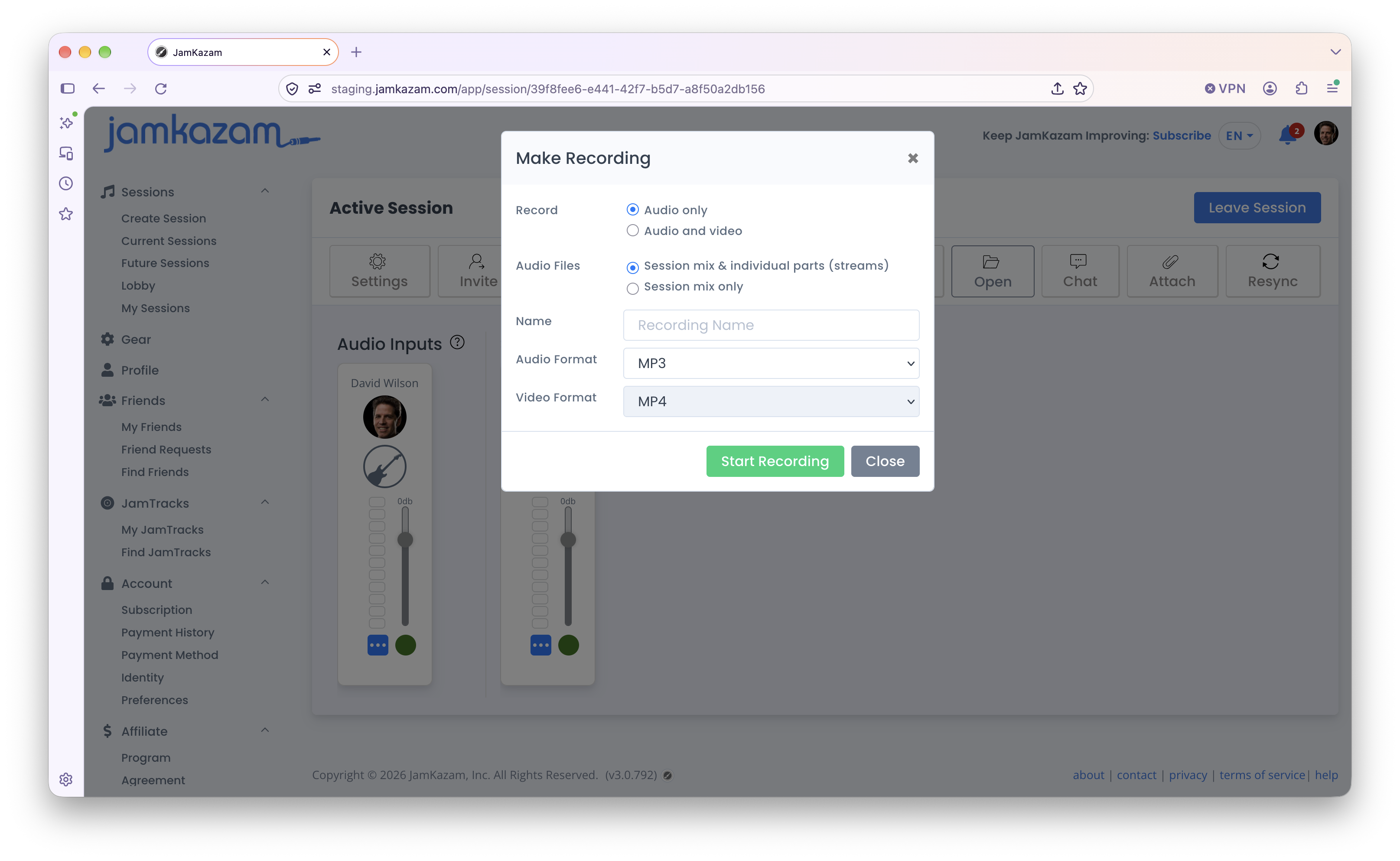
Following are explanations of the recording options pictured above:
- Record - To make an audio recording, leave this option set to "Audio only". To make an audio+video recording, select the "Audio and Video" option. Note that if you want to make a video recording, you must have your video window open in the session.
- Audio Files - Select whether you want to record only a single file - the "Session mix only" option - or the session mix of all the musicians together plus the audio stream from each individual musician - the "Session mix + individual parts (stems)" option. If you're confident you only want the session mix of everyone, this puts less load on your computer processor, as you're only processing and saving a single recording file. However, if you think you may want to grab the parts/stems of all the musicians in the session and import them into a DAW to adjust levels and make other refinements to the recording, you should select the option that also saves the individual parts/stems of all the musicians.
- Name - Enter a short but descriptive name for your recording. You don't need to enter a date, as this will be provided automatically by the system. Your recording files will be saved into a folder on your computer with the date and time you made the recording, plus this recording name.
- Audio Format - Select the audio file format you want your recording files saved as. You can choose from .mp3, .wav, .ogg, .flac, or .au.
- Video Format - .mp4 is currently the only supported video format for recording in JamKazam. This is displayed but is not a selectable control.
One other important thing to note before making a recording is that if you are the one in the session who clicks the Record button to start a recording, the session mix you record will be based on what you are hearing in your own personal mix in the session. So before making a recording, you'll want to adjust the levels of each musician in your session to get a mix that you think sounds good. If you don't know how to do this, click here to view a help article on adjusting your personal session mix.
When you have your recording options set as you'd like them, and when everyone in your session is ready to go, click the Start Recording button at the bottom of the recording dialog box above. The dialog will disappear, and you'll see that the Record button in the session toolbar has changed to a Stop button (pictured below). A notification will be displayed to all other musicians in your session as well, so that they know a recording has started, and the button changes to a "Recording In Progress" button for other session musicians.
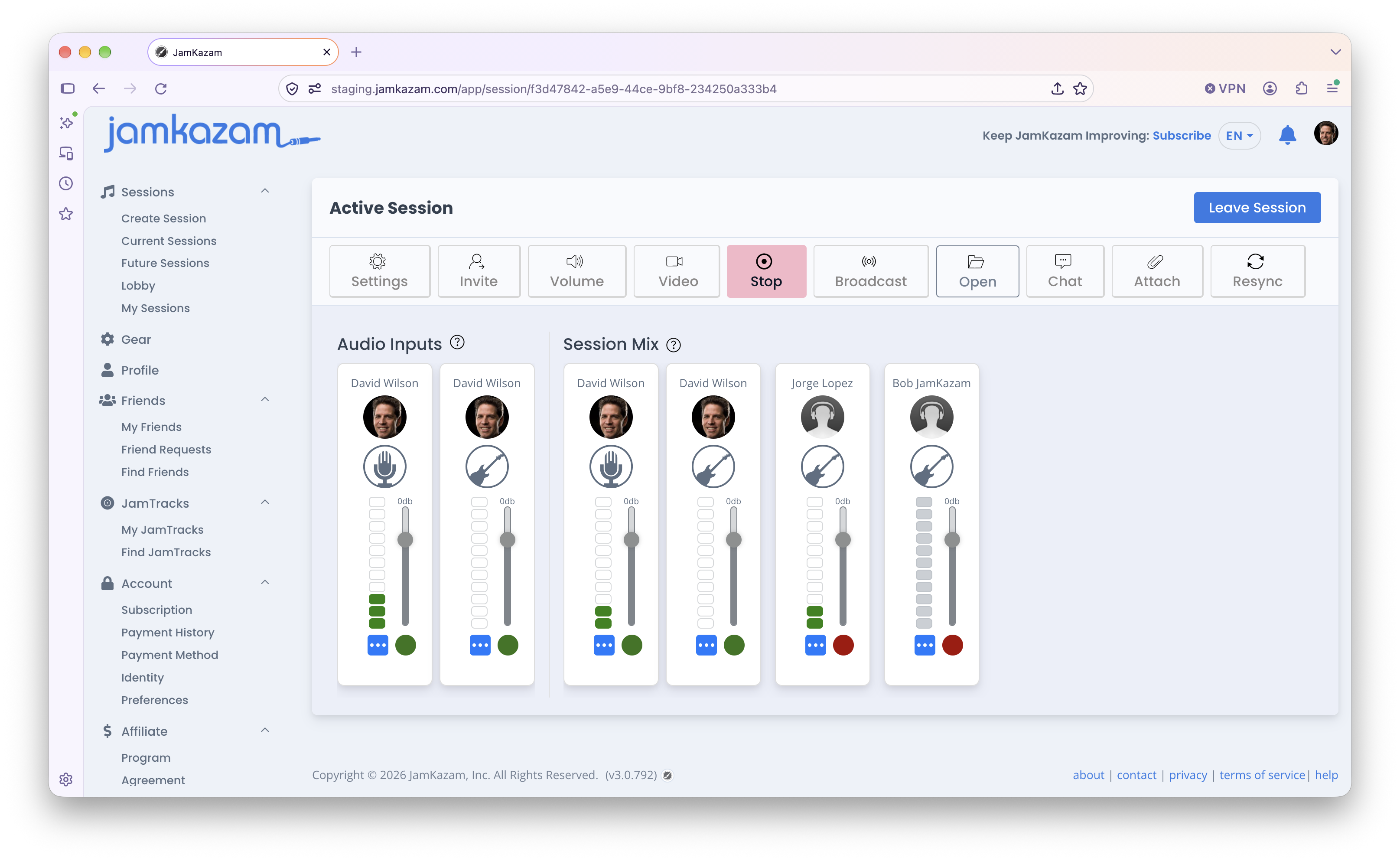
When you are ready to stop your recording, click the Stop button in the session toolbar. When you click the button to stop recording, a window will immediately be opened and displayed on your computer screen, showing the folder where your JamKazam recordings are saved. If you keep this folder sorted by date, this new recording will be the folder at the top of the list. 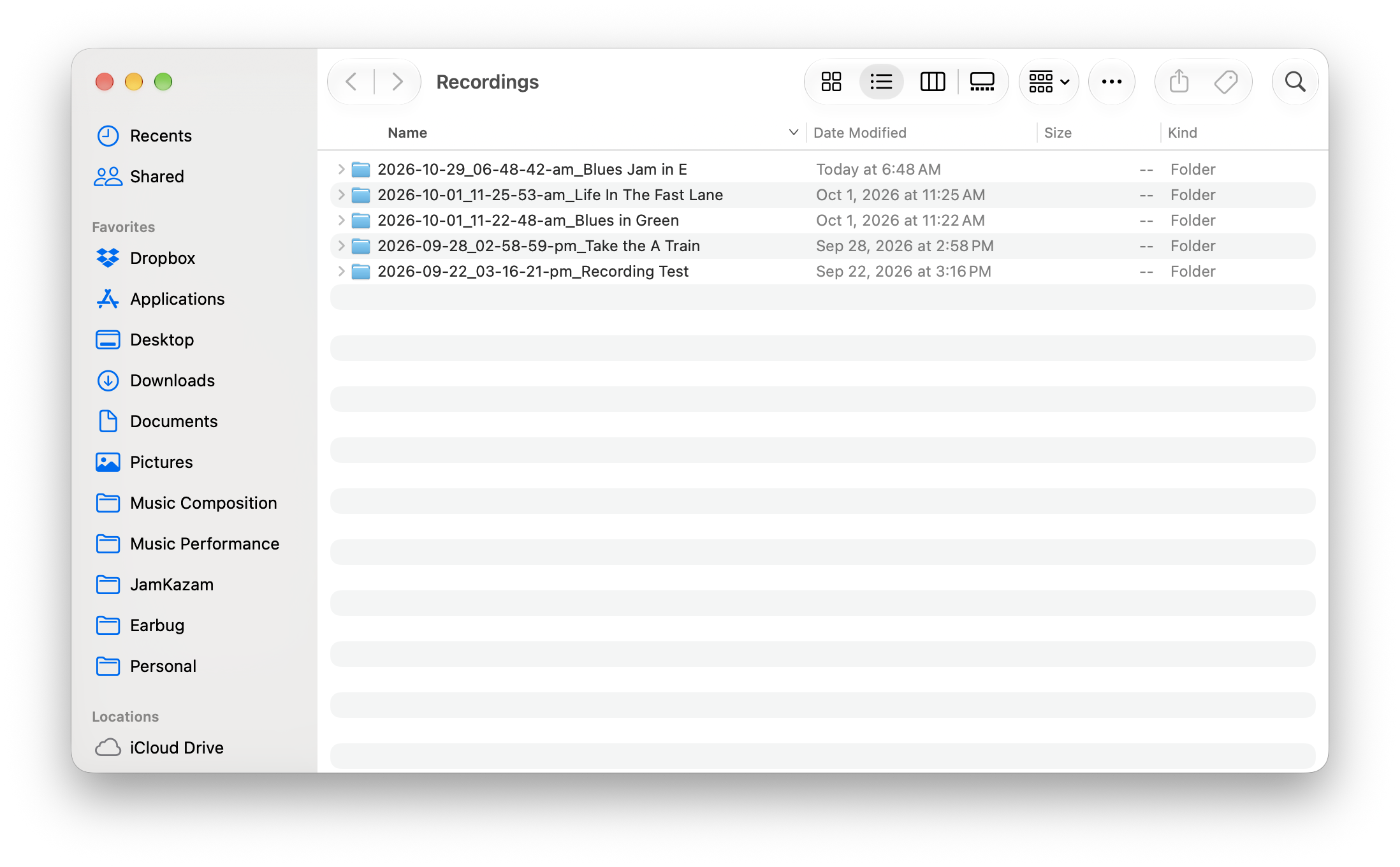 Double click to open the new recording folder you just made. You'll see a set of files something like the following.
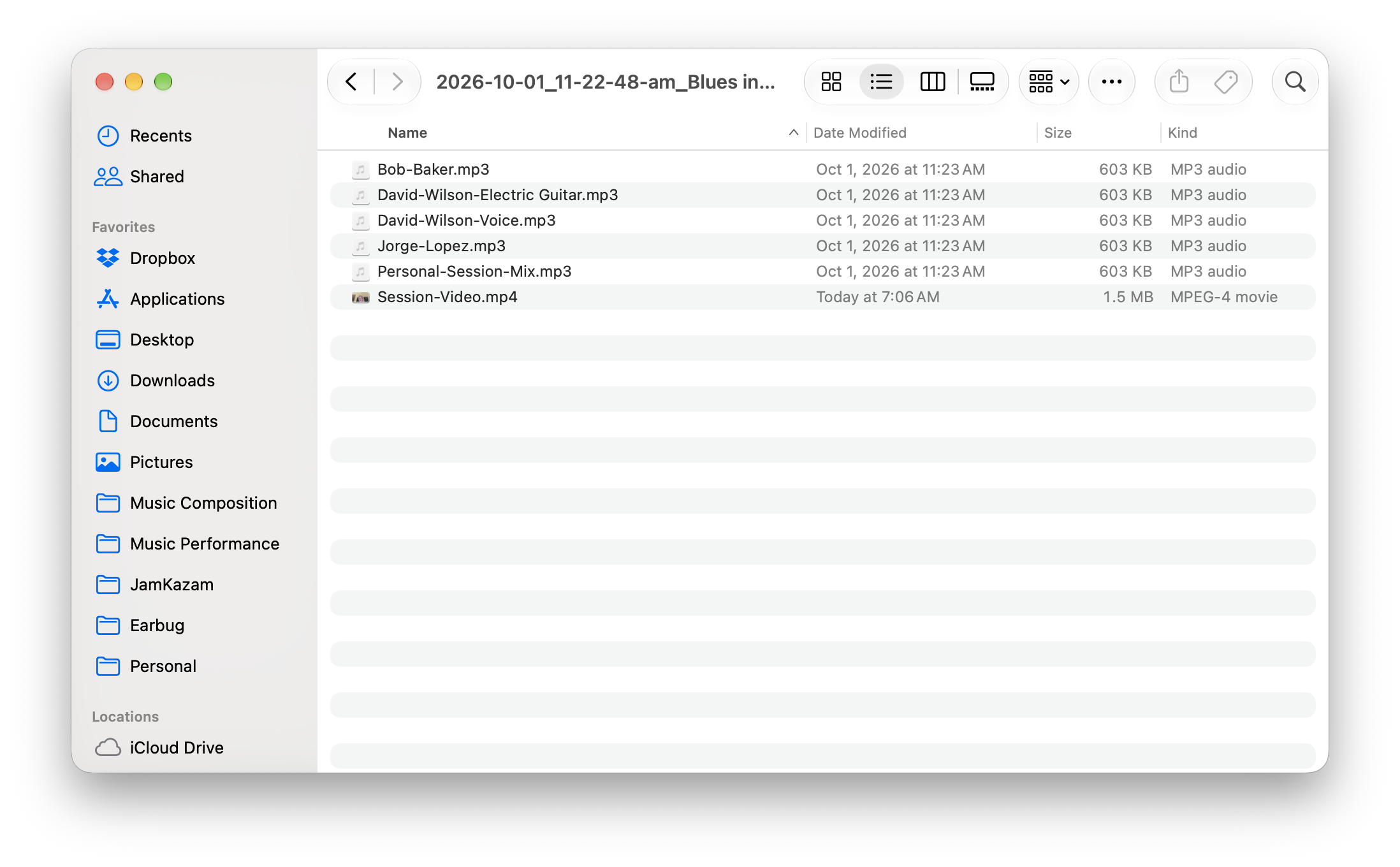
You may have the following types of files:
- Your Stems - For each of your own audio tracks, if you chose to record the session mix + stems, you'll see an audio file with your name and the name of the instrument associated with each track. These are the recordings of each of your individual, fully isolated parts, captured at the highest quality directly from your audio interface.
- Other Musicians - If you chose to record the session mix + stems, you'll see an audio file with the name of each other musician in your session. These are the recordings of each of these individual musicians. Keep in mind that if another musician is playing multiple tracks, you only get a single audio file because you're only receiving a single audio stream per musician. And this is a recording of the streamed audio from each other musician, which is a bit lower in quality compared to a recording captured at the highest quality directly from an audio interface. If you want to get the high quality, individual per track stems from other musicians, you'll need to have those musicians share their recorded stems with you.
- Session Mix - The audio recording of the session mix is saved as an audio file called Personal-Session-Mix.
- Video - The video recording (if any) is a combination of the recorded video window and the session mix audio and is saved as a video file called Session-Video.
One other quick note on working with your recording files. If you want to go find any or all of the recording files you've made while playing on JamKazam:
- On a Mac, open the Finder and select your Mac hard drive. Then double click on Users, then the folder with your username, then Music, then Recordings.
- On Windows, go to C:\Users\your-username\Music\recordings.
Setting Your Audio Recording Preferences
When you make an audio recording using the features described above in this help article, some of your choices are automatically saved as preferences - e.g. the audio format (.wav, .mp3, etc.) and whether to record just the session mix, or the session mix plus all the individual parts (see screenshot below as a reminder). The next time you click the Record button to make a recording, your selections from last time are maintained so that you don't have to choose them every time.
When someone else makes a recording in a session you're in, what gets recorded by JamKazam on your computer is controlled by your recording preferences. To view and update your recording preferences, on the JamKazam website, click the Preferences option under the Account header in the left navigation bar. You will see your preferences page. Your audio recording preferences are displayed in a section of this page titled Recording (pictured below with arrow).
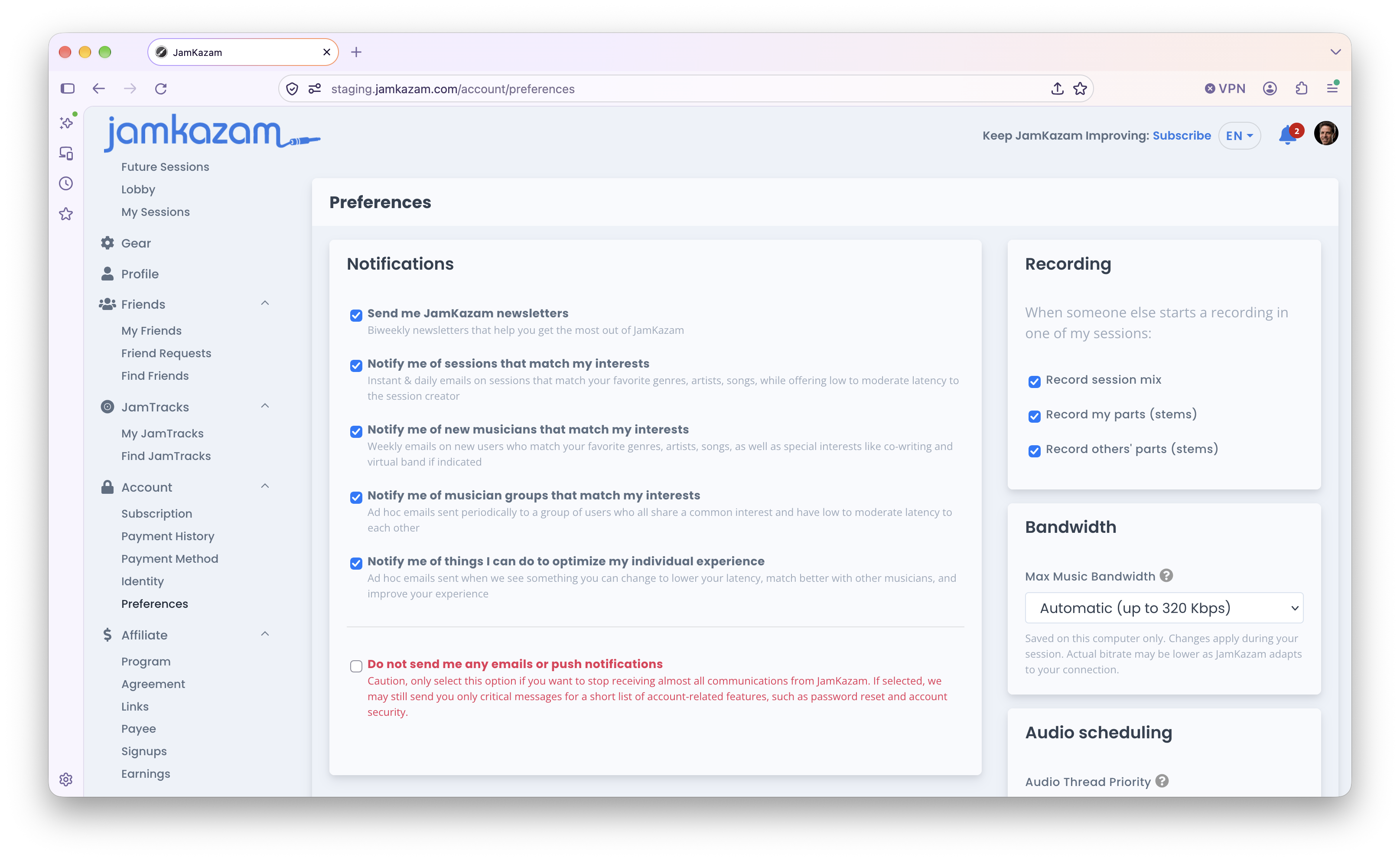
These preferences are set by default to record everything when someone else starts a recording in your session - the session mix (using your own personal mix settings), each of your own tracks as a stem file, and one audio file for each other musician in the session. We recommend you leave these boxes checked if you think you may want to access and use any of these recording files - for example, to listen to the session mix for fun, to listen to your own stems to hear how you did and critique your own performance, or to share your stem files with someone from your band so they can create a high-quality mix/master from the session. However, if you're concerned about conserving space on your hard drive, you certainly can uncheck these boxes to avoid making and saving recordings when others initiate a recording in your online sessions. Note that you can always delete older recording folders from your computer manually.