
When playing in sessions, it can enhance your experience to use video as well as audio, so that you can see the other musicians in your session while playing and hanging out together. JamKazam offers a rich set of video features, and this help article explains how to use them.
To start using video in a session, click the Video button in the session toolbar (pictured below with arrow). This displays a new video section on the right side of the session screen. Next click the blue Start Video button (pictured below with arrow).
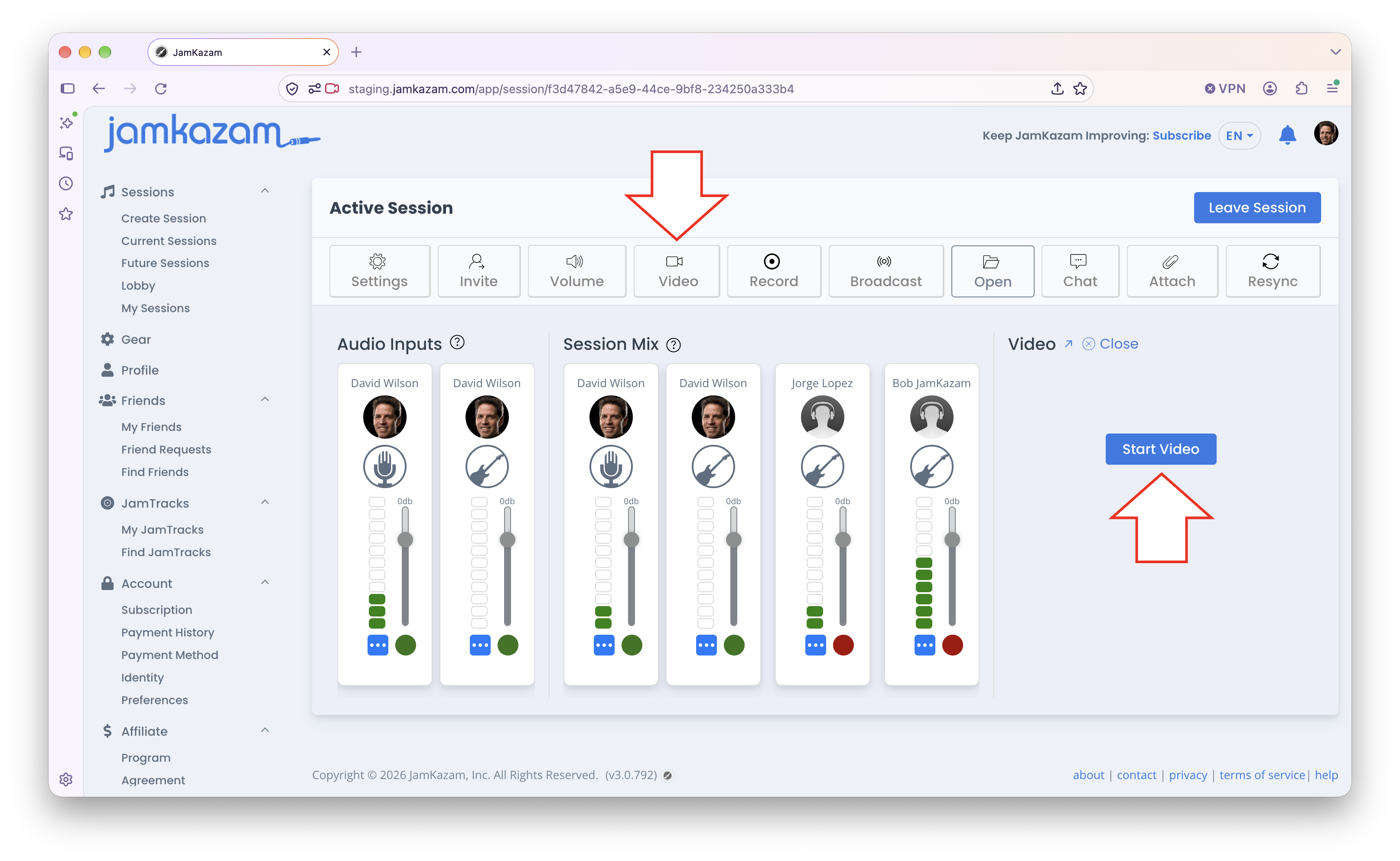
When you click the Start Video button, JamKazam uses the default webcam on your computer to capture and display video of you, and to stream your video to others in your session. If other musicians in your session have video turned on, you will also see them in the video section of the session screen (pictured below). 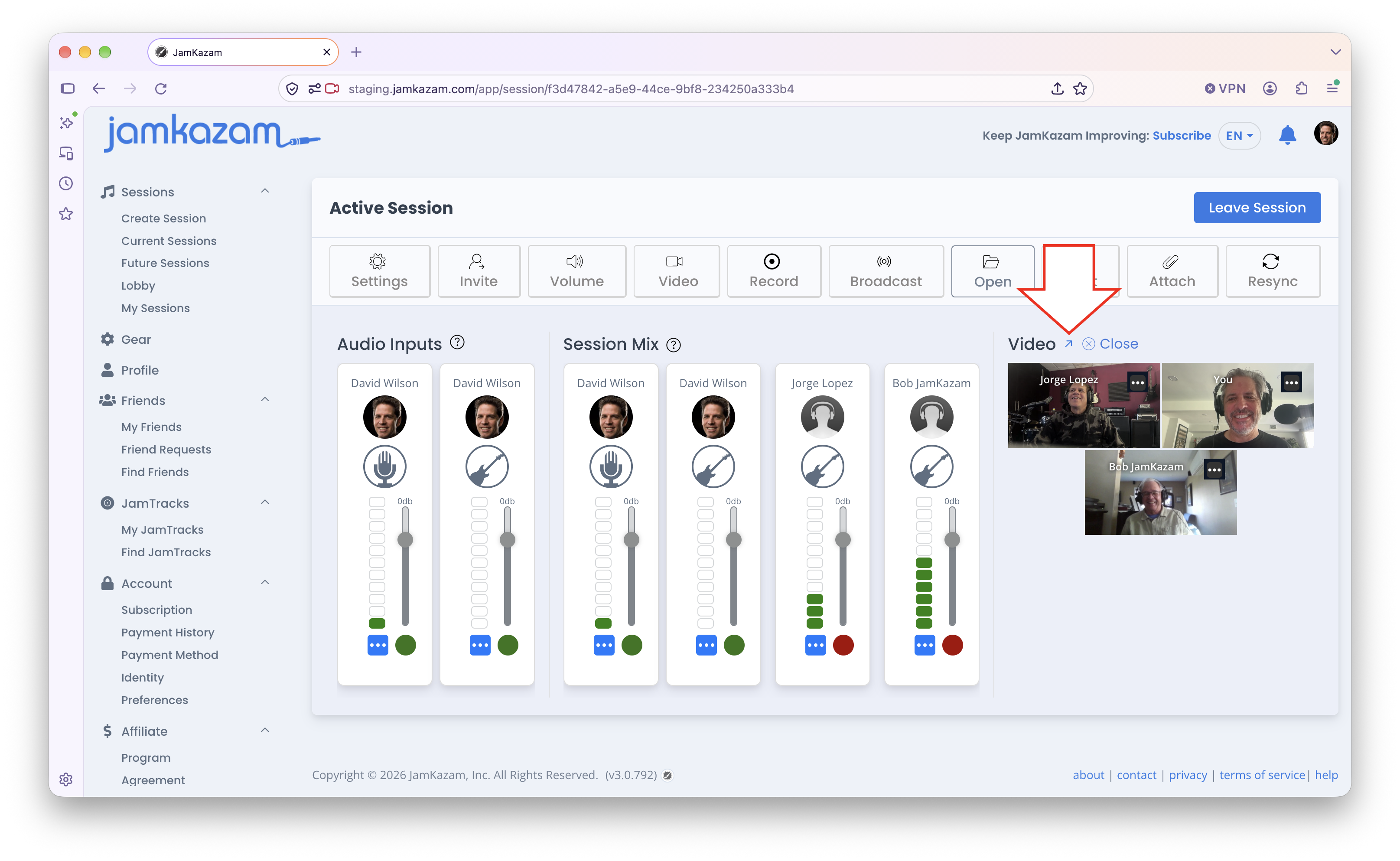 If you prefer to see the video of everyone in a larger format, and/or if you want to get the video moved out of the way to see more session tracks, you can click the small blue arrow icon next to the Video text label (pictured above with arrow). When you do this, the video window will seem to disappear as it moves down below the tracks. Scroll down the session screen, and you will see a very large video window. You can always scroll back up to see and works with the session tracks and the session toolbar. You can also click the arrow icon next to the Video text label to minimize the video window size again, which will place the video window to the right of the tracks where it started.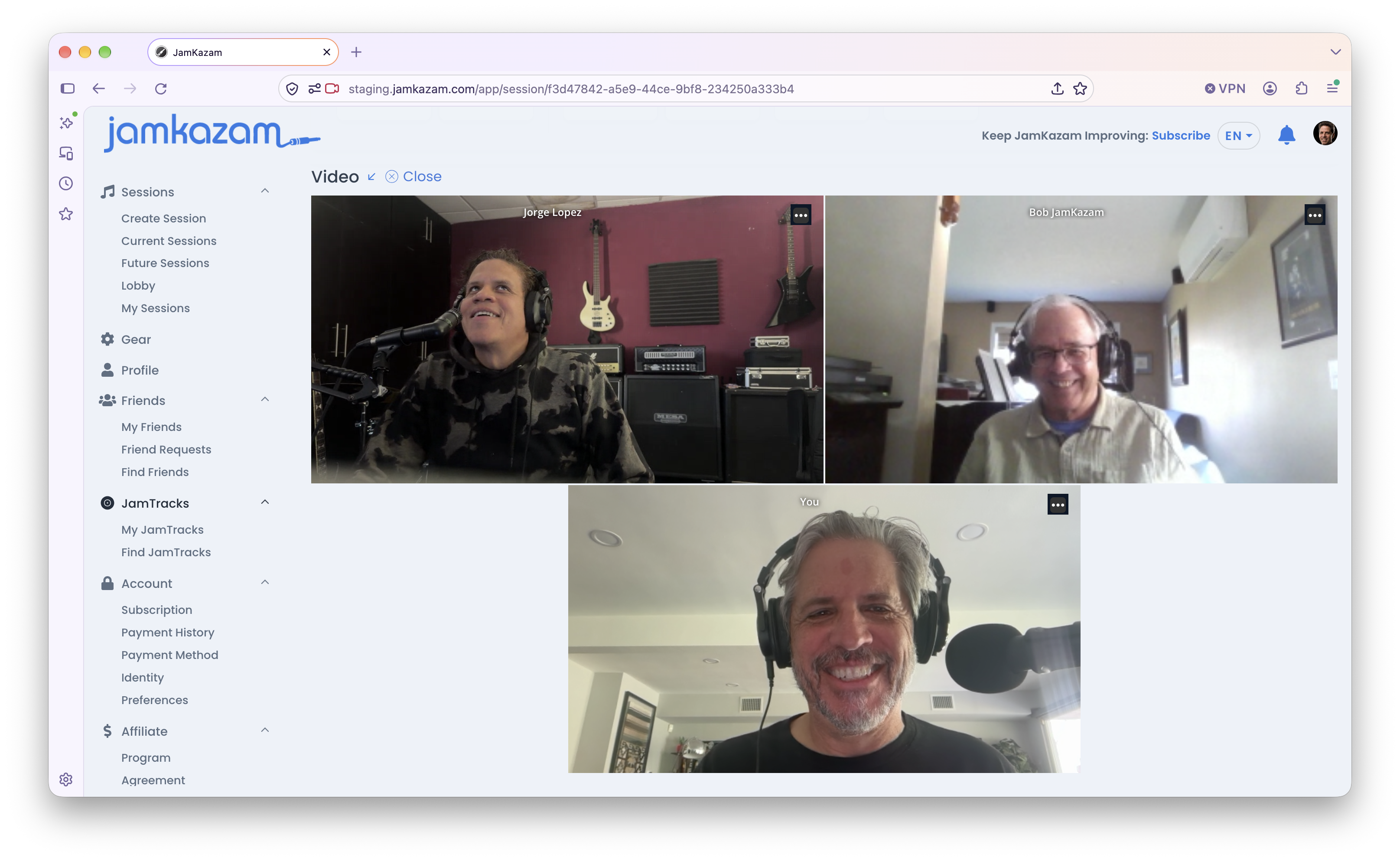
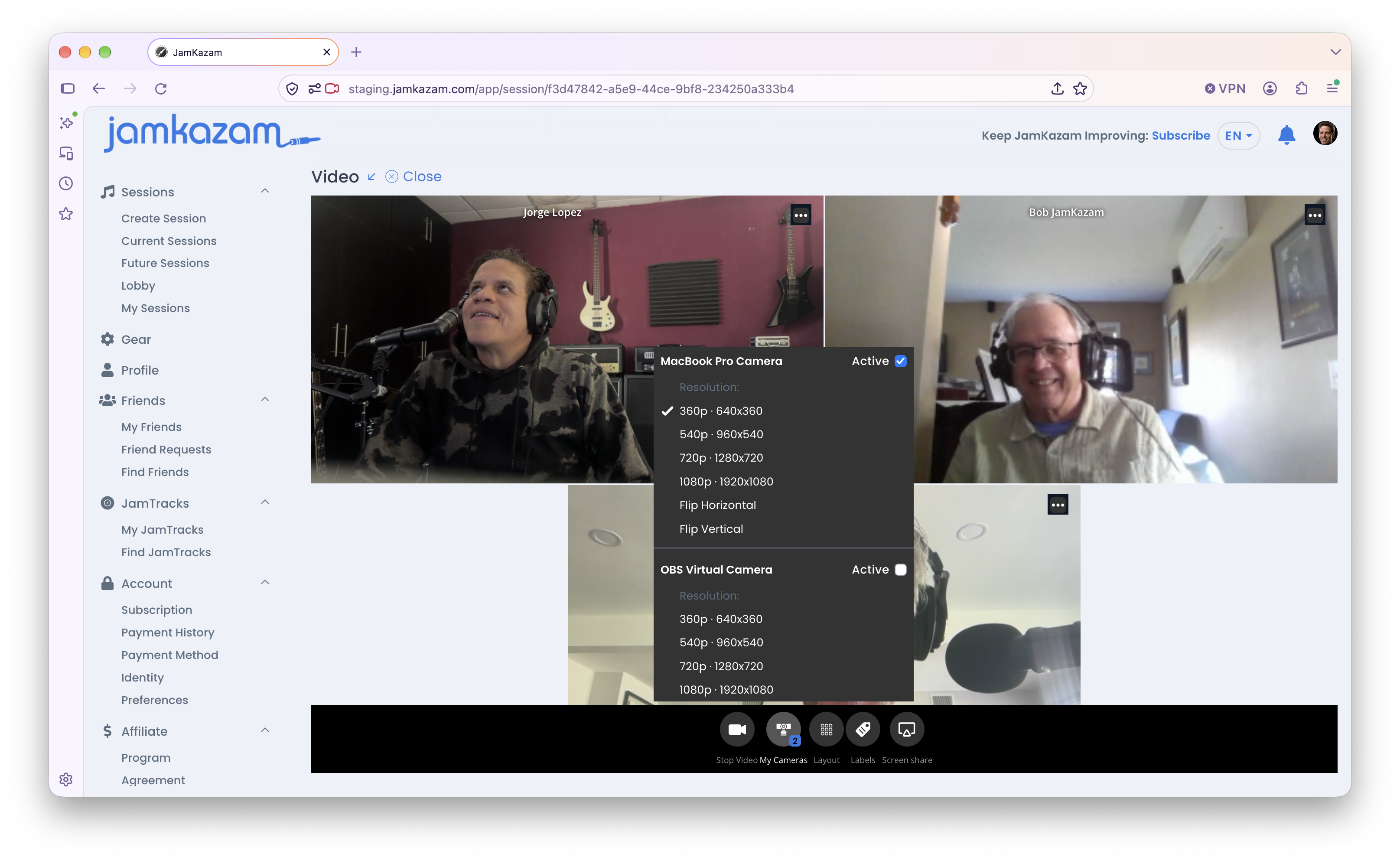
With video running, you have some options to further customize your use of JamKazam's video features. To see your options, simply move your mouse cursor anywhere over the video window. When you do this, a set of video icons are displayed at the bottom of the video window (pictured below with arrow). Click on an icon if you want to see its menu (pictured below).
Following are descriptions of the video options available to you:
- Stop Video - Clicking this icon stops your webcam from capturing video of you and streaming it to others, but leaves the video window open so you can still see others. If you temporarily stop your own video using this icon, it toggles to Start Video so you can easily re-start your own webcam when you're ready to resume sending video of yourself.
- My Camera - Clicking this icon displays a menu like the one shown in the screenshot above. Each webcam available on your computer is listed, along with the different video resolution options, and options to flip your video. Each available camera has an Active checkbox to the right of the camera name. You can check the camera to make it active or uncheck it to turn it off. You may use multiple cameras at one time (e.g. one pointed at your electronic keyboard/hands, and one pointed at your body/face + keyboard). Keep in mind that more cameras and a higher video resolution per camera uses more network bandwidth and more computing horsepower, so use your judgment here on what your system/network can handle. The Flip Horizontal and Flip Vertical options can be useful if you find that the camera view is inverted for some reason (or if you want yourself upside down, lol).
- Layout - Clicking this icon displays a Layout menu. There are three different layout options for "All Users" that display everyone in the session in the video window with alternative layouts. You can also choose to show/feature just one single musician in the video window. And there are option to rotate users left or right within a given layout.
- Labels - Clicking this icon displays a Labels menu. There are options to display no text labels on each musician, or to display first name, or first and last name, etc.
- Screenshare - Clicking this icon lets you share your screen in the video window with other musicians in your session. You might do this, for example, if you are collaborating on a project in a DAW (digital audio workstation) with co-writers, and you want your collaborator(s) to see what you're doing, as well as hear the results in audio, all in real-time.