
JamKazam sessions are the virtual rooms where musicians can gather online to play music together, live and in sync. You can also get into a session alone to work on music independently, with the ability to play along with backing tracks, make recordings, and more.
To create a session on JamKazam, go to https://jamkazam.com/sessions/new or if you are already on the JamKazam website, click Create Session near the top of the left navigation bar. The Create Session page is displayed (pictured below).
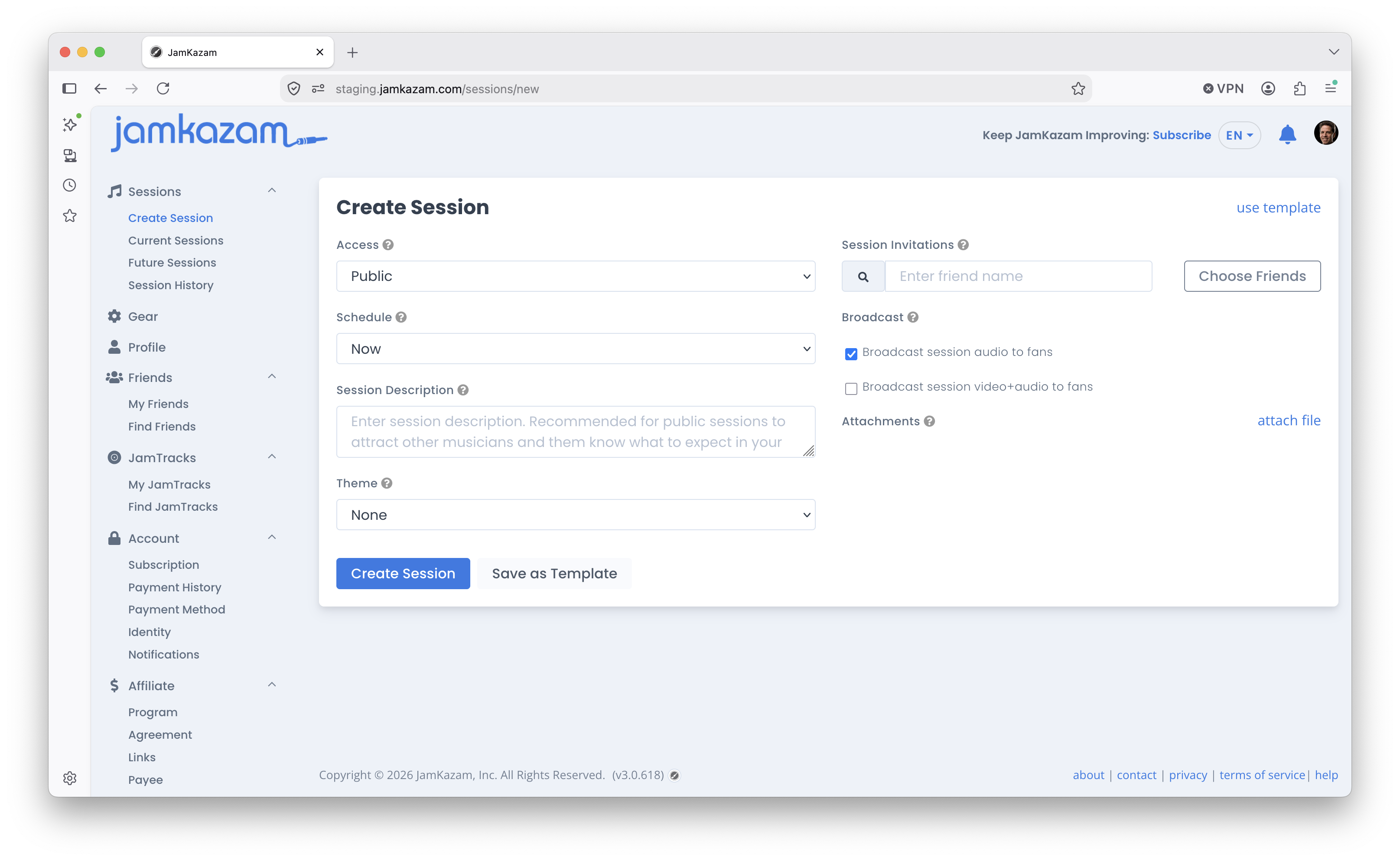
Following are explanations of how to use the various session options and settings.
Access
You can set your session to either public or private. If public, any other JamKazam user can join your session. If private, only those who you invite can see or join your session.
Schedule
This controls when your session happens, and there are three options:
- Now - If you select Now and then click the Create Session button, your session will start immediately, and if you are on a computer with the JamKazam app installed and with your audio interface connected and set up in a JamKazam profile, you will be dropped straight into your new session.
- Future - If you select Future, you will see scheduling options displayed, enabling you to set the date and time at which you want this session to start. This is a good option for a band practice, as you know when it's going to happen.
- Future (?) - This lets you specify that the session will take place in the future, while letting you wait to determine exactly when you want it to happen. This is a good option for publishing a future session where you want to find others interested in playing a particular kind of music (e.g. a specified setlist of songs, or music by a particular artist, etc), but you don't know who will RSVP, so you want to wait and coordinate with those who respond to set a specific date and start time that works for everyone.
Description
If you're starting a public session, we strongly suggest you enter a good description, as this will help other musicians decide if your session is interesting and a good fit for them to join. If you're creating a private session, the description is optional.
Theme
Theme is a very powerful session matchmaking feature and worth the time to explore and understand. There are four theme options:
- None - This does nothing - fine to use if you're playing with people you already know, and if there is no value in communicating anything about the session to others.
- Setlist - If you have a specific set of songs you're planning to play, use the Setlist theme. After you select Setlist, a search box will be displayed. Type the name of a song and select it from the results list. If there are too many songs with the same name, you can type "song name by artist name" - e.g. Black by Pearl Jam - to make your results more precise. Also, if you play classical music, you can click the "Search classical music" box and enter the name of the piece of music or "piece name by composer name" - e.g. String Quartet no. 13 by Beethoven. This will generate a session alert to each musician in the JamKazam community who: (a) has this song listed on their profile and (b) has a good or fair latency connection to you, giving you a highly targeted way to let others (who who play the songs in your setlist) know about and RSVP to your session.
- Artist - If you want to play songs by one or more artists, use the Artist theme. After you select Artist, a search box will be displayed. Type the name of an artist, and select it from the results list. For example, if you are setting up a grunge session, you might add Nirvana, Pearl Jam, Alice in Chains, and Stone Temple Pilots as artists to your session. If you play classical music, you can click the "Search classical music" box and enter the name of a particular composer. This will generate a session alert to each musician in the JamKazam community who: (a) has this artist listed on their profile and (b) has a good or fair latency connection to you, giving you a highly targeted way to let others (who play music by your target artist) know about and RSVP to your session.
- Genre - If you want to play music in a particular genre, use the Genre theme. After you select Genre, a search box will be displayed. Type the name of a genre, and select it from the results list. This will generate a session alert to each musician in the JamKazam community who: (a) has this genre listed on their profile and (b) has a good or fair latency connection to you.
If you start a session Now or later the same day, it will generate browser notifications to the matched musicians (if they've opted in to JamKazam browser notifications). If you schedule the session for a future date, it will generate email notifications to the matched musicians.
Beyond matchmaking, this also gives you a nice session landing page you can share with other musicians and fans.
Invitations
If you create a private session, you'll need to invite any other musicians you want to join you, as no one else will see or know about the session without an invitation.
- You can invite a friend to join your session by typing their name in the invitations search box (where the "enter friend name" hint text is displayed), and then select their name from the search results list.
- You can also click the Choose Friends button, scroll through your friends list, and select the friends you want to invite from the list.
- If you don't know how to find and connect with friends on JamKazam, review this section of help articles.
Broadcast
If you want to let fans listen to your session performance, there are a couple of options for this:
- Video Broadcasts - You can live broadcast your JamKazam session through YouTube, Facebook, or Twitch. If you check the "Broadcast session video+audio" option, you'll see a text box where you can paste the URL for your live session. If you save a URL here, you can share a Session Details web page link with your fans, and this page will display a big icon they can click to tune in and watch your performance. To learn more about how to broadcast a video+audio session to fans, read this help article.
- Audio Broadcasts - Soon, you'll be able to live broadcast your JamKazam session audio to fans without doing anything at all. If you check the "Broadcast session audio only" option, this will display a big icon on the Session Details web page, and your fans can click that icon to listen to your session audio through the web page. This feature will be available sometime in Q4 2026.
Attachments
Finally, you can attach lead sheets, charts, and other notation and music files (PDF, PNG, or JPG formats supported) to help other musicians play along with your selections in the session. To do this, click the "attach file" text link in this section of the page and upload the files. These will be attached as downloadable resources to your session, available ahead of the session on the Session Details page, and also during the session.