
A backing track is an audio recording that live musicians play or sing along with. Backing tracks are handy when you don't have anyone else to play live in a JamKazam session, so that you can still play along with some kind of accompaniment. Backing tracks can also be fun and useful even when you have multiple musicians live in a JamKazam session, as you can use backing tracks for a foundation or to fill in missing musician parts. For example, you could use an audio recording of a piano playing 12-bar blues in the key of G, and have multiple live musicians in your JamKazam session take turns playing and soloing over this backing track.
If you don't have any backing tracks, you can search for backing tracks on the Internet. There are many sources of free backing tracks in different styles/genres and with different instrumental and rhythmic combinations. The JamKazam app currently supports the following audio file formats for using backing tracks in sessions:
- .mp3
- .wav
- .flac
- .ogg
- .aiff
- .aifc
- .au
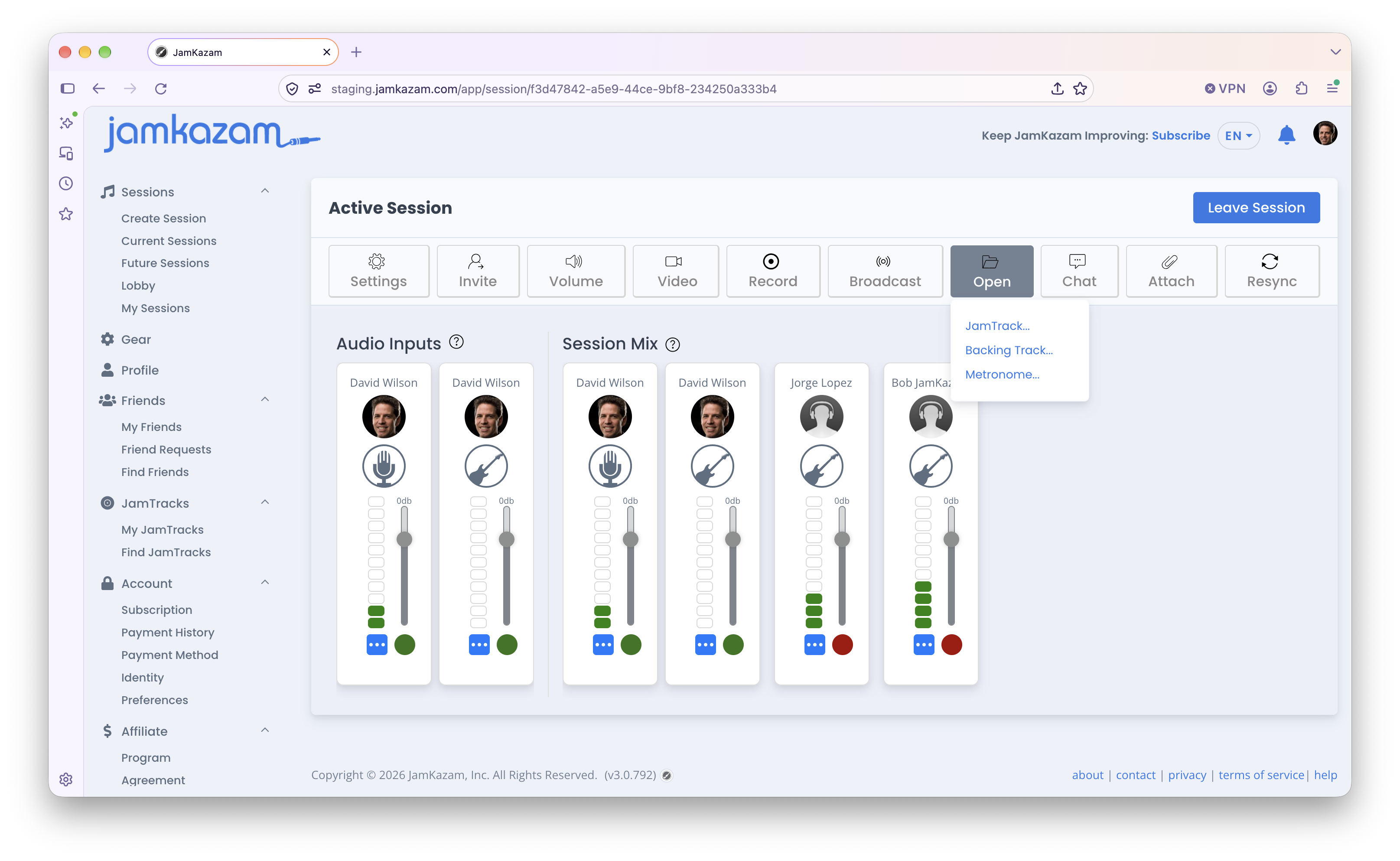
Now that we've covered a little bit of information about what backing tracks are, let's see how you can use them in a JamKazam session. To open and use a backing track audio file in JamKazam, click the Open button on the session toolbar, and then click the Backing Track menu option (pictured below).
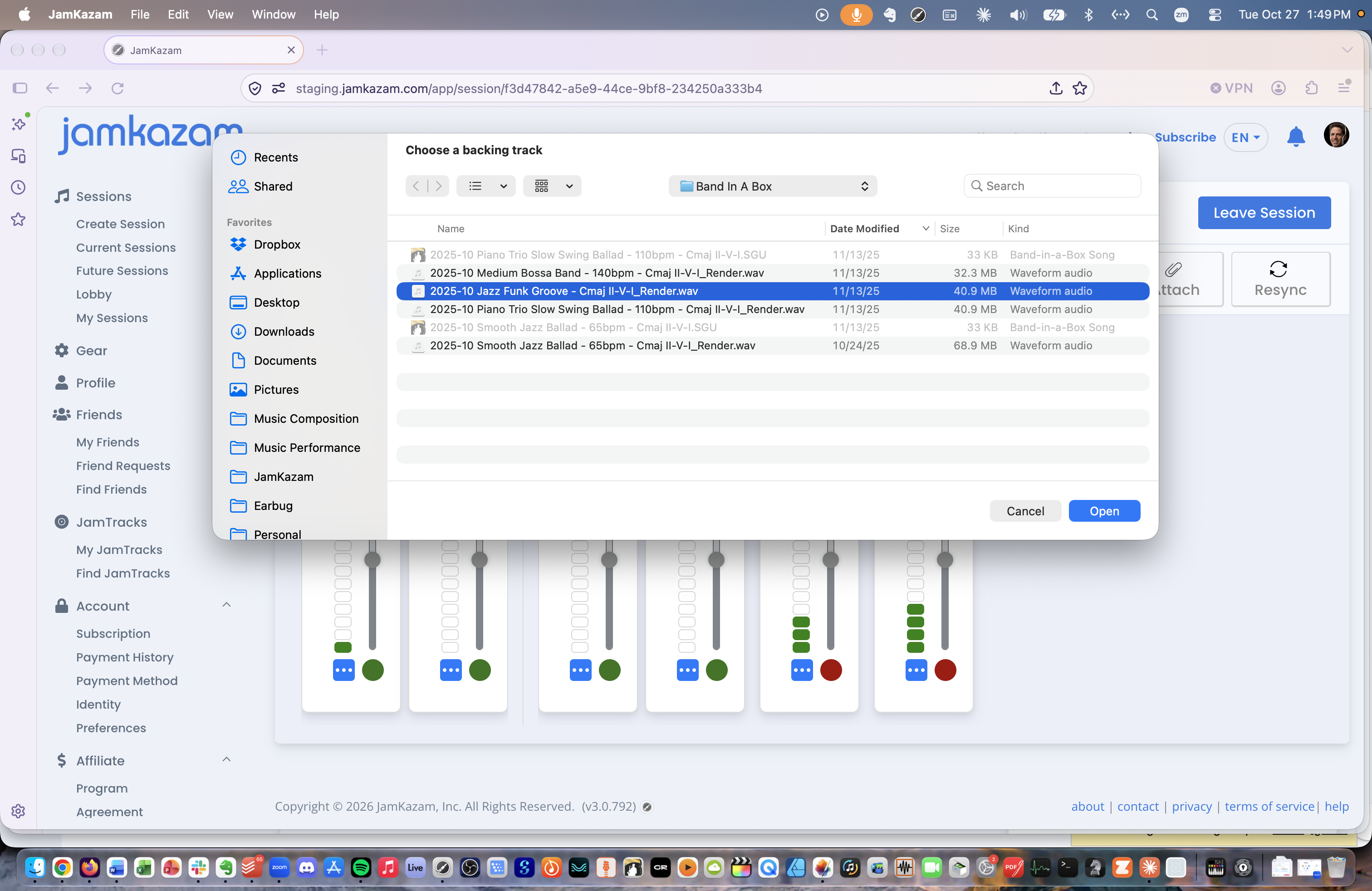
A common File Open dialog box is displayed. Select the audio file you would like to use, and then click the Open button at the lower right corner of this dialog box.
The audio file you selected is opened into the JamKazam session. An audio track for the backing track audio file is displayed under a Backing Track text header on the right side of the session screen (pictured below).
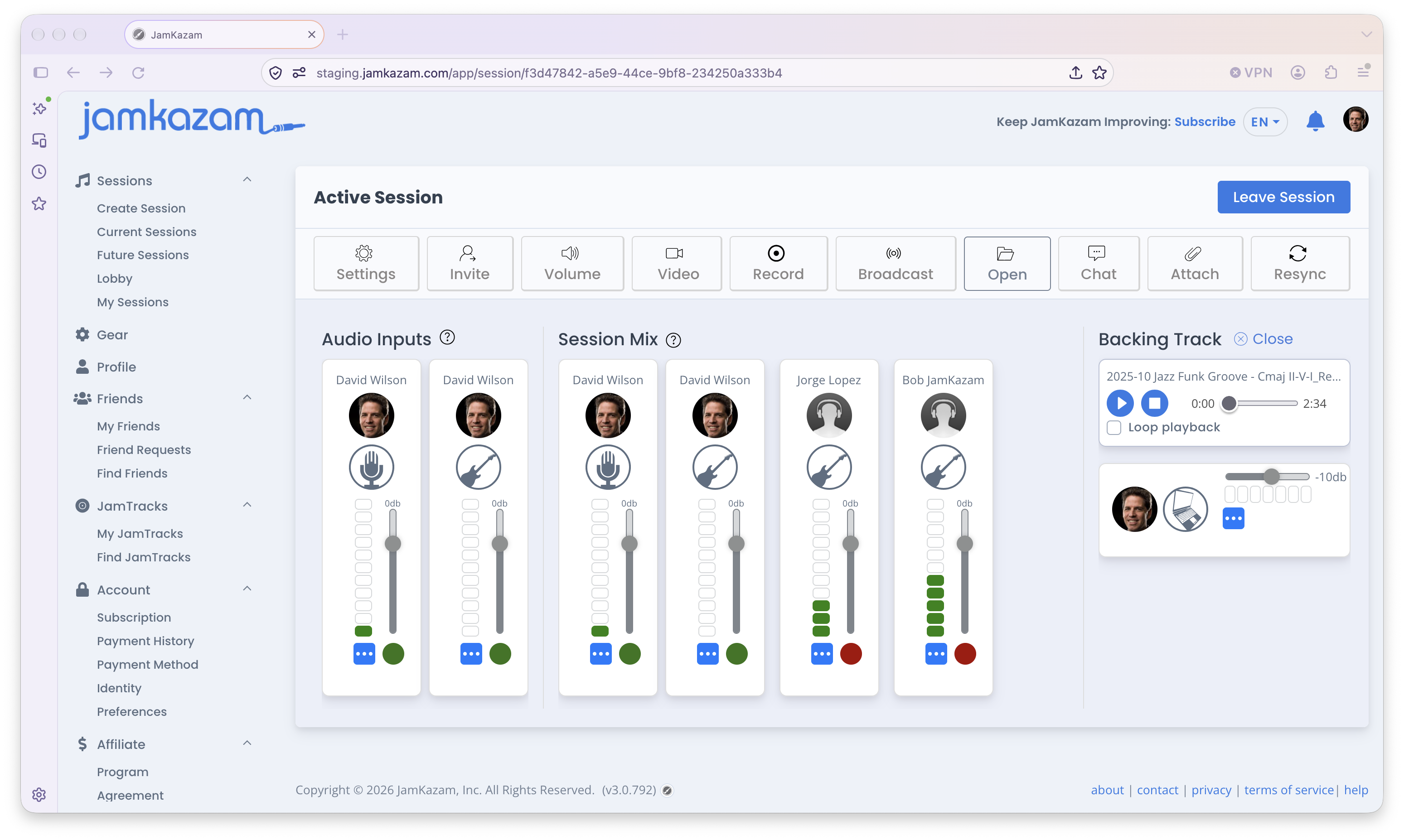
The controls for this backing track audio file are displayed under the Backing Track header. To start playing the backing track, click the blue play icon. This starts playback and toggles to a pause button. You can also click the stop button to stop playback and move back to the beginning of the track. Grab the circular handle on the playback slider to pull and place playback within the track. If the backing track is built as a loop (i.e. a repeating pattern that can loop over and over seamlessly without interruption), you can check the "Loop playback" checkbox, and the track will keep playing in an endless loop until you stop it.
In the control below this one, you can use the slider to increase or decrease the backing track volume to balance it with your mix of live tracks. You can also click the blue "..." icon for a menu and select the Pan menu option to pan the backing track left or right in the mix if desired.