
To get started, go to the JamKazam app download page in your browser, using this link: https://www.jamkazam.com/public/downloads. You will see the download page (pictured below).
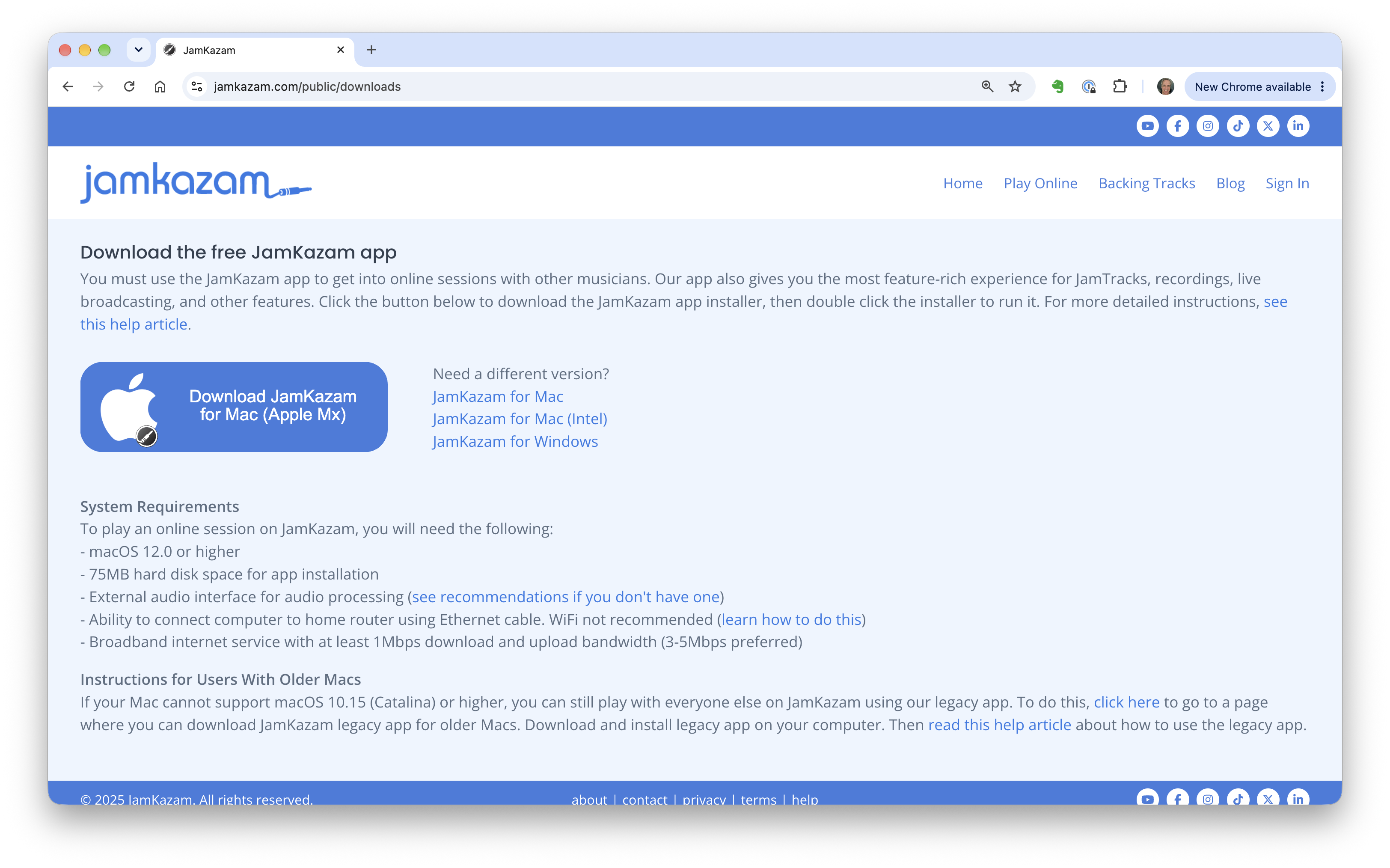
The download page will automatically detect what operating system your computer is running and offer the right download button for the right version. Simply click the big blue download button to get the app. The app will download to the location where files typically go when you download through your browser.
Installing on Mac
Double click the downloaded .dmg file, and you will see a window with two icons - one for the JamKazam app and another for the Applications folder on your Mac. Drag the JamKazam app icon and drop it on the Applications folder icon. You will see a Mac status message telling you that your Mac is copying the JamKazam application into the Applications folder. (Note that if you have already installed the JamKazam app in the past, you will see a dialog box, and you should choose the "Replace" option.)
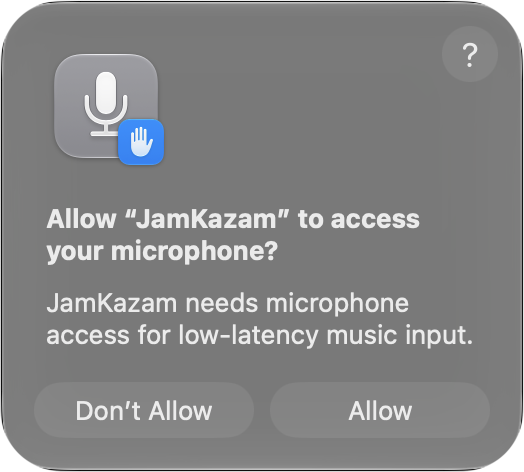
Note: be sure to accept the Allow "JamKazam" to access your microphone prompt when you first launch JamKazam.
Installing on Windows
Double click the downloaded .msi file, and a typical Windows installer will start up and be displayed. Simply follow the on-screen instructions to install the JamKazam app, as you normally would for any Windows app installation.
Installing on Linux
The Linux installation process is a bit more elaborate (and takes more space), so if you're doing Linux, please scroll past the next section to the last section of this help article, where we have the steps to follow to install JamKazam on Linux.
Using the JamKazam App
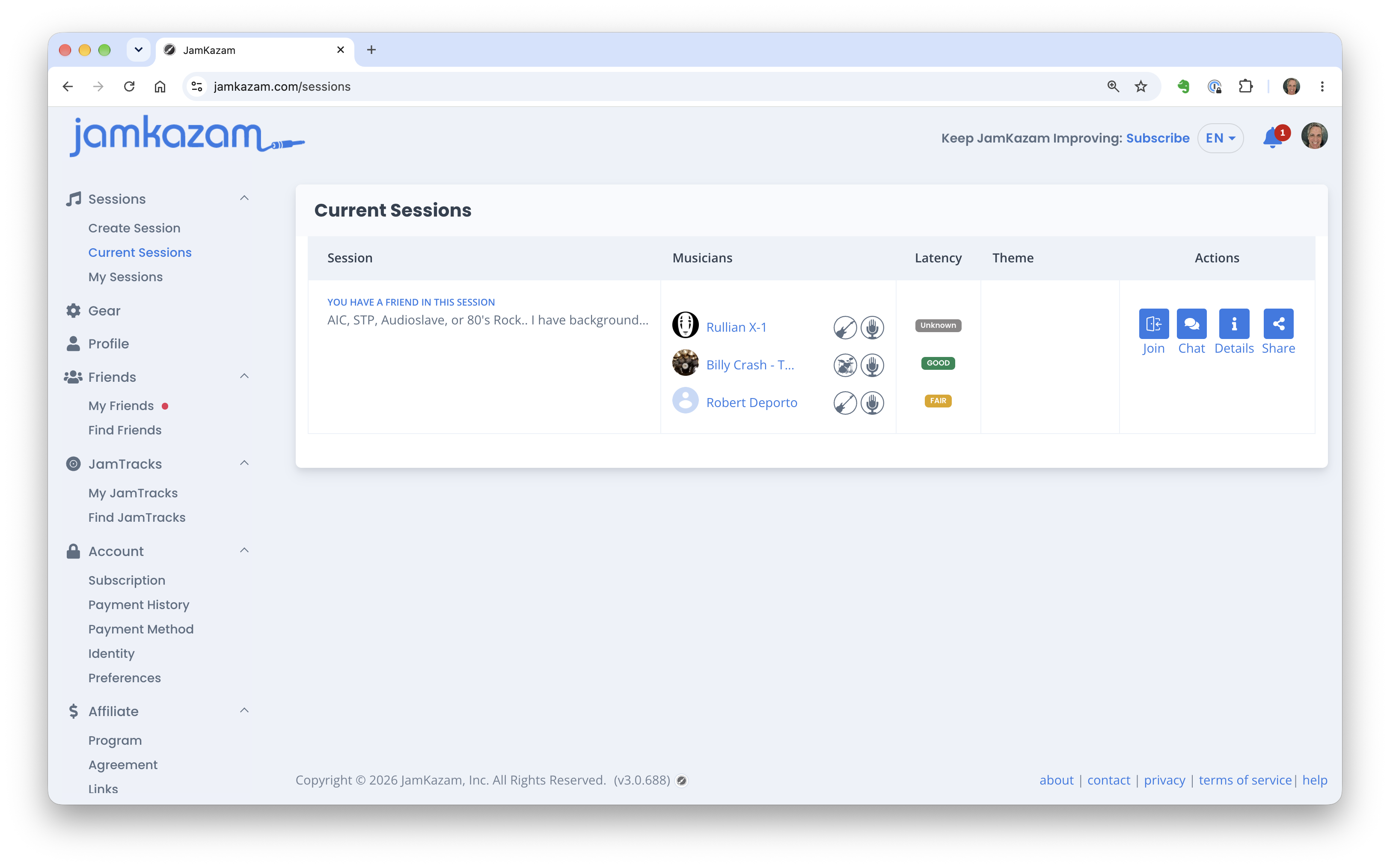
Note that the JamKazam app has been updated to run quietly in the background. All of your interactions with the app now happen through the JamKazam website (pictured below). Use this link to check for current sessions on JamKazam: https://www.jamkazam.com/sessions. And then you can use the left navigation bar to move around through all the features available.
If you have your audio interface and are ready to set it up to work with the app, your next step is to install any software that is needed to make your audio interface work properly on your computer. For instructions on this next step, please refer to our help articles on Setting Up Your Audio Interface.
If you don't have an audio interface and other gear ready to use with the JamKazam app, we'd suggest that you:
- Read a help article to understand what gear you need to play in online JamKazam sessions.
- Read a help article in this help section to get more information on the gear needed for different types of instruments.
- Read the articles in this help section on gear recommendations to choose and acquire the specific gear you want to use.
Installing on Linux (The Details)
Ok, so for all you Linux users out there, here are the instructions for installing JamKazam on Linux. JamKazam for Linux comes in an AppImage file. This file starts the JamKazam application on your computer. As noted earlier, JamKazam also uses your web browser. Keep the application running while you use JamKazam in the browser.
These instructions apply to the 64-bit Intel/AMD AppImage.
You will need:
- A Linux desktop with glibc 2.39 or later.
- Administrator access through sudo, or help from an administrator, to configure the recommended real-time priority setting.
- A web browser, an Internet connection, and a JamKazam account.
- An audio interface that works with Linux, and headphones.
Note that the commands below use Bash. Enter one command at a time, then press Enter. Commands and file contents appear in gray boxes.
Check your Linux system
- Open a terminal.
- Start Bash.
bash - Check the computer architecture. The result must be x86_64 for the Intel/AMD AppImage.
uname -m - Check the glibc version. The result must show glibc 2.39 or a later version. If your system does not meet these requirements, contact JamKazam Support before you continue.
getconf GNU_LIBC_VERSION
Set the real-time priority limit (recommended)
Real-time priority helps JamKazam process audio on time. We highly recommend you set rtprio to 85 to have the best experience with JamKazam. If you hear crackles or pops, configure rtprio 85 with the procedure below. This setting permits programs under your account to request real-time priority up to 85. JamKazam requests the priority automatically. JamKazam uses the higher priority only for audio and UDP network processing threads. When no active online session or gear wizard is active, JamKazam does not process work at high priority.
- Show your Linux user name. Use this name in step 3. Your Linux user name can differ from your JamKazam account name.
whoami - Open the limits file. Enter your Linux password if requested. The terminal does not show the password as you type.
sudo nano /etc/security/limits.d/99-jamkazam.conf - Add the following line. Replace YOUR_LINUX_USERNAME with the result from step 1. For example, if your Linux user name is alex, enter: alex - rtprio 85. Enter only the line for your user name. If that line already exists, change its value to 85. The - sets both the soft limit and the hard limit.
YOUR_LINUX_USERNAME - rtprio 85 - Press Ctrl+O, then Enter, to save the file.
- Press Ctrl+X to close the editor.
- Save your work.
- Sign out of the Linux desktop completely.
- Sign in with the same Linux user account.
- Open a terminal.
- Start Bash.
bash - Check the soft limit.
ulimit -Sr - Check the hard limit. Both soft and hard limit results should be 85. An existing higher limit also permits priority 85. If either result is less than 85, use the troubleshooting instructions below.
ulimit -Hr
A full sign-out and sign-in normally applies the new limits without a restart. Closing a terminal alone does not. You only need to configure this setting once for each Linux user account.
Download and start JamKazam
- Open the JamKazam downloads page.
- Download the Linux Intel/AMD file with a name that ends in _amd64.AppImage.
- Open your file manager.
- Create an Applications folder in your home folder, if necessary.
- Move the downloaded AppImage into Applications.
- Rename the downloaded file to JamKazam.AppImage.
- In your Bash terminal, permit execution of the file.
chmod a+x "$HOME/Applications/JamKazam.AppImage" - Connect your audio interface and headphones.
- Start JamKazam. Run this command as your normal Linux user. Do not add sudo. Keep this terminal open while JamKazam runs.
"$HOME/Applications/JamKazam.AppImage" - Select a browser in the JamKazam login window.
- Sign in to JamKazam in the browser.
- If the browser asks to open a jamkazam:// link, permit it to open JamKazam.
- Follow the Gear Wizard instructions to select and test your audio interface.
For later use, start the same AppImage. Keep the file in the same folder with the same name.
Troubleshooting
The priority limit is less than 85.
- Check that the limits file contains the exact user name shown by whoami.
- Check that the file name ends in .conf.
- If you corrected the file, sign out of the desktop completely, then sign in and repeat the priority checks.
- If either limit remains below 85, save your work and restart the computer.
- Sign in with the same Linux user account and repeat the priority checks.
- If the limit is still less than 85, ask your Linux administrator to check the login configuration.
The login configuration must apply pam_limits. Other limit settings can also affect the result.
JamKazam reports a FUSE error.
If the error names libfuse.so.2, the AppImage may need the FUSE 2 library. On Ubuntu 24.04, enter these commands:
- Update the package list.
sudo apt update - Install the library.
sudo apt install libfuse2t64 - Start the AppImage again.
For other distributions, follow the AppImage FUSE instructions.
The terminal cannot find the AppImage.
Check the folder and file name. Linux file names are case-sensitive. The command expects JamKazam.AppImage in the Applications folder inside your home folder.