
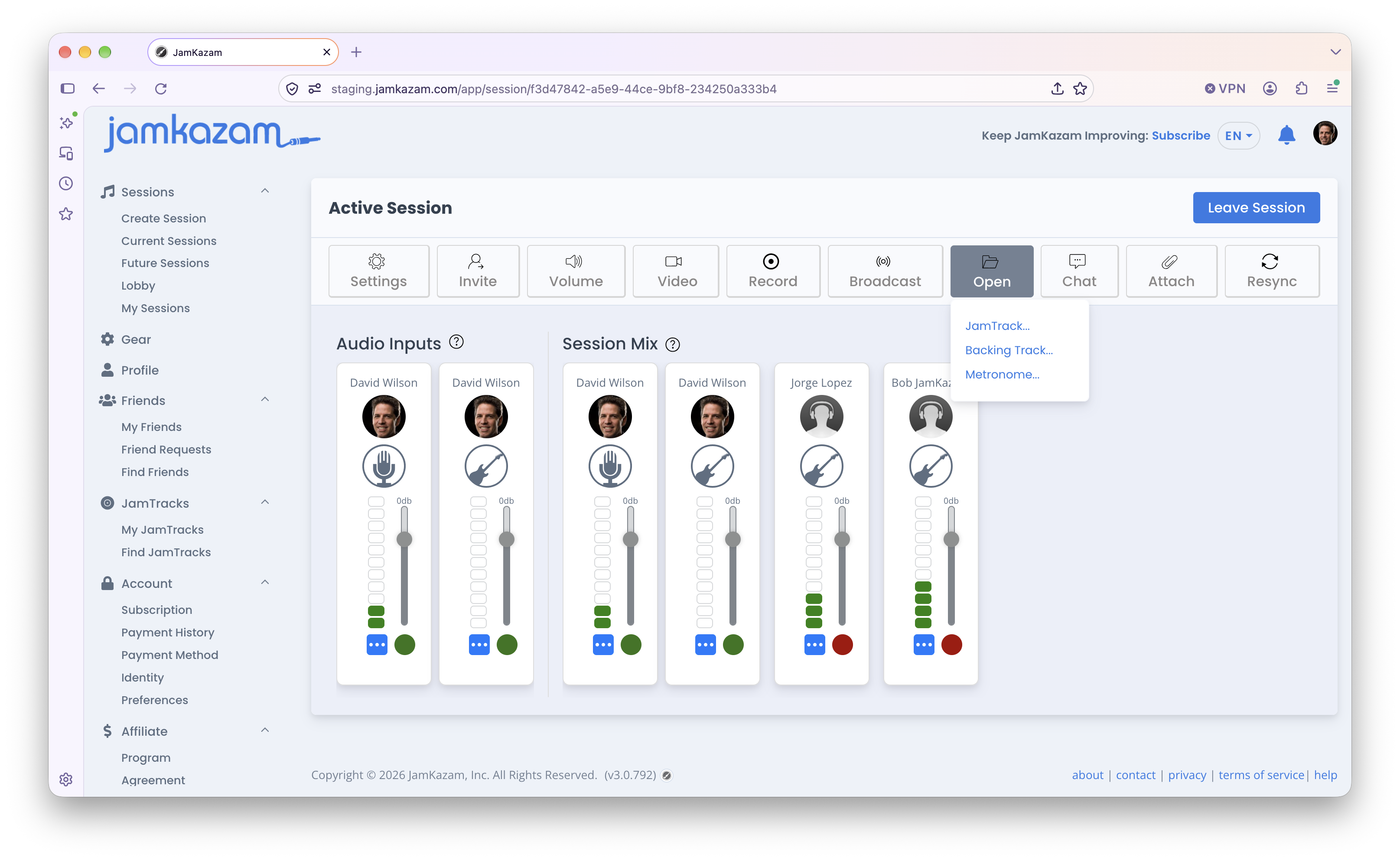
A metronome can be a handy feature for music sessions, either when you can use some assistance in maintaining a consistent tempo, or when latency is higher in your online session and the metronome helps keep everyone together. To use the metronome, click the Open button in the session toolbar, and then click the Metronome option in the menu (pictured below).
The metronome feature is opened into the JamKazam session, displayed on the right side of the screen (pictured below).
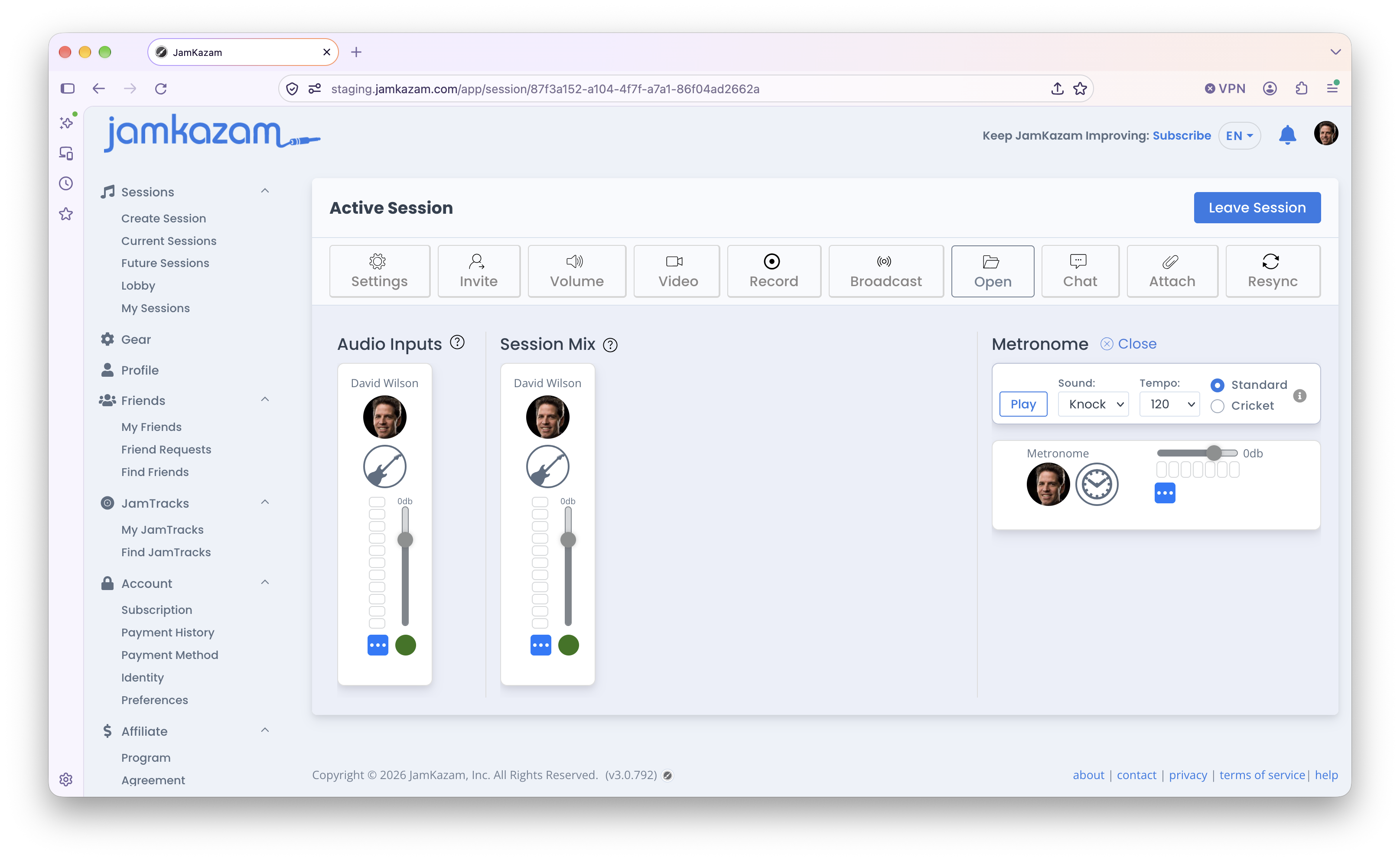
The following metronome features are available for use:
- Play - Click the Play button to start the metronome playing. The button will toggle to let you pause metronome playback as well.
- Sound - Use this control to select the sound you want played on the metronome beats.
- Tempo - Use this control to set the tempo, expressed in bpm (beats per minute), at which metronome beats will play.
- Standard vs. Latency - If you select the Standard option, JamKazam plays a synchronized metronome beat for each musician in the session. If you select the Latency option, JamKazam generates a synchronized metronome beat for each musician in the session, and also streams the metronome beat of each musician to all other musicians in the session, so that each musician hears their own metronome beat, followed closely by the beats of the other musicians. This lets you hear how much latency exists in your session. If all the beats are played together as one unified knock sound, it's a very tight session. The more space you hear between the knocks, the more latency in the session, and the harder it will be to play together.
- Volume - In the second control, there is a horizontal slider you can drag to the right or left to increase or decrease the volume of the metronome beats in your session mix.