
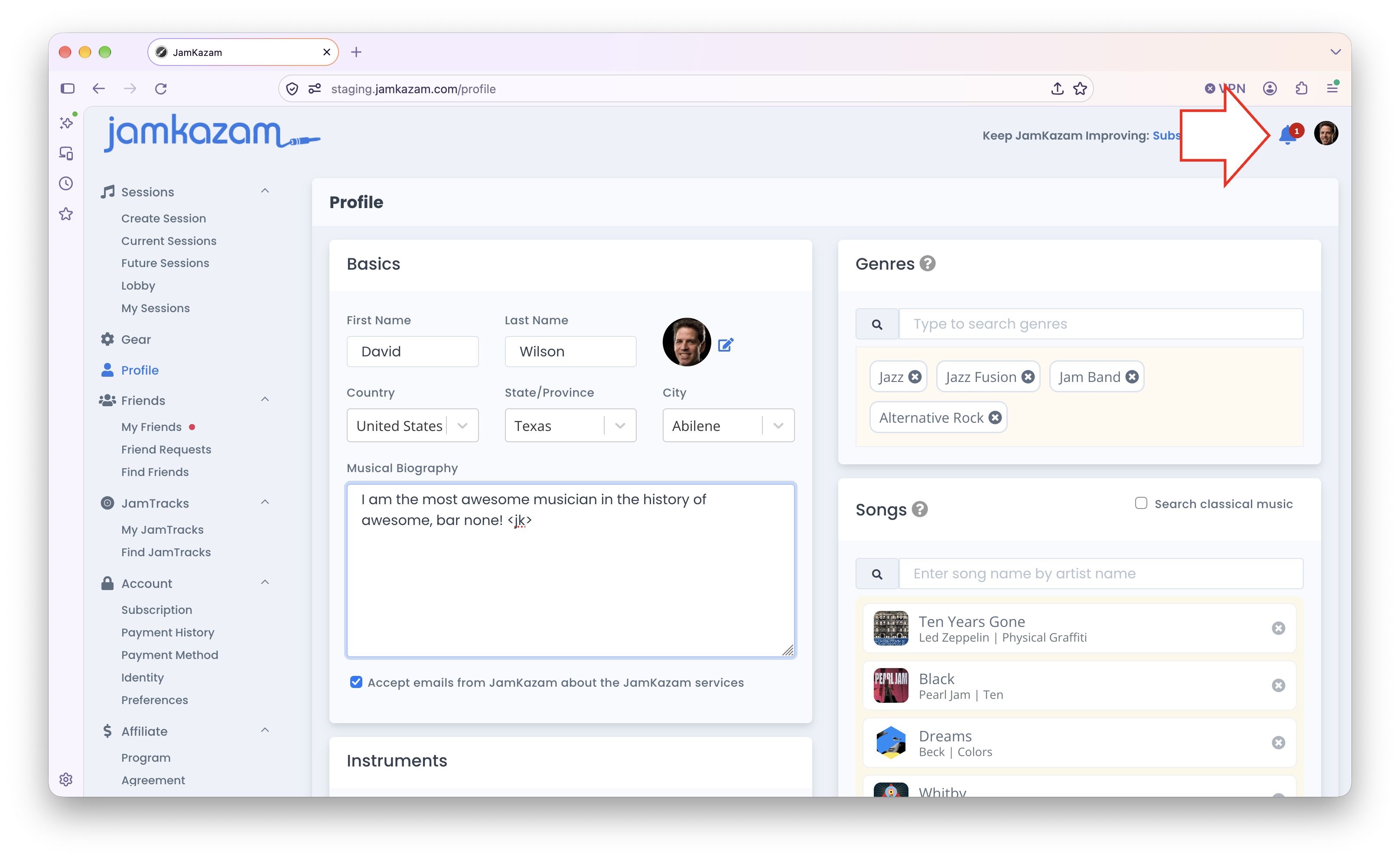
When someone else on JamKazam sends you a friend connection request, a notification is generated for you. This shows up as a red dot on your notifications icon at the top right of the JamKazam website, with a counter for the number of unread notifications (pictured below with arrow).
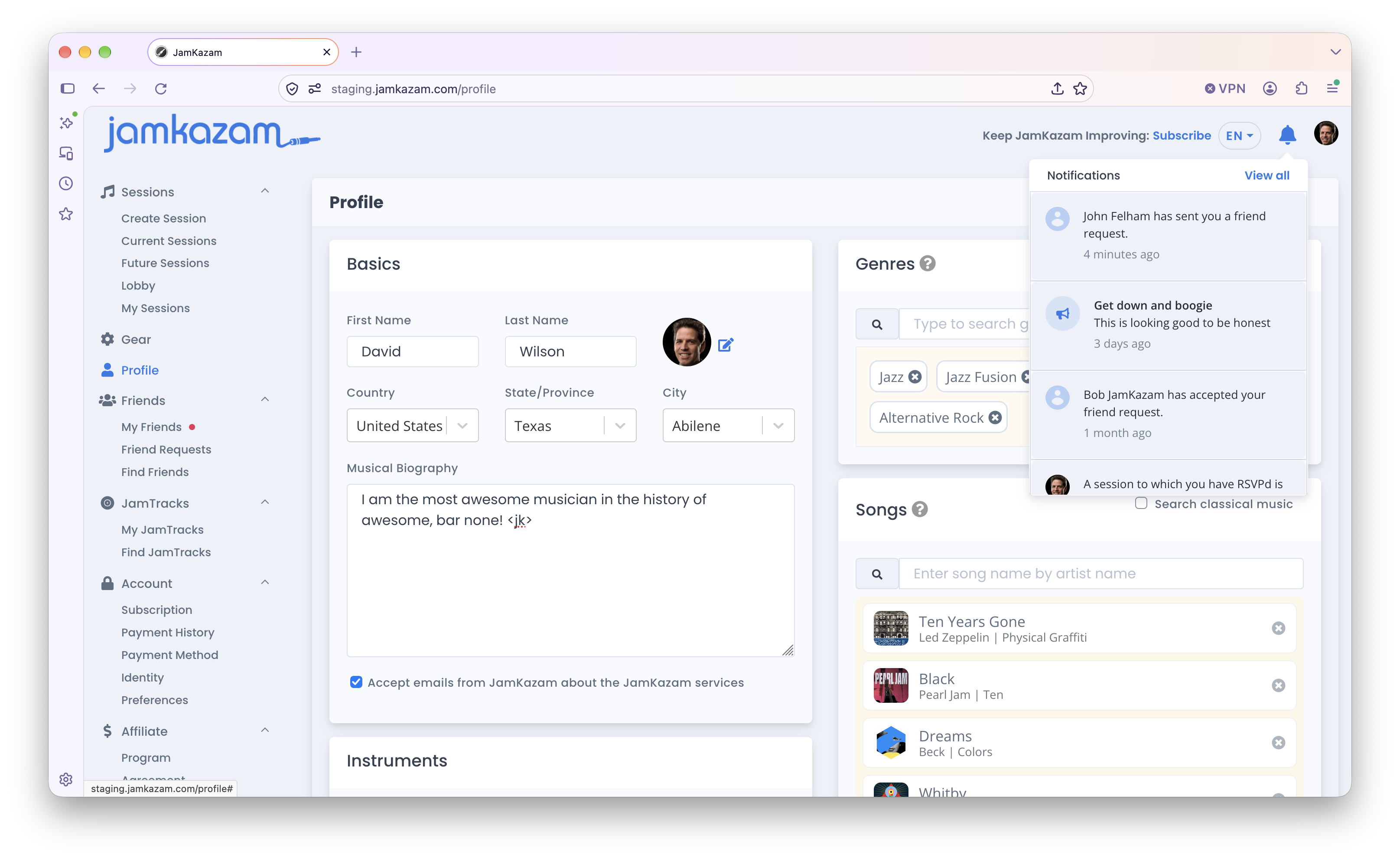
If you click the notifications icon, your most recent notifications are displayed (pictured below). The top notification shown is an example of a friend request this person has received.
If you click on the friend request notification, the My Friends page is displayed (pictured below). Note the red dot next to the My Friends option in the left navigation bar. In addition to the notification icon, if you have new friend requests, you'll also see this red dot next to My Friends.
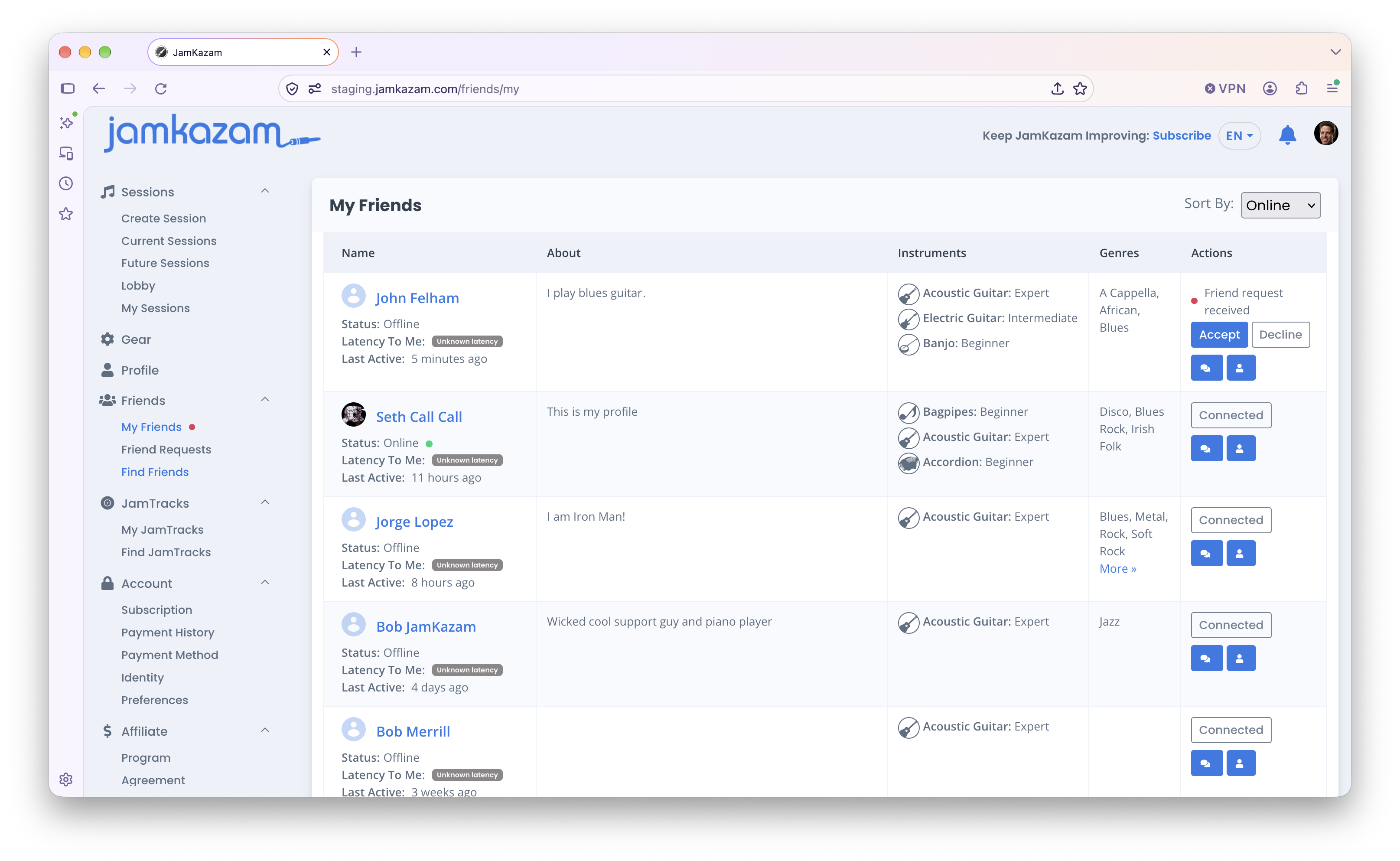
Any new friend requests are listed at the top of the My Friends page. See the request from John Felham. If you know you want to accept this request, you can simply click the Accept button in the Actions column (or click the Decline button if you don't want to accept the request). If you want more information/context, you can click on the user's name (the blue text link "John Felham" in this case) to see the user's JamKazam profile, which tells you more about them as a musician. You can also click the Chat icon in the Actions column to message back and forth if this is helpful before either accepting or declining the friend request.
If you accept the request, the user is added to your My Friends list. This lets you see their online/offline status, invite them to sessions, receive notifications when they start/schedule new sessions, etc.
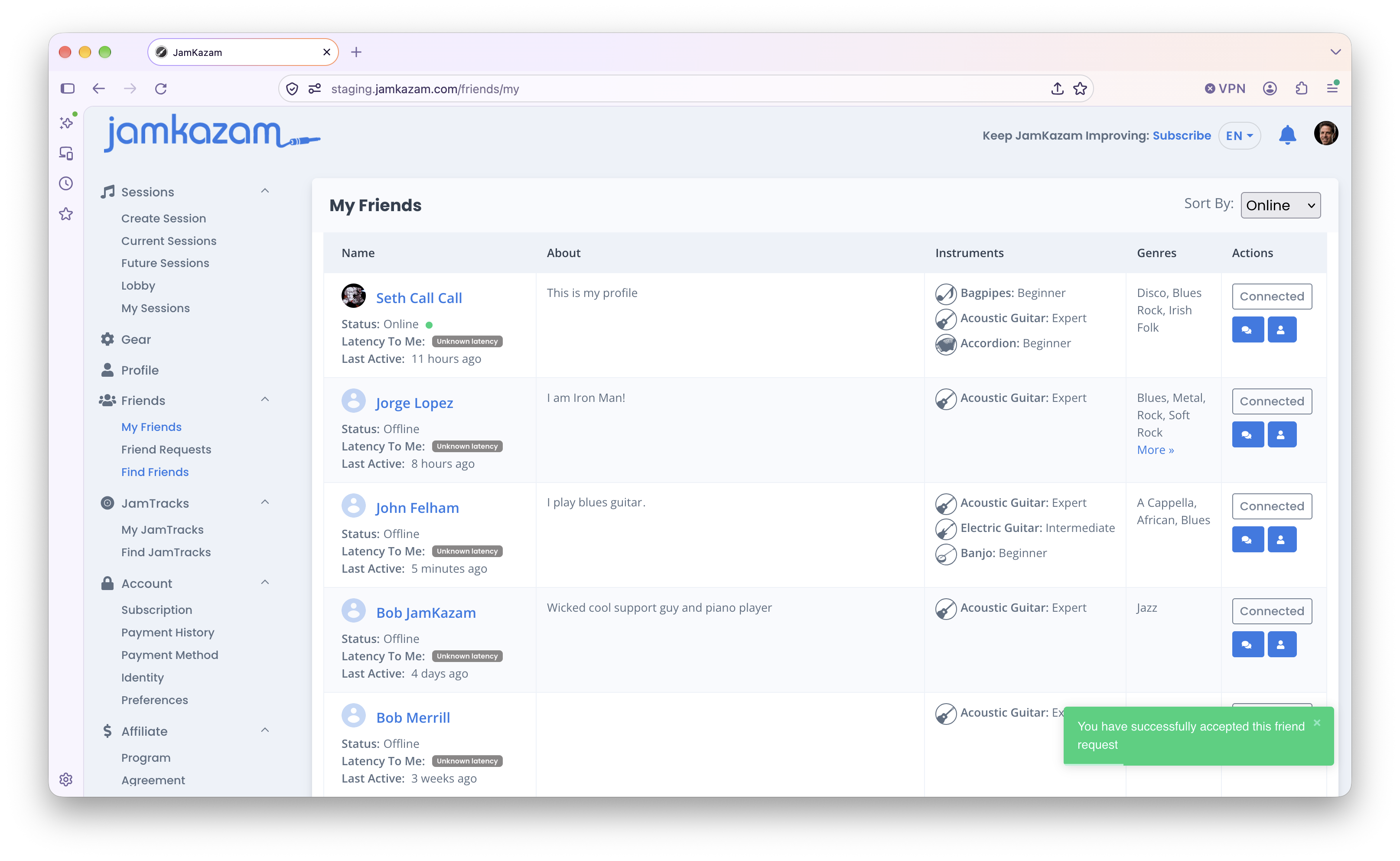
Note that the Actions column is updated. If you later want to disconnect from someone as a friend, click the Connected button in the Actions column, and follow the on-screen instructions to disconnect.