
If you're not familiar with JamTracks, read our help article that explains JamTracks.
If you want to search, browse, and purchase JamTracks (or grab your first one free to try it out), read our help article on using JamTracks in your browser.
If you already have one or more JamTracks and want to use them in the JamKazam app, this help article will explain why and how to do this.
There are three primary reasons to use JamTracks in the JamKazam app vs. a browser:
- You can play with the JamTrack and with other musicians in an online session. For example, let's say you play bass, and let's say you have a friend who plays keys. You can both join a session together, open a JamTrack, mute the bass and keys parts, and play along together with the rest of the band.
- You can make a video+audio or audio-only recording of yourself playing along with the JamTrack in the JamKazam app. Read our help article on making recordings for more information.
- You can more easily adjust levels of the various JamTrack parts in our app. The browser lets you adjust levels and make a custom mix, but our app lets you adjust levels of each part on the fly while the JamTrack is playing in your session, which gives you more flexibility, more immediate feedback, and makes it quicker to get the result you want.
Following are instructions on how to open and use a Jamtrack in the JamKazam app.
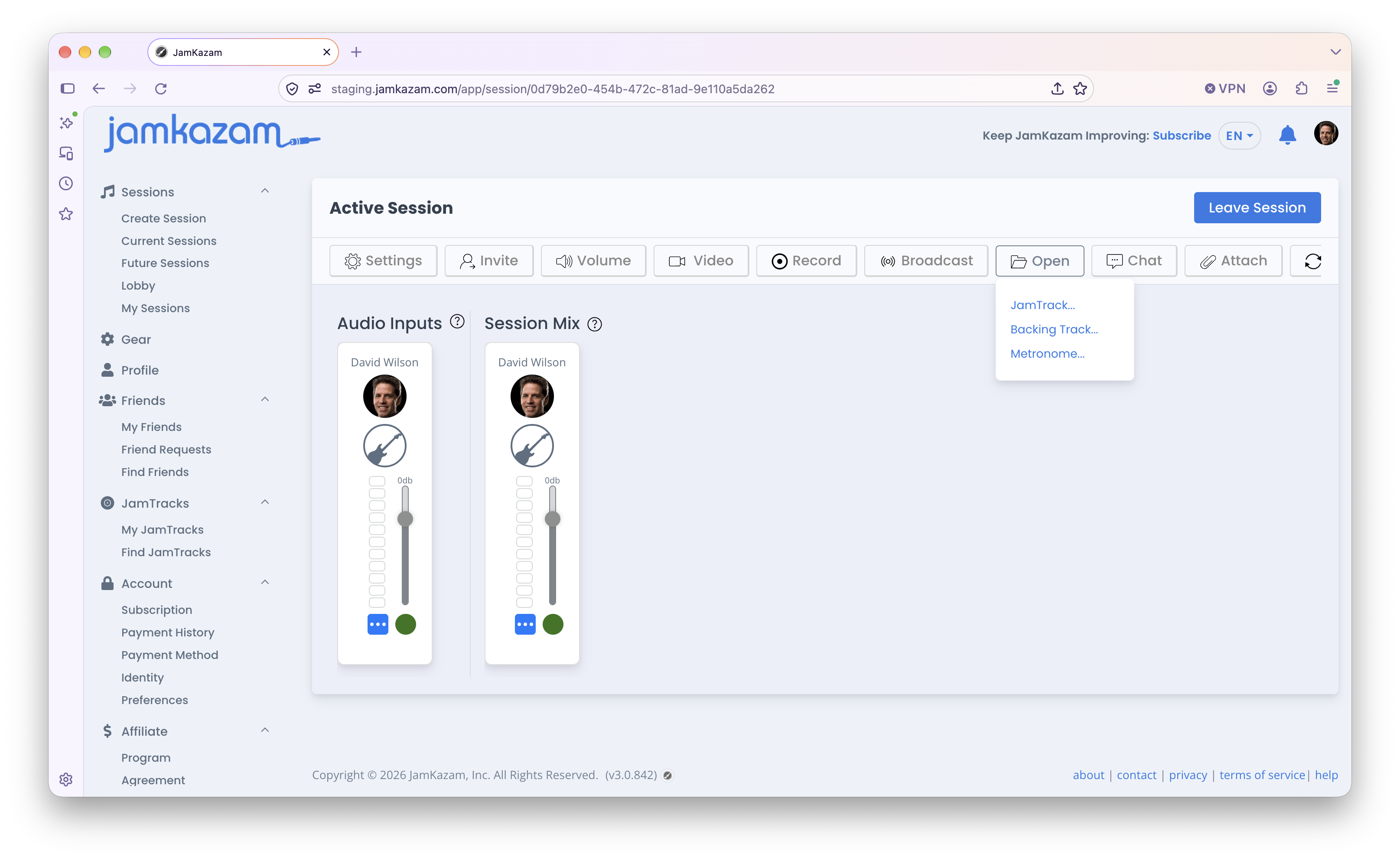
Start by creating a JamKazam session. When you're in this session, you'll see the session page. Click the Open button in the session toolbar, and you'll see a menu displayed (pictured below).
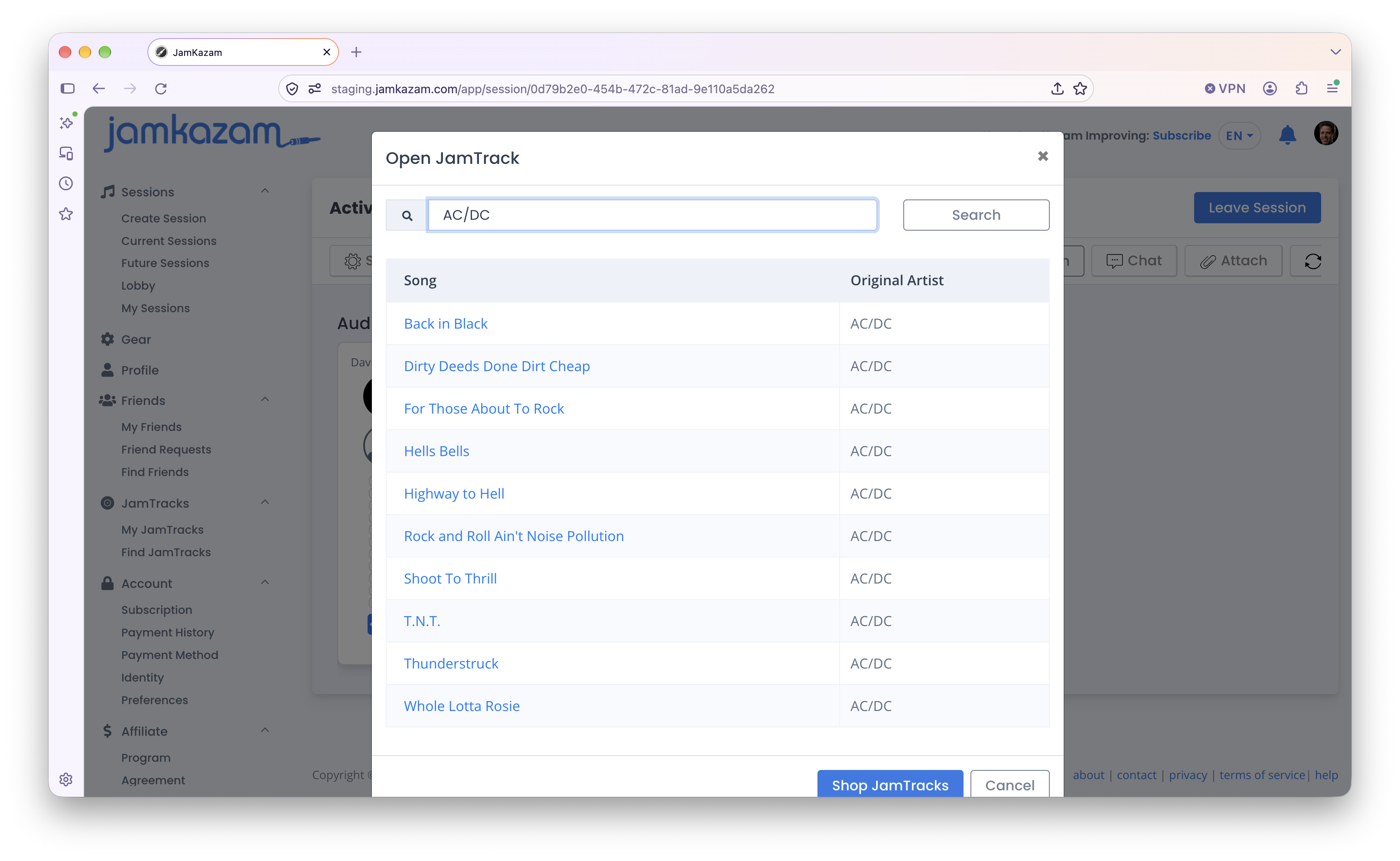
Click the JamTrack menu option, and a dialog box is displayed, listing all the JamTracks you have licensed (pictured below).
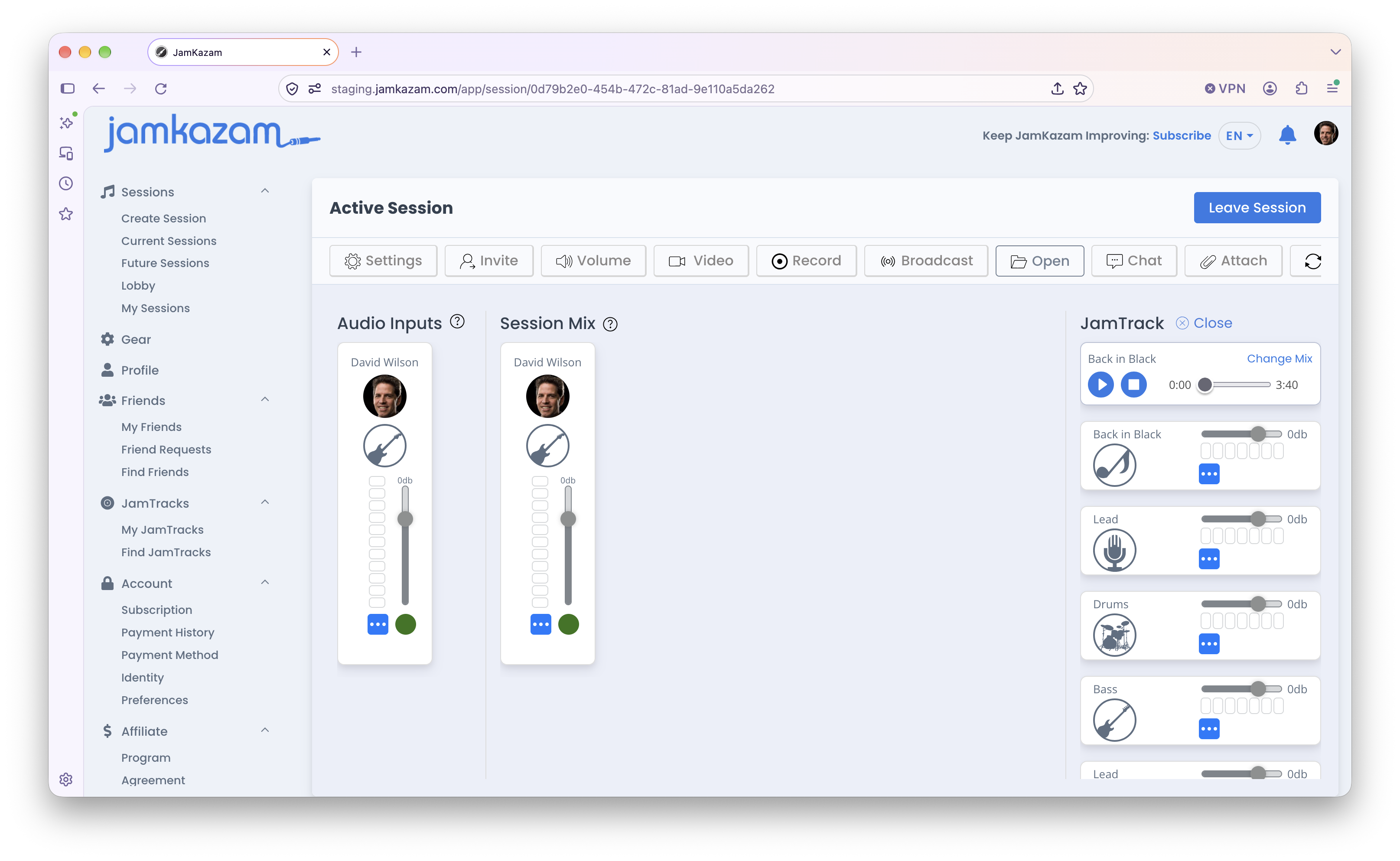
Click the JamTrack you want to open and play with. The JamTrack is loaded and its controls are displayed on the right side of the screen (pictured below).
The main things you'll likely want to do with your JamTrack are:
- Use the play/pause and stop buttons in the top control to manage playback. You can also grab the slider in the top control to start playback from a specific point in the song.
- Use the sliders/faders on any JamTrack part to make that part louder or softer in the session mix.
- Use the blue "..." button on any JamTrack part to display the pan control, and pan that part left or right in the session mix.